FirewindProject
Participant
March 27, 2017
Resuelto

Help with getting perfect white background with shadow.

  • March 27, 2017
  • 9 respuestas
  • 6239 visualizaciones

Hello!

I am doing some product shots for a company.

I tried to get the closest to white as possible background when shooting, but it is still just a bit off.

I am not sure how to easily correct the background to perfect white.

Any help would be great.

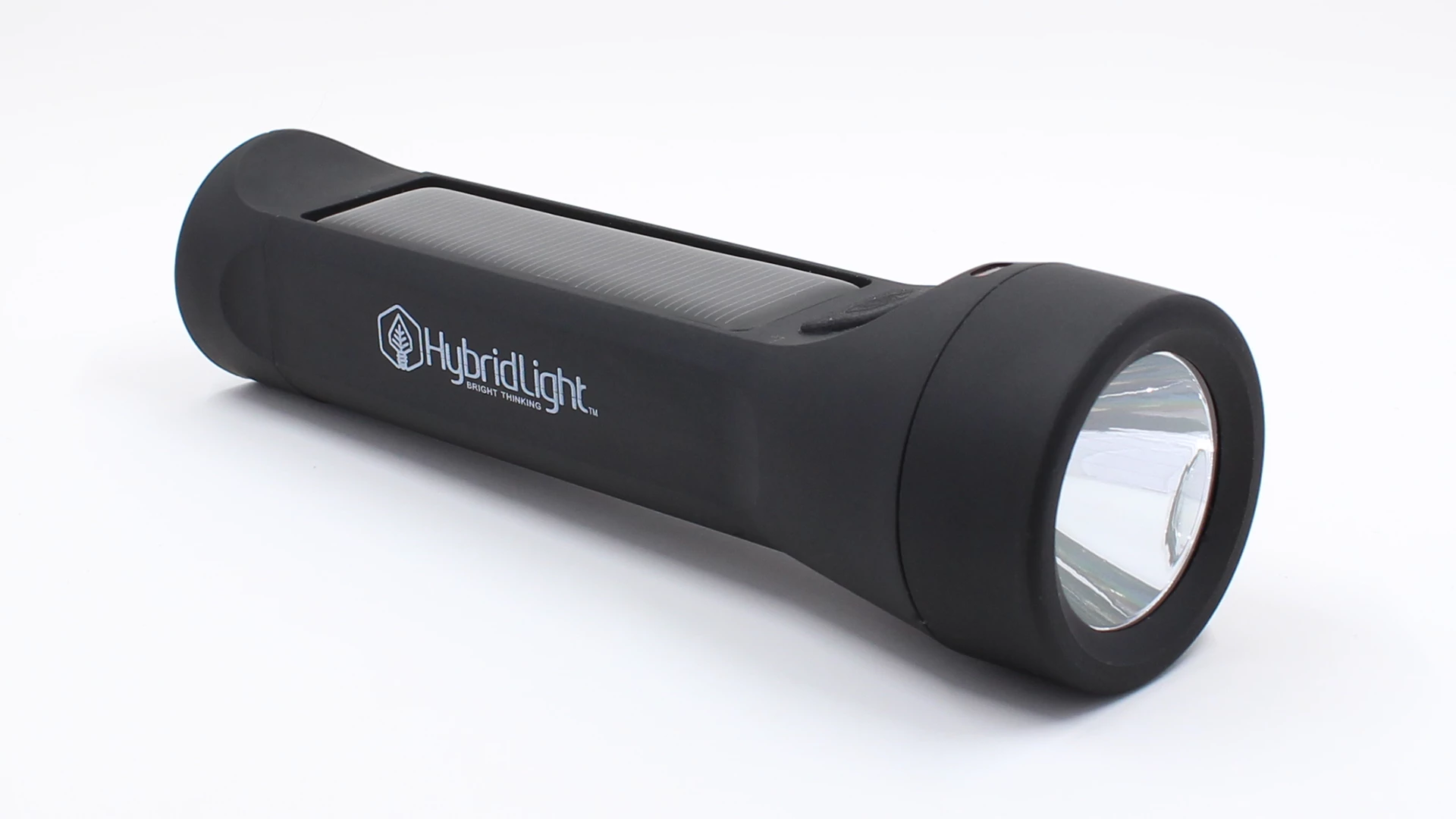
Here is one of the photos I am trying to correct.

It is close to white, but needs to be perfected. How can I change it?

Thanks.
Este tema ha sido cerrado para respuestas.
Mejor respuesta de D Fosse

Pardon me, but I think you're all overcomplicating this

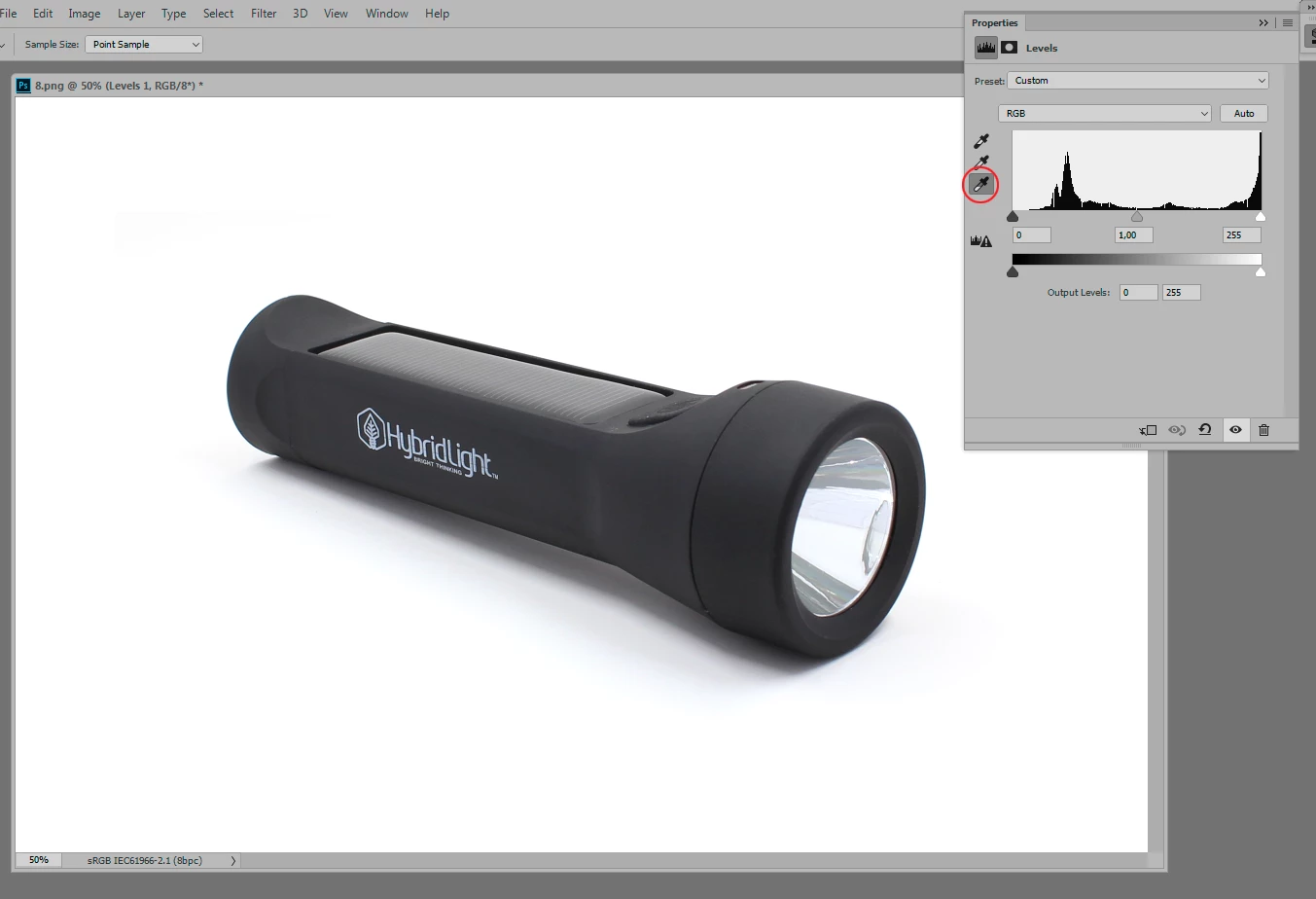
Just use the white eydropper on the background. Done. Here I dragged out a white background just to demonstrate. Yes, you can barely see it in the top left corner, but that's easily fixed:

The problem with complicated masking in these cases is that it so easily gets inconsistent and looking fake. What if the white in the reflector is light gray while the background is white?

People reach for masks and selections far too quickly IMO. Half the time it can be done with a simple global adjustment.

9 respuestas

Earth Oliver
Legend
February 13, 2023

@davescm I'm pretty sure this user above me is a gpt bot.

[Post referred to removed from thread by moderator]

davescm
Community Expert
Community Expert
February 13, 2023

@Earth Oliver  Yes it posted twice - the second time with a spam link. I've removed both from the thread, reported it, and locked the thread. Thanks for the heads up

RoberttLewis
Participant
August 1, 2021

Hey FirewindProject you can easily remove just few click on photoshop. Just follow this background removal guideline stape by step. hope now you can easily solve this issue. 

Participant
August 9, 2021

Hi,


Thanks very much for your response and for sharing the background removal tool link for Photoshop.


Although this is helpful for Photoshop, I'm still looking for the quickest and best method for getting a pure white background for product photography using Lightroom CC.


I'd like to keep the shadow cast by the object so I'm not sure that this clipping method in Photoshop would be suitable. Also, I'd like to stay in Lightroom CC as that's where I'm doing all of the photo editing.


The method that I've been using in Lightroom CC to achieve a white background is:


Edit
Brush tool- Select suitable brush size. Set the Feather, Flow & Density sliders to maximum.
Select Auto Mask
Set the Exposure slider to maximum.
Using the brush tool to paint the white background around the image, being careful to avoid the object and the shadow.


I've included a screenshot for reference.


Is there a quicker method to achieve a pure white background in Lightroom CC?


Is it possible to save this method as a Preset or a Brush in Lightroom CC and apply it to multiple photos to quicken the process?


Or does the above method need to be applied to every photo?


Thanks

Participant
April 1, 2021

Hello,


Regarding D Fosse's correct answer to Help with getting perfect white background with shadow- is it possible to do this using the newest version of Lightoom CC?


I'm working in the newest version of Lightroom CC Desktop and I'm working on product photography. I have multiple product images with a shadow photographed on a pale grey mottled background. I'd like to change the background to pure white RGB 255. The white background in the photo must match the white background on the website it's intended for. I'd like to keep the shadow cast by the product in the photo to give a more natural effect.


The newest Lightroom CC has a different layout and I haven't been able to find a white eyedropper tool to do this. I've looked up many online tutorials and they all advise on using a mask and a brush which I'd like to avoid as the white eyedropper tool method seems quicker and more efficient.


Is there a method to quickly achieve a pure white background in Lightroom CC?


Is it possible to save the method as a Preset or a Brush and apply it to multiple photos?


Thanks

Legend
August 9, 2021

Shoot it properly to begin with. There are a bunch of other techniques that can help, depending on the situation. Lightroom CC is definiely NOT the right tool for the job, though.

D Fosse
Community Expert
D FosseCommunity ExpertRespuesta
Community Expert
March 27, 2017

Pardon me, but I think you're all overcomplicating this

Just use the white eydropper on the background. Done. Here I dragged out a white background just to demonstrate. Yes, you can barely see it in the top left corner, but that's easily fixed:

The problem with complicated masking in these cases is that it so easily gets inconsistent and looking fake. What if the white in the reflector is light gray while the background is white?

People reach for masks and selections far too quickly IMO. Half the time it can be done with a simple global adjustment.

FirewindProject
Participant
March 27, 2017

This is it!

Thank you so much!

I knew about clipping it out, making the background white, and then adding a drop shadow, but I knew there had to be an easier way.

Just saved me hours and hours of work today.

Thank you so much..

- Miles

D Fosse
Community Expert
Community Expert
March 27, 2017

Of course, this was made a whole lot easier by shooting it right to begin with. This is the way to do it - good lighting, carefully cleaned up background. Too many shoot carelessly, and then say "I'll fix that later" - but then they always discover that it's a lot more work than they thought.

In general, always try global adjustments first - then turn to local adjustments/masks if necessary.

Inspiring
March 27, 2017

Hey check this tutorial! Its very helpful for product photography.

Product Photography Retouching Photoshop Tutorial: How to - YouTube

Inspiring
March 27, 2017

I would all what davecm did except for the shadow. You've got a good one already.

What I'd do is to Command Click the RGB Channel to create a marquee

invert, then apply a mask to a black filled layer (I'd take a point sample of the darkest area of the shadow too and use that as the black fill).

You can then adjust the mask using Levels or Brightness and Contrast to make sure there is no 'greying' around the image.

Trevor.Dennis
Community Expert
Community Expert
March 27, 2017

As Dave has said, if you are doing product work, then using the Pen tool to create clipping paths is pretty much a given.  Apart from enabling perfect white backgrounds, it also lets you give the client PNG files with transparent backgrounds that the client's website builders are going to thank you for. 


Clipping paths are so universal that there are now lots of companies — many in India — that specialize in making clipping paths.  For someone like our postrophe his time is too valuable to spend half his day making clipping paths when he can get the work done offshore for a song.

[link removed as the thread attracted spammers.]PEC

davescm
Community Expert
Community Expert
March 27, 2017

Hi There are various ways but a very quick way is

1. Select the object (I used the pen tool to do this as it is very accurate on such straight edges and smooth curves) and create a mask

2. Add a Color Fill layer set to white underneath the object layer

3. In Layer effects add a drop shadow to the torch layer

4. Finally an extra layer with the mask inverted then brushed along the front and back with white just to take the front and back edge off the drop shadow.

Dave

Eternal Warrior
Inspiring
March 27, 2017

There are quite a few ways to do this - Here are a couple of suggestions:

I would suggest the quickest and easiest way would be to use some adjustment layers.

Alternatively you could probably just cut the image and its shadow from the background and on a new layer add a fill with the desired white colour.