Participant
December 28, 2017
Answered

Help with "saving" ellipse for cropping

  • December 28, 2017
  • 5 replies
  • 1264 views

Hi everyone, I am trying to create a layer (?) that is an ellipse. I want to save this ellipse to use to crop different images. I know how to do this for a single photo (i.e., create an ellipse over a square photo and crop a section of that square photo into an ellipse), but I want to use the same ellipse (same size, placement, etc.) to crop different images. Basically, I want to crop a standardized ellipse out of different square images.

Please help! Thank you very much.
This topic has been closed for replies.
Correct answer davescm

I am not sure if I am reading your question correctly but I think you are trying to use a selection shape  from one document as a selection in another?

If so then try this:

1. In document one make your selection, I've used the elliptical marquee

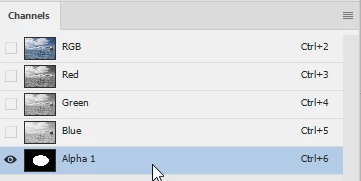
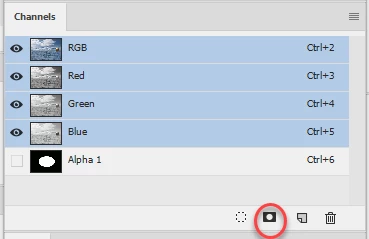
2. In the channels panel click on the icon to save the selection as an alpha channel

3. Turn on the eye symbol for the Alpha channel and on RGB eye symbol to turn the others off. Ensure the Alpha channel is highlighted

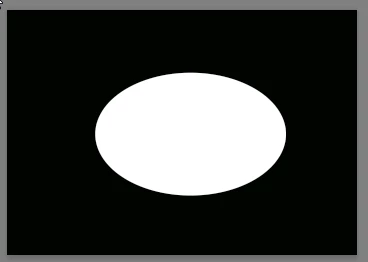
4. Your image should show your selection shape in B&W

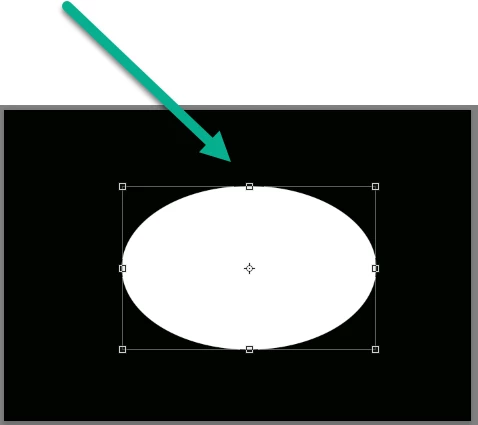
5. Use the move tool, outside the selection on the image to drag the selection to your second image document. Hold down shift before releasing will centre it

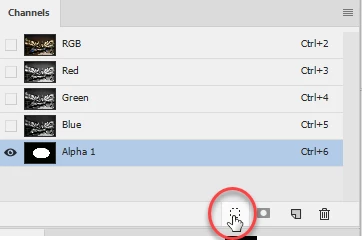
It will appear in the second document as an alpha channel. By clicking the symbol at the bottom you can turn it into a selection on your second document

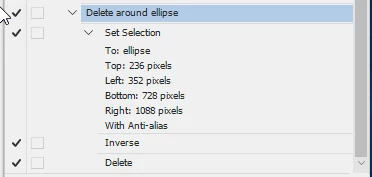
Alternatively you could record an action - making a selection and cropping which you can record and play in the other documents

Dave

5 replies

Barb Binder
Community Expert
Community Expert
December 29, 2017

So many great options, sg583! Let us know which one you go with!

~Barb

~Barb at Rocky Mountain Training
mglush
Community Expert
Community Expert
December 29, 2017

Just for fun, here is one more option you can try: Use the Elliptical Marquee tool to create your selection (ellipse). From the Select menu, choose Save Selection and give it a name. You can now Load the selection any time and in multiple documents anytime you need it.

You can also use the Save Selection option to save it into another open or new document:

Just wanted to give you one more option in your Photoshop arsenal!

Semaphoric
Community Expert
Community Expert
December 29, 2017

Using an elliptical path, you could do it like this

Use the Elliptical Shape tool (with Path set in the Options) to get your ellipse the shape you want it, and Edit > Define Custom Shape. Give it a good identifying name. Then, when you want to use it, use the Custom Shape tool, and select your saved shape from the drop-down Shape menu. In the little cogwheel drop-down menu, select Defined Proportions. Now, when you drag out this shape (again, as a path), it will have the same proportions as your original ellipse. Finally, Layer > Vector Mask > Current Path.

Barb Binder
Community Expert
Community Expert
December 28, 2017

Basically, I want to crop a standardized ellipse out of different square images.

Dave's idea works with a Layer mask so here's an alternative: a vector mask. I like vector masks because of their precision, their ease of editing and because I can see the size and position in the Properties panel.

Set the Mode to Path, then draw the Ellipse with the Ellipse tool. Adjust with the Selection and/or Direct Selection tools if necessary.

With the Path still selected, choose Layer > Vector Mask > Current Path.

Open up one or more files and use Window > Arrange so that you can see all of them (not required, but makes it more visual). Then drag the Vector mask ellipse to the next file.

If you need it centered, hold the Shift while dragging. Otherwise check the placement in the Properties panel. These pups aren't lined up like headshots might be, so I moved the second one a bit with the Selection tool (the black arrow). The sizes are identical. Then Layer > Vector Mask > Current Path.

And repeat.

~Barb

~Barb at Rocky Mountain Training
davescm
Community Expert
davescmCommunity ExpertCorrect answer
Community Expert
December 28, 2017

I am not sure if I am reading your question correctly but I think you are trying to use a selection shape  from one document as a selection in another?

If so then try this:

1. In document one make your selection, I've used the elliptical marquee

2. In the channels panel click on the icon to save the selection as an alpha channel

3. Turn on the eye symbol for the Alpha channel and on RGB eye symbol to turn the others off. Ensure the Alpha channel is highlighted

4. Your image should show your selection shape in B&W

5. Use the move tool, outside the selection on the image to drag the selection to your second image document. Hold down shift before releasing will centre it

It will appear in the second document as an alpha channel. By clicking the symbol at the bottom you can turn it into a selection on your second document

Alternatively you could record an action - making a selection and cropping which you can record and play in the other documents

Dave