November 4, 2012
Answered

How can I change a brush stroke after it is drawn?

  • November 4, 2012
  • 2 replies
  • 52719 views

I cannot make good pen lines with a thick stroke. It gets all out of wack. Is it possible to make my lines and change them afterwards?

    Correct answer Trevor.Dennis

    If you have multiple brush strokes on the same transparent layer, then making a rough selection before using Free Transform will affect the selected stroke. Or you could use Shift Ctrl J to move a selected stroke to its own layer and transform it.


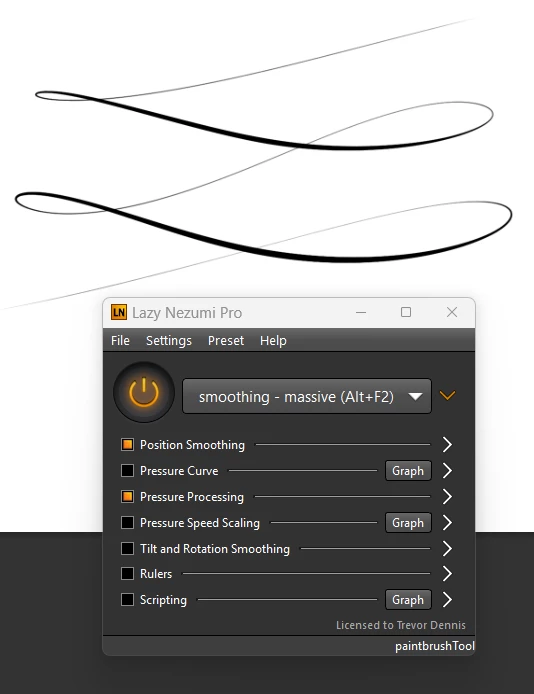
    If you are using Windows, then Lazy Nezumi Pro is the single most important plugin for Photoshop. As well as have killer brush smoothing, it has more presets than you could count in a day. It is is super useful for drawing in perspective, for instance. A lot of professionals in companies like Disney use it for Inking rough line art.


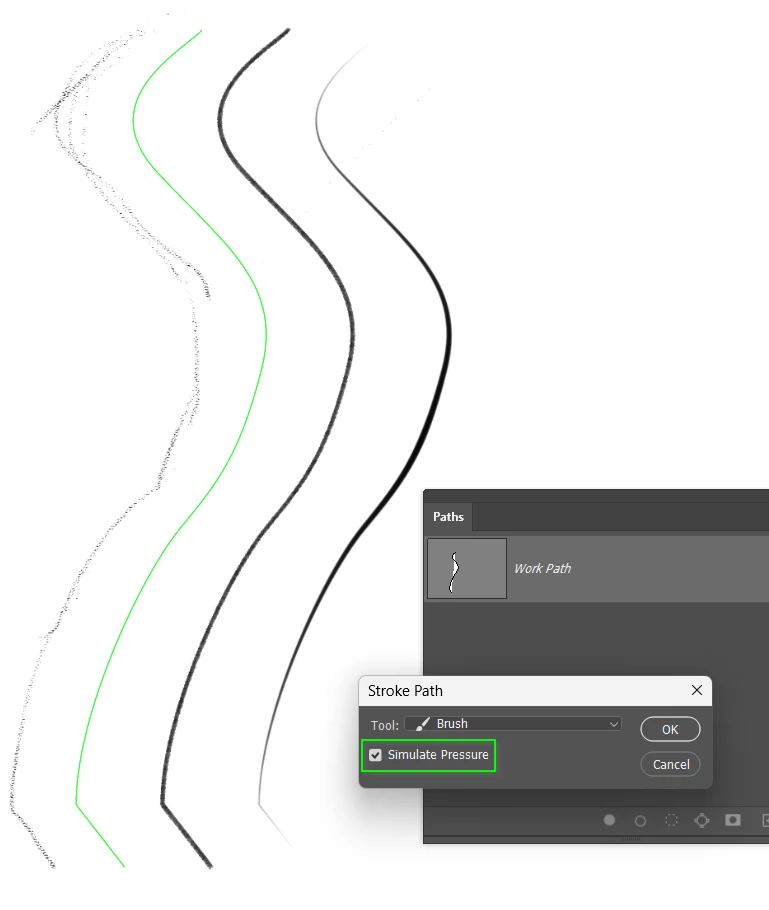
    If you are like me, and not the best at creating smooth flowing lines exactly where you want them, then another approach is to stroke a Workpath.  Even people llike Bert Monroy use this trick. If you enable Simulate Pressure then you can create tapered lines this way.  
    2 replies

    Participant
    May 31, 2025

    In Adobe Premiere Pro, you can’t directly edit a brush stroke after it’s drawn since it’s not a vector-based program like After Effects. However, if you used the Paint tools (e.g., in the Titler or an effect), you can adjust the stroke by: 1. Going to the Effect Controls panel. 2. Locating the applied effect (like Opacity or Mask). 3. Modifying keyframes or mask paths. For precise edits, consider creating strokes in After Effects and importing them.

    c.pfaffenbichler
    Community Expert
    Community Expert
    May 31, 2025
    quote

    In Adobe Premiere Pro, you can’t directly edit a brush stroke after it’s drawn since it’s not a vector-based program like After Effects. 

    This is the Photoshop Forum. 

    Adobe Employee
    November 5, 2012

    Hi My Dream,

    I have a few questions. Which tool are you using? Are you using the brush? If so, you can manipulate the width of your lines using layer styles. Please note that these styles will affect the entire layer, not just an individual stroke.

    1) Here I have a stroke that I drew with the brush tool.

    2) In the Layer Palette, click on the button that says "FX" to show the layer style options. Select "Stroke".

    3) Change the settings as desired.

    4) Match the colors to the original stroke.

    Good luck, and I hope this answers your question.

    November 5, 2012

    Thank you very much! I use the pen tool but will try the same!

    Kind regards,

    Candiz Derecho

    On Mon, Nov 5, 2012 at 2:22 AM, EricaLynneLarson