
Inspiring
December 13, 2017
Answered

How can I change the artboard to white?

  • December 13, 2017
  • 2 replies
  • 1233 views

Hi,  I am designing a website in Photoshop.  I have created 3 artboards on the screen: a main artboard to fit a1200px desktop screen then a tablet and a mobile size artboard alongside. There appears to be a gray cast over my #1 artboard while the other two remain white.  I have looked everywhere to see what would account for this but so far I cannot find a cause.  I could insert a white layer to cover the artboard but I don't want to add unnecessary layers.

Suggestions on how I might restore the main artboard to white much appreciated, please.
    This topic has been closed for replies.
    Correct answer

    Hi

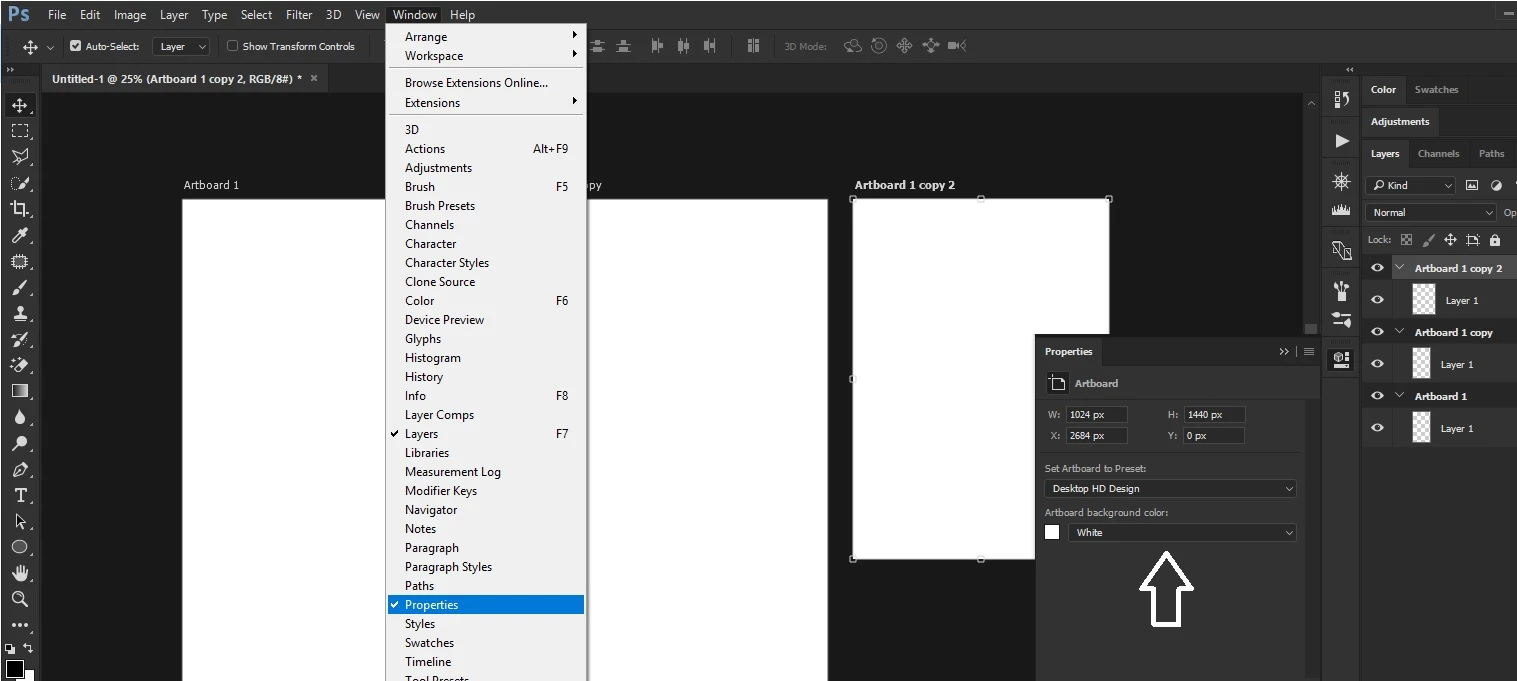
    I could be completely wrong here mainly because I don't use artboards in PS, but did you try selecting properties from the Window menu and changing the background color of the artboard from there

    2 replies

    Barb Binder
    Community Expert
    Community Expert
    December 13, 2017

    Without seeing a screenshot, I'd guess that when you created the new document with an artboard, a new layer is added to Artboard 1 with a color determined by the settings in the New Document dlalog box.

    The additional artboards don't get that layer. You can just delete it.

    If that isn't it, please share a screen shot.

    ~Barb

    ~Barb at Rocky Mountain Training
    brushwipeAuthor
    Inspiring
    December 13, 2017

    Thank you for your help.  I attach a screen shot of a portfolio in progress.  You can see the other artboards have a white base while the panel of logos on the main board is a separate layer colored white.

    Correct answer
    December 13, 2017

    Hi

    I could be completely wrong here mainly because I don't use artboards in PS, but did you try selecting properties from the Window menu and changing the background color of the artboard from there

    brushwipeAuthor
    Inspiring
    December 13, 2017

    Thanks for all the help.