


Participant
May 3, 2025
Answered

How can I fix the green/magenta channel in this image?

  • May 3, 2025
  • 2 replies
  • 629 views

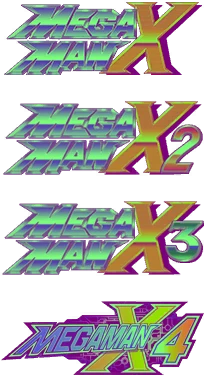
Hello. I extracted these images from a video game, but they have a green tint and magenta shadows that they shouldn't have. It's not an extraction issue, because I've extracted using multiple methods with the same result. So, I decided to try manually fixing them with color channels.

Here's what they look like now:
When they should look more like this:

I've noticed that their green channel just looks like a grayscale version of the image, with darker and lighter values than the red and blue channels. I believe the green channel is too strong and needs to be reduced somehow.
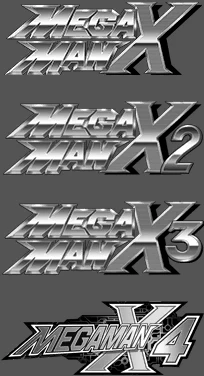
Any advice on how to weaken the green/magenta channel, or other ideas to remove the tint? I've attached the psd for reference.

Correct answer Saaam Skelegator

I managed to figure it out in GIMP, using the YCbCr compose functions. Thanks!

2 replies

Semaphoric
Community Expert
Community Expert
May 3, 2025

When I viewed both the extracted and desired images side-by-side (after changing the desired from indexed to RGB), the green channel looks the closest between the two. The red and blue look quite different. The extracted looks like a mask from Select > Color Range or a conversion to Lab color mode or something.


Are you extracting from within Photoshop, or something external?

Participant
May 9, 2025

Something external. I've used two programs: one called DDDATool and the other is QuickBMS. Both produce the same result as a .dds file, which I then open in Photoshop.

davescm
Community Expert
Community Expert
May 3, 2025

'It's not an extraction issue'

It looks like it is. A quick look at your channels it looks very much like you have extracted Yuv rather than RGB which is a method used when encoding video. The Y channel contains the luminance (and would appear as your 'green channel does), u has +/- blue hues (and would look like your 'blue' channel does with neutral as mid grey) and v +/- red hues (and would look like your 'red' channel does with neutral as mid grey). There is no green channel as -u and -v values result in green hues.

There is no straightforward method in Photoshop to use those channels.

Dave

Participant
May 9, 2025

Very interesting, thank you for the thorough answer. Do you have any programs you would recommend to work with Yuv channels?

Saaam SkelegatorAuthorCorrect answer
Participant
May 9, 2025

I managed to figure it out in GIMP, using the YCbCr compose functions. Thanks!