The following instructions aren’t specific to the shape presets; all of the preset types that were recently overhauled and redesigned (Shapes, Brushes, Gradients, etc.) work the same way:
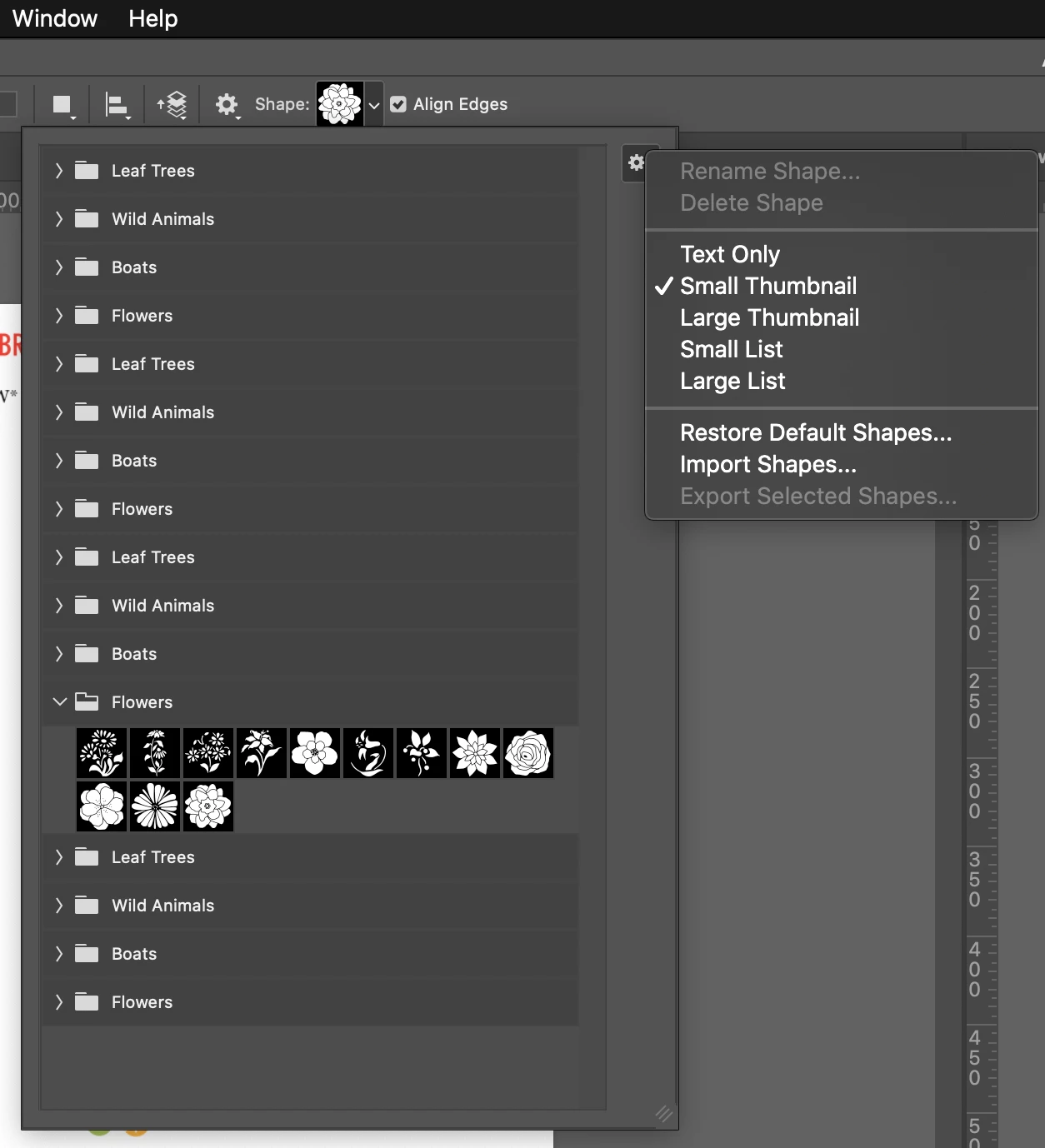
- To delete unwanted preset groups (folders) or presets, select them and click the Delete (trash can) button at the bottom of the panel for those presets. Or drag them there like Chuck said. You don’t see the Delete button in the list that drops down from the options bar that you showed; that’s because you have to manage presets in their panel. In this case, open the Shapes panel by choosing Window > Shapes and manage its presets there.
- To get at the old shapes, open the Shapes panel menu (click the four horizontal lines at the top right of the panel), and choose Legacy Shapes and More. This adds the Legacy Shapes and More preset group to the panel. Sadly, the old presets are buried in more subfolders, but you can dig out the old ones and arrange them at the top of the list if you want, then delete any you’re not interested in.
Yes, it’s a lot of steps and definitely not intuitive, but…that’s how they did it. Overall, the redesigned presets are much more flexible than before, it’s only how you get to the old ones that are a pain.
Note that Restore Default always adds the current default presets — not the old ones, and it does not delete anything. It only adds. That’s why Step 1 above is about first deleting the presets and preset groups you don’t want.

 AdChoices