
Participant
December 21, 2022
Answered

How can I resize multiple selections at once without moving them? Shrink-contract

  • December 21, 2022
  • 2 replies
  • 440 views

Hello, 

I have a spritesheet like this one
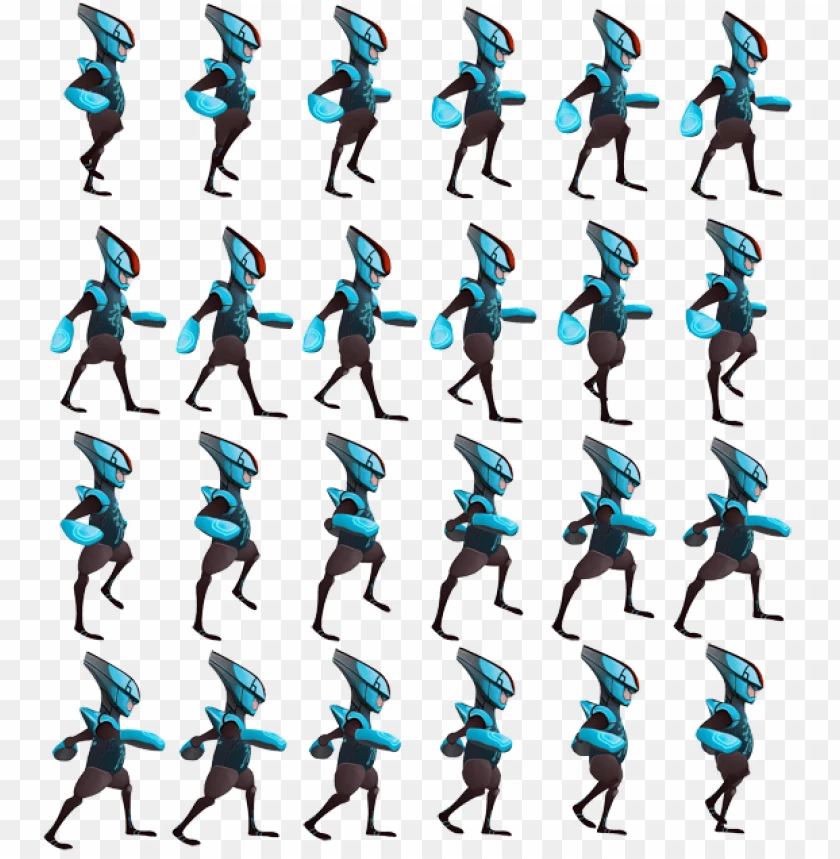
 

And I need all images to be smaller, but without changing their positions.

So far I know how to select them with the magic wand on a blank space, and inverse selection.

After that, I would need to shrink them. The tool "select -> modify -> contract" does exactly what I need, but it does only change the selection, and does not resize the image. I can't use "transform scale" because it moves all images, and I need them to keep their positions.

How can I do this? Thanks!

This topic has been closed for replies.
Correct answer Myra Ferguson

Right now, I can only think of a way to scale them at once and keep them in their respective locations by using Illustrator.


If your sprites are on separate layers and your file saved as a PSD (if not, then use Photoshop to select each sprite and place them on separate layers while maintaining the transparent background and save the file as a PSD), then I would recommend doing the following:

  1. Open the PSD in Illustrator
  2. In the Photoshop Import Options dialog, make sure Convert Layers to Objects is selected
  3. Select all
  4. Go to Object > Transform > Transform Each
  5. In the Transform Each dialog, set the percentage of the scale that you want to apply (keep the registration point in the center)

2 replies

Myra Ferguson
Community Expert
Myra FergusonCommunity ExpertCorrect answer
Community Expert
December 21, 2022

Right now, I can only think of a way to scale them at once and keep them in their respective locations by using Illustrator.


If your sprites are on separate layers and your file saved as a PSD (if not, then use Photoshop to select each sprite and place them on separate layers while maintaining the transparent background and save the file as a PSD), then I would recommend doing the following:

  1. Open the PSD in Illustrator
  2. In the Photoshop Import Options dialog, make sure Convert Layers to Objects is selected
  3. Select all
  4. Go to Object > Transform > Transform Each
  5. In the Transform Each dialog, set the percentage of the scale that you want to apply (keep the registration point in the center)
Participant
December 21, 2022

Thanks a lot for the instructions! It's a submission from a Fiverr artist (that is unresponsive to changes), so it's in PNG format, with 432 frames, so it will take me a while to test this, but I will definetly follow your steps.

Thanks again for your time! This is most probably what will do it!

jane-e
Community Expert
Community Expert
December 21, 2022

@Pau27663459nmq0 wrote:

it's in PNG format


You may already know this, but just in case: PNG does not support layers, so save it as a tiff or psd first in case there are further edits, then save a copy as a png.


Jane


Mylenium
Legend
December 21, 2022

Here's something I found in a quick three second web search:


https://blog.darkwark.com/transformEach21/


You may still need to tweak your layers manaully, though, since the bounding boxes for each of your alien's animation phases will be different. Otherwise that may be easily doable in whatever game engine you use after they've been loaded. For future work you may want to creatively use PS frame animation placing the character in a single cell and build your sprite sheet from the exported frames.


Mylenium

Participant
December 21, 2022

Hello! Thanks for your response! I would love to know what did you type in the "search" because I don't know how to actually search this question (I've been at it for quite a while). Sadly that script won't execute as it has constructor and typing errors (at least that's what my PS version says when trying to open it, that is Cs6 which is theorically supported). Thanks again!