


Participating Frequently
February 28, 2022
Question

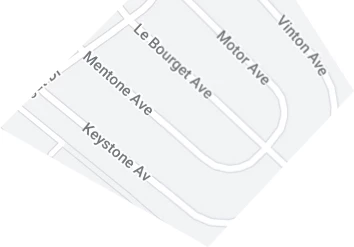
How can I yellow-highlight streets on a jpg city map?

  • February 28, 2022
  • 5 replies
  • 2499 views

With Photoshop CS4 on my Windows 7 pc, I made a jpg map of city streets. I'd now like to yellow-highlight specific streets to show the path I took walking from Point A to Point B.

(Point A and B were miles apart.)

Would appreciate any help in yellow-highlighting the specific streets I walked.

Ideally, I'd love to drag my mouse along specific streets and have them tinted yellow to highlight them without making their street names harder to read.


This topic has been closed for replies.

5 replies

Jeff Arola
Community Expert
Community Expert
March 5, 2022

Like this in cs4 as described by Semaphoric


Participating Frequently
March 5, 2022

I have Photoshop CS4, NOT Photoshop 2022. I haven't used all of CS4's tools.. Screen shots you make are DIFFERENT from screen shots I can make. Upgrading CS4 costs $100. There may be a way for me to do what I want with Photoshop CS4, but to help me, you have to be willing to answer questions I have about tools I haven't yet used. Are you willing to answer my questions? Until you are, your advice goes over my head. I'm a UCLA film school grad with 44 credits on my IMDb page. I'm bright and can learn anything you want to teach me. All I need is a willing teacher. 


Participating Frequently
March 5, 2022

You claim your gif file shows a CS4 work space. Yet in all the years I've used CS4, I've never had a work space like that! Please tell me how you got that work space. Specifically, how you got the 3 stacked panels on the right (Layers/Paths/Swatches). 

I'm happy to play Monkey see, Monkey do. But I can't 'do' until you tell me how!

(Incidentally, none of my street paths have curves. They're all right-angle intersections. The jpg pic with the curves was a random choice to hide my location!)

Participating Frequently
March 4, 2022

Wow. I'm overwhelmed by your response. About me: My jpg map is 36.6" tall, 26.5" wide. I built it by copying dozens of pieces of  Google Maps into Photoshop CS4, enlarging my canvas as it grew. The map has personal meaning for me. From its NE to SW corners, I walked on foot trying to find my car. I'd forgotten where I parked it. Spent days calling cops, describing it. Fianlly, a cop found it! Didn't want to pay Uber or Lyft or take buses, so I walked several miles to where it was and drove it home. The longest walk in my life! That's why I want to highlight that path.

At first, my post was "Marked as spam." No one believed it. I understand that. I'm like Rip Van Winkle.  Won't pay for Photoshop 2022. Somehow, I'll highlight my path in Photoshop CS4.

May take me a while. Haven't worked with the Pen tool or used layers like you guys have.

However long it takes me, wanted to thank all of you for your detailed, thoughtful replies.

Conrad_C
Community Expert
Community Expert
March 4, 2022

@Carl233696942upc wrote:

Somehow, I'll highlight my path in Photoshop CS4.


You will be able to. Nothing about this requires the latest version.


@Carl233696942upc wrote:

May take me a while. Haven't worked with the Pen tool or used layers like you guys have.


The Pen tool can be challenging to use…you don't have to use it for this. I use the Pen tool because I’m used to it, so it’s faster for me to both create a path and edit it later. If it’s easier for you to drag with the Brush tool set to yellow, use that instead. As long as you paint your path on a separate layer over the map, you can always correct mistakes with the Eraser tool without disturbing the map layer. You will still be able to easily let the street names show through by changing the blending mode of your yellow brush layer.

Participating Frequently
March 4, 2022

Hi Conrad C,

In CS4, the Pen tool has a color palette, the brush tool doesn't. I'm willing to try the Pen tool if you're willing to answer questions as they come up. For instance, with the Pen tool, I chose a yellow color and set two path points on a street, but I can't see how to make that street section yellow. Can you tell me how to?


Conrad_C
Community Expert
Community Expert
March 3, 2022

My favorite way is to use the Pen tool to create a path as a vector shape layer, because it creates precise, clean lines and it’s easy to make corrections later. I am not sure if all of the options shown below are in Photoshop CS4, but at least some of them should be. The basic idea is:

1. Set the Pen tool to Shape mode, set the fill to “none” and set the stroke to the color and weight you want.

2. In the Layers panel, set the blending mode so that the street names show through. I chose Multiply, but Darken and others may work better depending on how you want it to look.

3. Using standard Pen tool techniques, click and drag a path over the streets. In Shape mode, the Pen tool creates a path on its own layer.

4. To correct any mistakes, use standard path editing techniques using the Direct Selection or Pen tool.


Chuck Uebele
Community Expert
Community Expert
March 3, 2022

It depends how accurate you want to be. You can add a blank layer, above the make, and set the opacity to something like 50%, then just use the paint brush to paint over your route. You can also set the layer's blend mode to multiply, so the text shows through better.

Bob_Hallam
Legend
March 3, 2022

Open the image in Photoshop.  Open the history palet and check the box for Non-linear history. Duplicate the background layer. and set the layer blend moode to multiply.  Then  Select/Color Range to Sampled colors and sample the white street.  Adjust the fuzziness so that only the white streets are selected and Ok that selection.  Save that selection.   Flatten the image and fill with History at 100%.  Create a new layer and load the selection for the streets.  Fill this selection with the color yellow you want to use for your path.  Add a layer mask to this layer using the icon for that at the bottom of the Layers pallet.  Select the layer mask with you cursor so it is highlighted, then paint on that layer with black to remove any yellow streets or path you did not want.  Done...  


Hopefuly that helps.  

ICC programmer and developer, Photographer, artist and color management expert, Print standards and process expert.