Participating Frequently
September 25, 2018
Answered

How do I adjust colour balance without affecting black/white?

  • September 25, 2018
  • 2 replies
  • 980 views

How do I adjust colour balance without affecting black/white background?

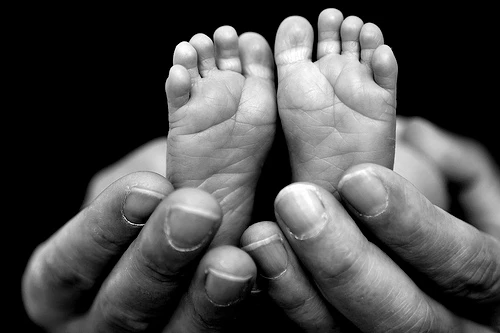
Basically I have converted images into black and white or grey scale.

I would like to add 5 to 20% red to the image but I don't want to affect the black background. See example below. I'd like to keep the background the dark pure black it is.

Is masking the way forward or is there an easier way?
    This topic has been closed for replies.
    Correct answer davescm

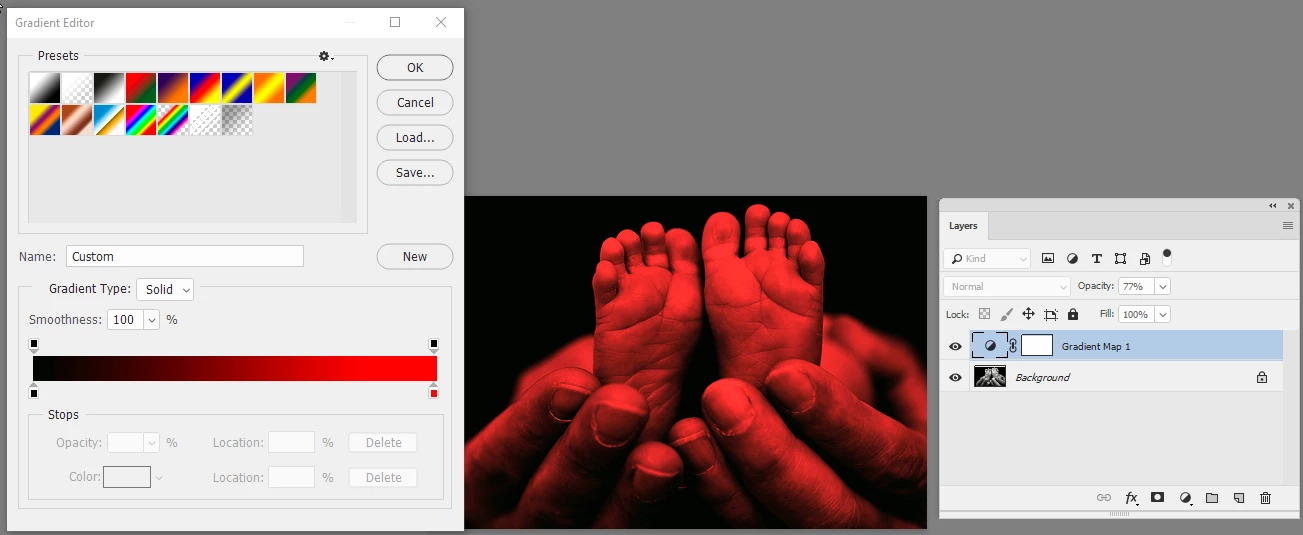
    Another alternative for your image is a gradient map adjustment layer

    Dave

    2 replies

    barbara_a7746676
    Community Expert
    Community Expert
    September 25, 2018

    There are many ways to add a color tint, none of which should change a pure black background.

    Here I added a Photo Filter adjustment layer with 25% red.

    Open the Info panel. Move your cursor around the image. Putting the cursor in the black area gives a readout of pure black. Putting the cursor over any area that is lighter than pure black shows you a readout of that color. The original color is on the left. To the right of the forward slash / is the new color value.

    davescm
    Community Expert
    Community Expert
    September 25, 2018

    Hi

    You could use a coloured layer set to "Color" blending mode. That will leave the luminosity alone and just add color (pure black and pure white remain the same). Adjust the opacity to suit.

    Dave

    davescm
    Community Expert
    davescmCommunity ExpertCorrect answer
    Community Expert
    September 25, 2018

    Another alternative for your image is a gradient map adjustment layer

    Dave