Participant
December 23, 2017
Answered

How do I blend in the eyes of a subject aften taking them from another photo

  • December 23, 2017
  • 2 replies
  • 411 views

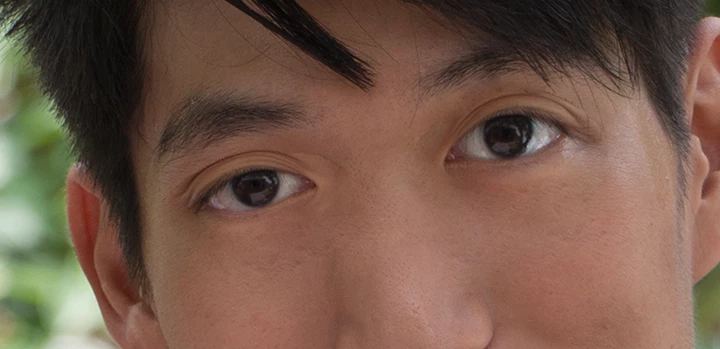
Hi...I recently took photos of my friends' wedding and I ran into some troubles with the eyes of the groom. in one image the eyes of the groom were perfect but the bride's face was scrunched. The similar photo was the perfect but the blinked. So I decided to take the eyes of the groom over to the better-looking photograph. The only problem is the photos were shot in different exposures giving me difficulty in working with the photo.  Now my question is how do I make the eyes look like they weren't cropped from another image. Please help educate this simpleton here. Thanks!!
    This topic has been closed for replies.
    Correct answer Norman Sanders

    If you had sent the separate files we could be of more help. At this point, with the image you sent (and assuming you are satisfied with the difference in sizes0 of the eyes, the next step would be to make a composite layer (Cmd+Opt+Shift+E) and then use the patch tool to circle the obvious patch edges that disturb you and drag them to smoother areas in the image. Photoshop will blend them in for you.

    You also may want to consider lightening the flesh tone (Curves or Levels) and sharpening the image.

    2 replies

    Norman Sanders
    Norman SandersCorrect answer
    Legend
    December 23, 2017

    If you had sent the separate files we could be of more help. At this point, with the image you sent (and assuming you are satisfied with the difference in sizes0 of the eyes, the next step would be to make a composite layer (Cmd+Opt+Shift+E) and then use the patch tool to circle the obvious patch edges that disturb you and drag them to smoother areas in the image. Photoshop will blend them in for you.

    You also may want to consider lightening the flesh tone (Curves or Levels) and sharpening the image.

    Norman Sanders
    Legend
    December 23, 2017

    We could provide the most precise adivice if you posted the two images here. Use this sumbol:

    Without seeing those images, this is a general guide:

    First, include an adequate area around the eyes and feather the selection.

    Move it to the image to be corrected, reduce the opacity of the layer a bit so that you may use the layer below as a guide as you Edit > Transform > Scale and postion the replacement. Then return the layer to 100% Opacity

    At this point, if the feather amount was adequate, the last correction would be to match the skin color, which probably may be done with Levels, Curves or Color Balance. An Adjustment Layer, clipped to the top layer (so the correction only affects the top layer)  allows for repetitive tweaks until you are satisfied with the result.

    Participant
    December 23, 2017

    this is the image the right place...I have problems fixing this...