


Participant
December 1, 2023
Answered

How do I change the background of photoshop

  • December 1, 2023
  • 2 replies
  • 307 views

Please read this post. At first glance, you might think I'm some photoshop noob who wants to make an image transparent. Far from it.

A few weeks ago while keyboard smashing because my computer was being slow I somehow managed to make the entire backdrop of my photoshop blue. Don't ask me how. I don't know. That's why I'm posting here.
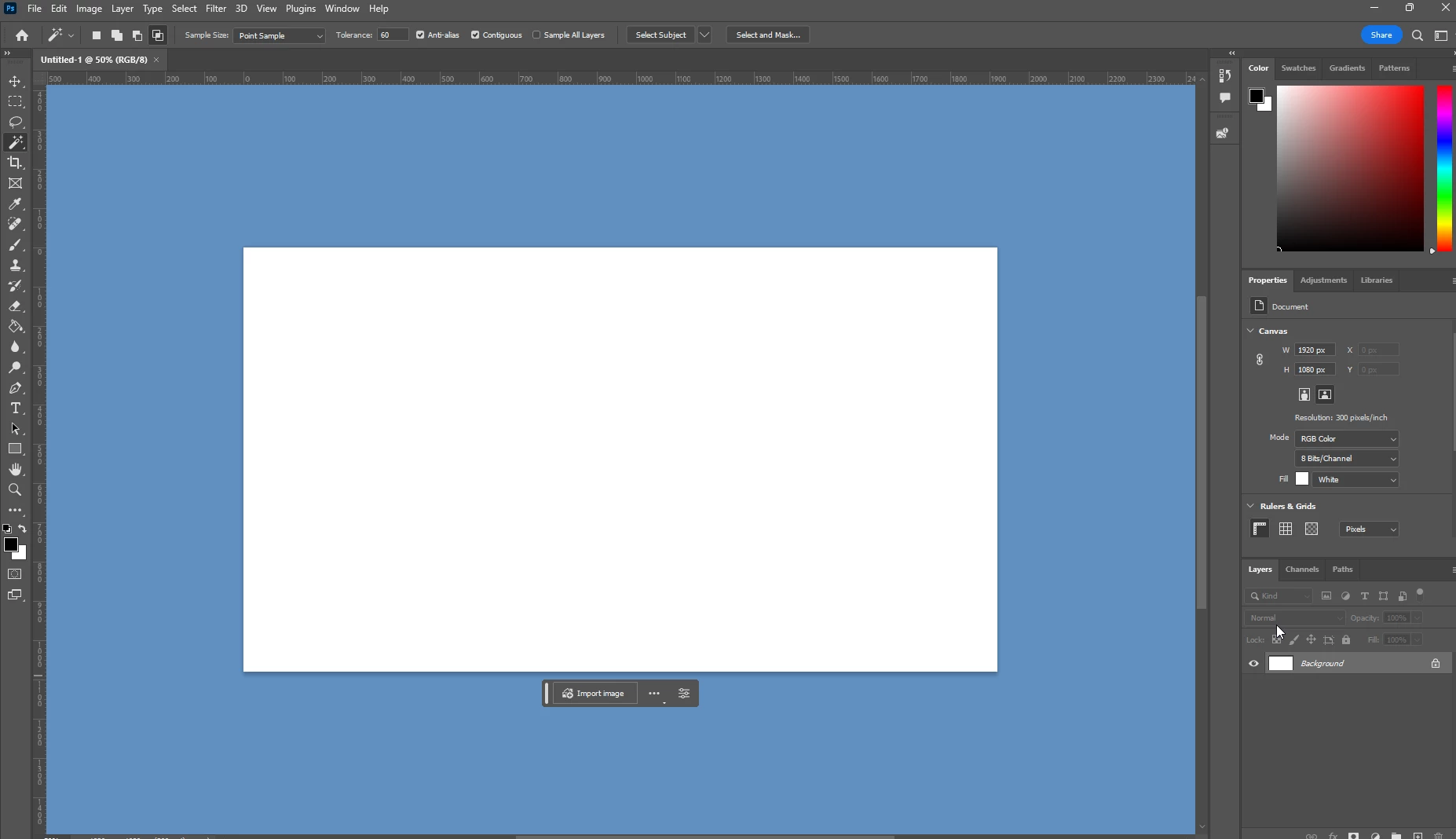
My question is how do I reverse this? I want it to be the default color again.
Anytime I google it I get hit with the obvious "uhhhh use the pen tool or the magic wand or the eraser" 
NO. That is NOT the question I am asking LOL.

Anyways. This has been really annoying to deal with so any answers are more than welcome. Thank you.

 

This topic has been closed for replies.
Correct answer D Fosse

The actual solution is to right-click on the backdrop area, and pick the color you want. The primary options you are presented with are a range of gray shades - but you had it set to "custom", which for some reason has this bright blue color by default, but you can use the color picker to choose any color you want.


2 replies

D Fosse
Community Expert
D FosseCommunity ExpertCorrect answer
Community Expert
December 1, 2023

The actual solution is to right-click on the backdrop area, and pick the color you want. The primary options you are presented with are a range of gray shades - but you had it set to "custom", which for some reason has this bright blue color by default, but you can use the color picker to choose any color you want.


Bojan Živković11378569
Community Expert
Community Expert
December 1, 2023

Participant
December 1, 2023

Update: I figured it out within seconds of actually reading my settings. If anyone else is ever in the same boat go to 
Edit > Preferences > Interface > Standard Green Mode > Choose Your Color Of Choice > OK

Now it'll be back to normal lmao