Participant
September 9, 2021
Answered

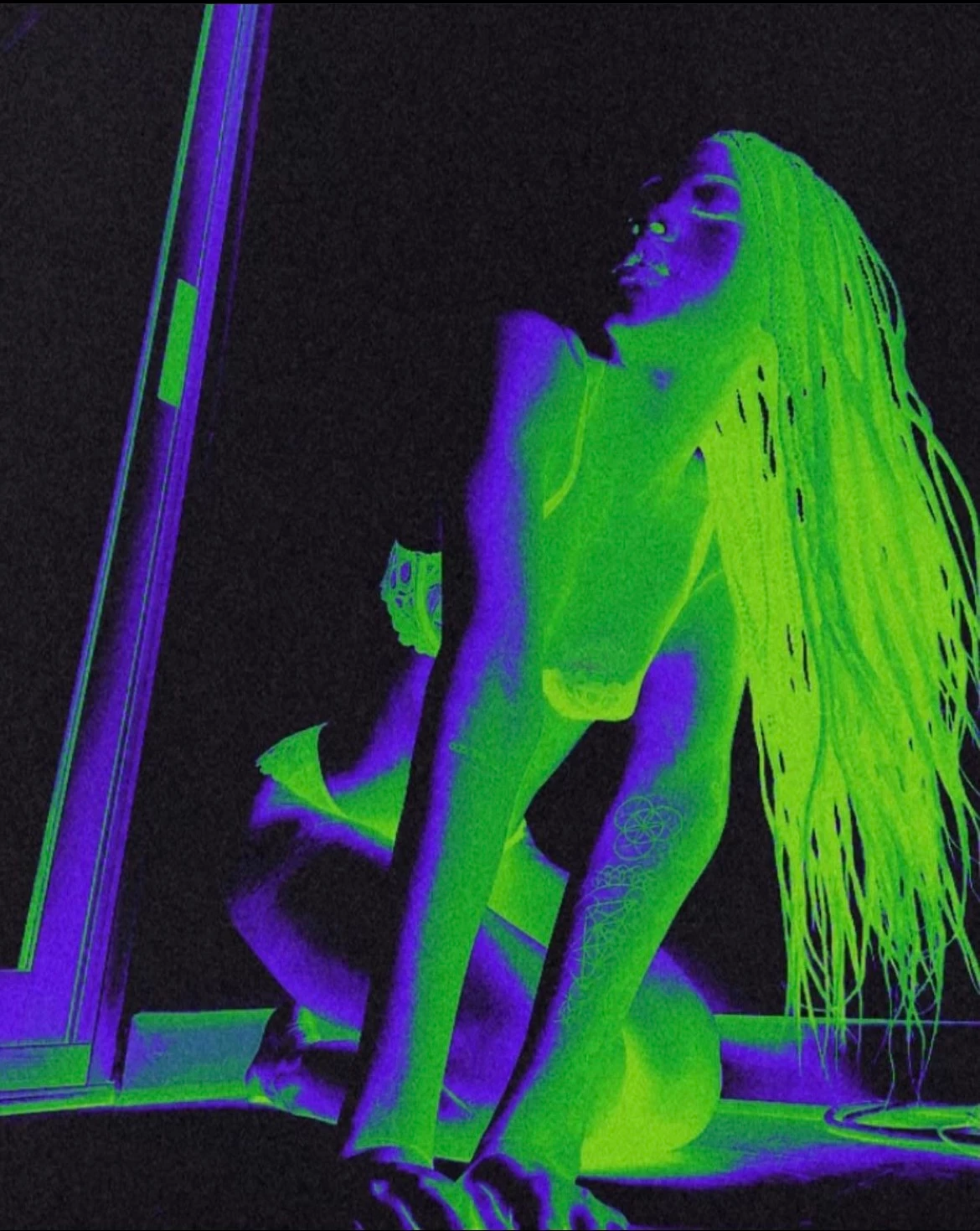
How do I create this effect in Photoshop?

  • September 9, 2021
  • 1 reply
  • 390 views

Hello everyone, 


I wondering if anyone can give me some gudance on how to colorize a photo like this.
 

This topic has been closed for replies.
Correct answer Myra Ferguson

You can apply a Gradient Map adjustment layer. Here's how:

  1. Open an image of a person with a fairly light background
  2. Go to Layer > New Adjustment Layer > Gradient Map (or add the adjustment layer from the bottom of the Layers panel)
  3. In the Properties panel (Window > Properties) click on the ramp to open the Gradient Editor
  4. Make the left color stop green (about #65b846) with a location of around 40%
  5. Add color stop to the middle, make it purple (about #4b14c9) with a location around 70%
  6. Make the right color stop black


Adjust the colors and locations of the color stops in the Gradent Map as needed.


1 reply

Myra Ferguson
Community Expert
Myra FergusonCommunity ExpertCorrect answer
Community Expert
September 9, 2021

You can apply a Gradient Map adjustment layer. Here's how:

  1. Open an image of a person with a fairly light background
  2. Go to Layer > New Adjustment Layer > Gradient Map (or add the adjustment layer from the bottom of the Layers panel)
  3. In the Properties panel (Window > Properties) click on the ramp to open the Gradient Editor
  4. Make the left color stop green (about #65b846) with a location of around 40%
  5. Add color stop to the middle, make it purple (about #4b14c9) with a location around 70%
  6. Make the right color stop black


Adjust the colors and locations of the color stops in the Gradent Map as needed.


iameMQueAuthor
Participant
September 10, 2021

Thank you so much, Myra! I have followed your instructions but now I have a solid gradient layer over my image and I'm unsure what to do next.
