henkiewenkie
Participating Frequently
May 20, 2019
Answered

How do I create this skin effect?

  • May 20, 2019
  • 6 replies
  • 3221 views

Hey guys,

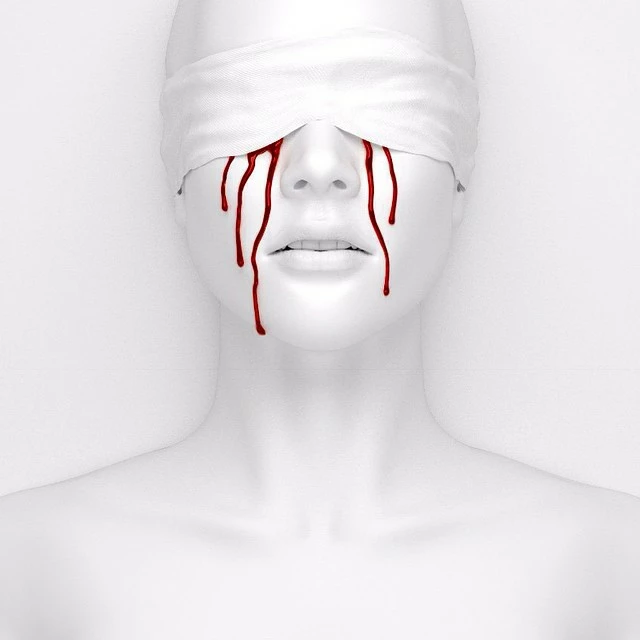
Im trying to recreate this effect, but I have no idea how this is done. Can somebody point me in the right direction? I tried searching for 'porcelain' skin.. but thats just lighter skin. This is almost like a diffuse plastic skin.. Any pointers will be appreciated...!
    This topic has been closed for replies.
    Correct answer c.pfaffenbichler

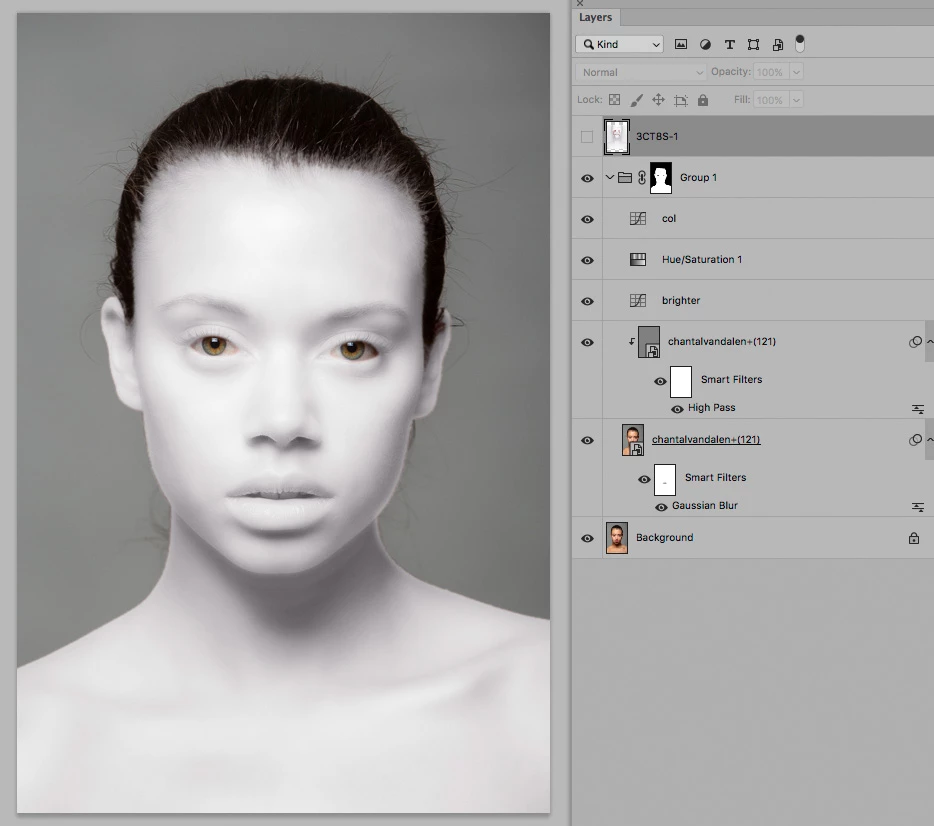
    To do it properly one would have to additionally address the edges, but I think a lot can be achieved with frequency separation and a few Adjustment Layers.

    6 replies

    henkiewenkie
    Participating Frequently
    May 22, 2019

    Thanks a lot everybody! I will try out those techniques and see how far I can come. Its definately been very helpfull so thank you all!

    KShinabery212
    Community Expert
    Community Expert
    May 20, 2019

    When Adobe did the 'I Am The New Creatives' campaign a few years ago, they asked artists to create a portait similar to theirs and to submit it.

    I did this and was featured on their page.  They had a guide on how to do it.....

    http://www.iamthenewcreative.com/index.html#p/join-us

    Look at step 2, create your portrait.... there is a tutorial to download.

    Granted you can skip the part where you add artwork to your face.  But this general idea is quite fun.  So just do the part of creating a white face.

    The other part with image projecting on the face you can skip.

    Then you can work on making the portait more plasticy... erase marks on the face, etc.  Create additional highlights and smooth everything.

    MY GUESS IS THAT THE ORIGINAL IDEA THAT YOU SHARE WAS A 3D GRAPHIC and not a photograph.

    Let's connect on LinkedIn. https://www.linkedin.com/in/kshinabery/
    Myra Ferguson
    Community Expert
    Community Expert
    May 20, 2019

    I'm not sure what you want to do with her hair, but I got the skin to look pretty smooth with these settings using the Camera Raw filter

    Norman Sanders
    Legend
    May 20, 2019

    This is the untouched Cyan channel in the CMYK set (Displayed darker here, for some reason.)

    davescm
    Community Expert
    Community Expert
    May 20, 2019

    High

    You could experiment with a combination of frequency retouching to soften the skin, a black and white adjustment layer set to lighten the reds/oranges curve to lighten and then painting with black/white brush on a layer set to overlay blend mode to bring out the glow

    Dave

    Chuck Uebele
    Community Expert
    Community Expert
    May 20, 2019

    Another way might be to use B&W adjustment layers.

    Create a copy of the red channel to use as a mask.

    Use a B&W ajustment layer set to luminosity to lighten the reds.

    Add another B&W layer with the red channel reversed as a mask:

    Add a third B&W ajustment layer to convert all to B&W

    Add curves to adjust the shadows.

    c.pfaffenbichler
    Community Expert
    Community Expert
    May 20, 2019

    Please post (a section of) the image you want to edit thusly.

    Frequency separation might have been used, but with certain details manual masking or even painting could be necessary.

    henkiewenkie
    Participating Frequently
    May 20, 2019

    This is a portrait I shot last week. I would like to use the effect from the example on this portrait. So I want the skin and lips and stuff to become as the example I provided.

    c.pfaffenbichler
    Community Expert
    c.pfaffenbichlerCommunity ExpertCorrect answer
    Community Expert
    May 20, 2019

    To do it properly one would have to additionally address the edges, but I think a lot can be achieved with frequency separation and a few Adjustment Layers.