
candaceg24120747
Participant
February 9, 2024
質問

How do I cut out a shape in a graphic leaving the graphic and how do I save it to remain transparent

  • February 9, 2024
  • 返信数 2.
  • 1419 ビュー

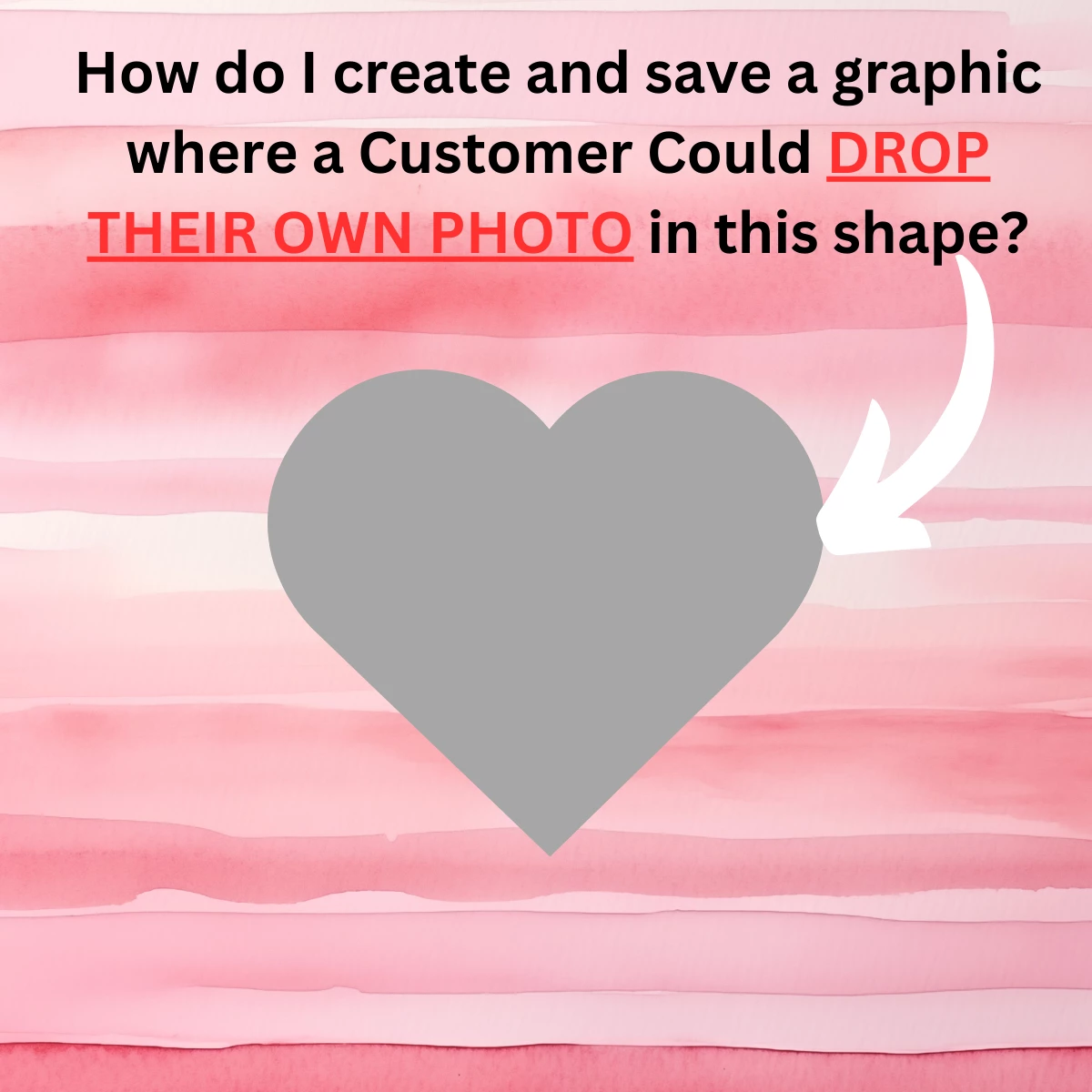
I want to cut a shape (for example a heart or circle) shape out of a graphic leaving the rest of the graphic in tact. The shape that is cut out will remain transparent.

1. How do I cut the shape out leaving the background in tact?

2. How do I then save the image so that cut out remains transparent?

Thanks in advance
このトピックへの返信は締め切られました。

返信数 2

Conrad_C
Community Expert
Community Expert
February 9, 2024

With the latest tools, a basic hole can be created in seconds. The steps shown in the demo below are:

1. Use the Object Selection tool to find and select the heart shape. 

2. In the Layers panel, click the Add a Layer Mask button. 

3. In the Properties panel, invert the layer mask so that the heart becomes a hole. 


If you need the heart outline curves to be absolutely perfect and sharp, use the advanced technique of using the Pen tool to draw a path that traces the heart shape, then apply that as a vector mask to the layer. That will take a bit of training and practice, though.


You must save the result in a file format that supports transparency. The exact format depends on how you want your customers to add the picture. For example, if this will be a Photoshop template, save it as Photoshop or TIFF format but as a layered file with transparency (no flattening, no background layer). If you are creating a web page, you probably want to save it as PNG with transparency, and the image insertion will be handled by your web page code.

Legend
February 9, 2024