Participating Frequently
August 19, 2023
Answered

How Do I Cut out the edges of the rectangle?

  • August 19, 2023
  • 2 replies
  • 1287 views

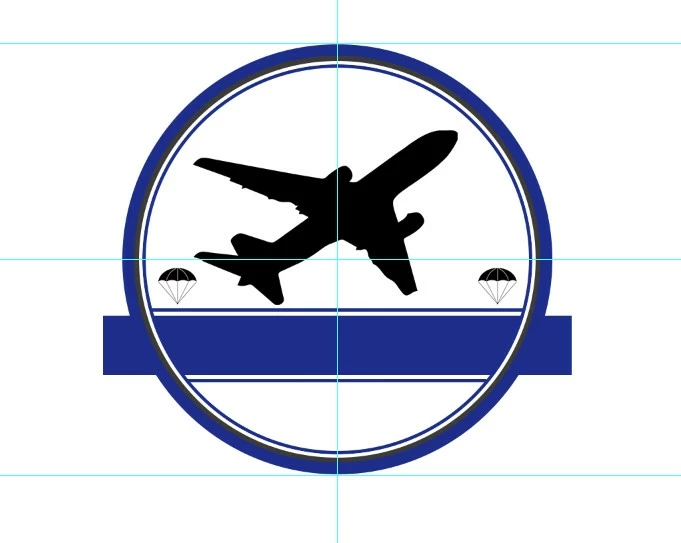
How can I crop this so when I save it, its a perfect circle and the edges of the rectangle are excluded? Elliptical Marquee tool wont do it. It always includes the whole rectangle no matter what

 

This topic has been closed for replies.
Correct answer Conrad_C

Vector Mask now works but I should mention this is not a single image, these a composition of shapes that I ordered together and so the rectangle remains after these steps


Oh, of course. In that case, you can A) put all the layers in a layer group, and B) add the vector mask to the group. To do A), in the Layers panel select the layers, and click the folder icon (Create a New Group) at the bottom of the Layers panel, or choose Layer > Group Layers.

2 replies

Conrad_C
Community Expert
Community Expert
August 19, 2023

I like to use an elliptical vector mask for this type of thing, because it is much easier to edit later. Steps for what is shown in the demo below:

1. Choose the Ellipse tool (not Elliptical Marquee tool), and in the options bar, make sure the Ellipse tool is set to Path.

2. Starting from the center, drag out while holding down the Alt and Shift keys (Option and Shift on macOS), to draw from the center and constrained to a circle.

3. Choose Layer > Vector Mask > Current Path. You now have a circular vector mask. Or Ctrl-click (Windows)/Command-click (macOS) the Create New Mask button in the Layers panel.


If you need to edit the vector mask, use the Path Selection or Direct Selection tool, or any path editing tool.


Participating Frequently
August 20, 2023

When on step three, the Vector Mask option is greyed out and cannot be selected. And remedy to this you are aware of? I googled and cannot find.

Conrad_C
Community Expert
Community Expert
August 20, 2023

The Vector Mask options should be available if a path is selected. You want to make sure the path you drew for the mask is selected. To verify that a path is selected (and which one, if more than one path exists), open the Paths panel.

Jeff Arola
Community Expert
Community Expert
August 19, 2023

First make sure the toolbox colors are at the Default by pressing D on the keyboard, then after you draw the Elliptical Marquee tool out around the circle go to Select>Inverse, Edit>Clear, Select>Inverse and finally Image>Crop.


Participating Frequently
August 20, 2023

Unfortunetly the clear option under edit is greyed out. Any way around this?


Participating Frequently
August 20, 2023

Actually what i mean is there is no crop option un Edit