
Ken Nielsen
Legend
September 6, 2022
Answered

How do I delete vertical bars of functions off to the right of screen?

  • September 6, 2022
  • 2 replies
  • 551 views

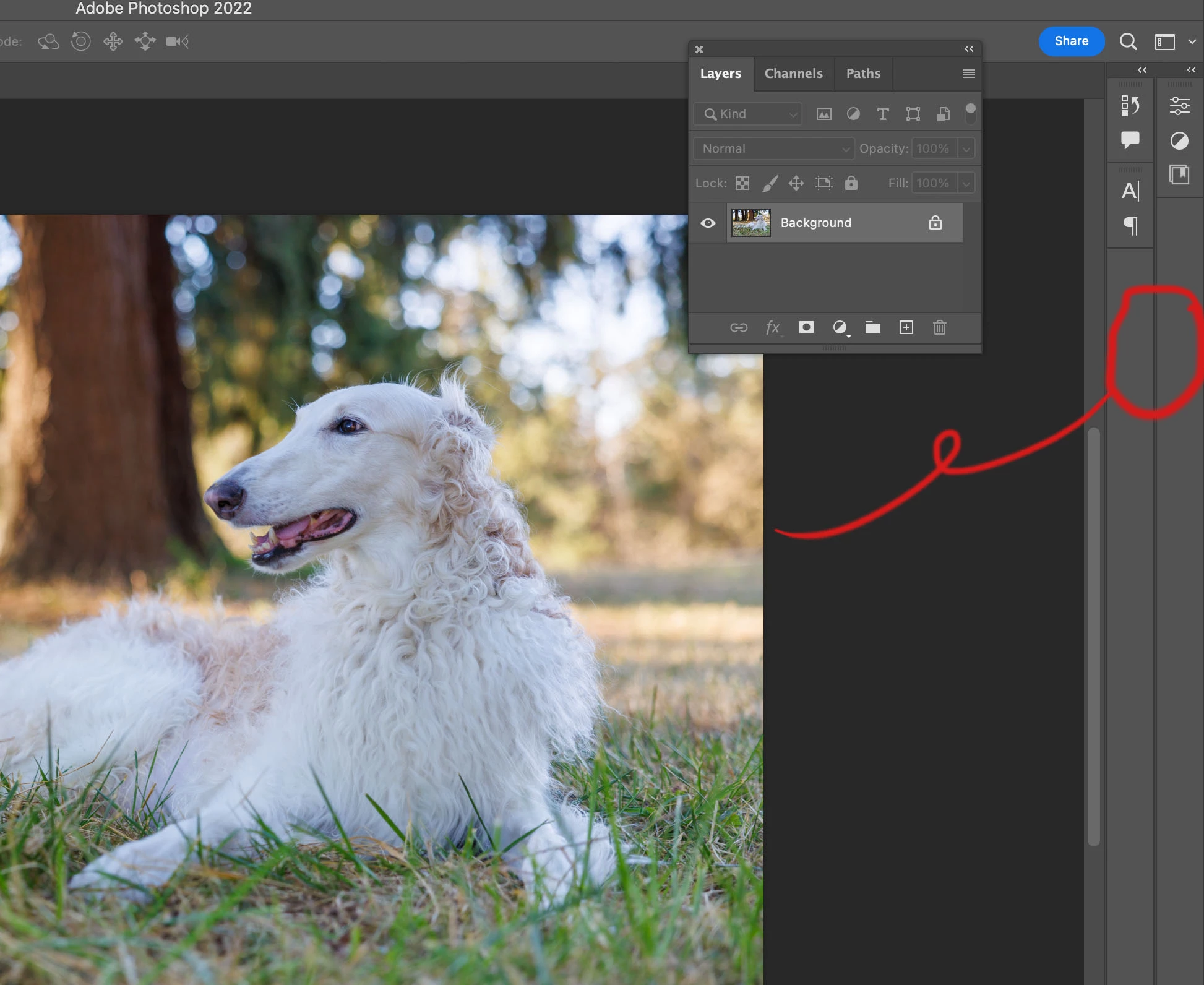
The photo shows best when there are vertical bars of functions off to the right of the screen in Photoshop, they can be expanded and I think you can open and delete one function at a time but time-consuming... Question is: How do you delete the entire vertical bar to give more space onscreen and also because none of those functions are needed at the time?
TIA,
Ken
This topic has been closed for replies.
Correct answer Ken Nielsen

This got me trying different things, creating a new workspace or running through the 'F' key windows was not it, but you did get me to try dragging the groups onto another window, which did nothing but then I saw by doing that that an "X" appeared to the upper left of the group and touching on that closed everything in that group... just what I wanted. If the groups are 'attached' onto the side of the window, then the 'X' disappears. You need to drag the group out to the window area and then you can close all of that group by hitting the 'X'.


2 replies

Semaphoric
Community Expert
Community Expert
September 7, 2022

In a non-collapsed panel group, look in the panel menu and try "Close Panel Group".

Ken Nielsen
Legend
September 7, 2022

I've looked at every menu now... no 'panel' menu... can you tell me where I can find that one?

Semaphoric
Community Expert
Community Expert
September 7, 2022

It's the little drop-down menu in the upper right corner of the panels:

[EDIT] I see the actual menu item is "Close Tab Group".


Myra Ferguson
Community Expert
Community Expert
September 6, 2022

You have a few options for customizing your workspace.


If you don't want to do any dragging/rearranging, you can temporarily hide the panels by either toggling them off by pressing Tab or switching through the Screen Modes by pressing F (or going to View > Screen Mode > Full Screen Mode).


You can customize your workspace so that they are all in one collapsed panel by dragging them into the other panel and saving that workspace (Window > Workspace > New Workspace...).

Ken Nielsen
Ken NielsenAuthorCorrect answer
Legend
September 7, 2022

This got me trying different things, creating a new workspace or running through the 'F' key windows was not it, but you did get me to try dragging the groups onto another window, which did nothing but then I saw by doing that that an "X" appeared to the upper left of the group and touching on that closed everything in that group... just what I wanted. If the groups are 'attached' onto the side of the window, then the 'X' disappears. You need to drag the group out to the window area and then you can close all of that group by hitting the 'X'.