Participant
April 28, 2017
Answered

How do I eliminate the checkered grid (grey and white) behind my logo? First timer please help!

  • April 28, 2017
  • 3 replies
  • 1543 views

     This is my first time using photoshop and I am simplifying a logo for a friends company. I need the logo to stand alone so we can use it for stickers. How do I eliminate the white behind the A logo so i can make it stand alone? Also, would anyone know how to change the colors for the letter in the logo?  I am also using my free trial version of photoshop just FYI. I would really appreciate any help I could get figuring out this issue!

PS- Do as know of any quality websites to customize stickers?

Thanks,

Tyler Goodman

[Personal info removed by Mod]

This topic has been closed for replies.
Correct answer Eternal Warrior

Hi again www.yesterdaysattic.com

So it's quite easy and you could probably skip some steps that I show here if you wanted to but I've gone and shown the "extreme" version which if you spent a little more time tinkering with would give you the best result.

As your new to adobe and Photoshop.... I have shown how to do this in only Photoshop... However I would recommend that for long term logo design and use > you teach yourself how to use Illustrator (not as daunting as it sounds!) > As you can avoid much work and hassle and create stunning logos and (you guessed it...) illustrations.

With that said here goes:

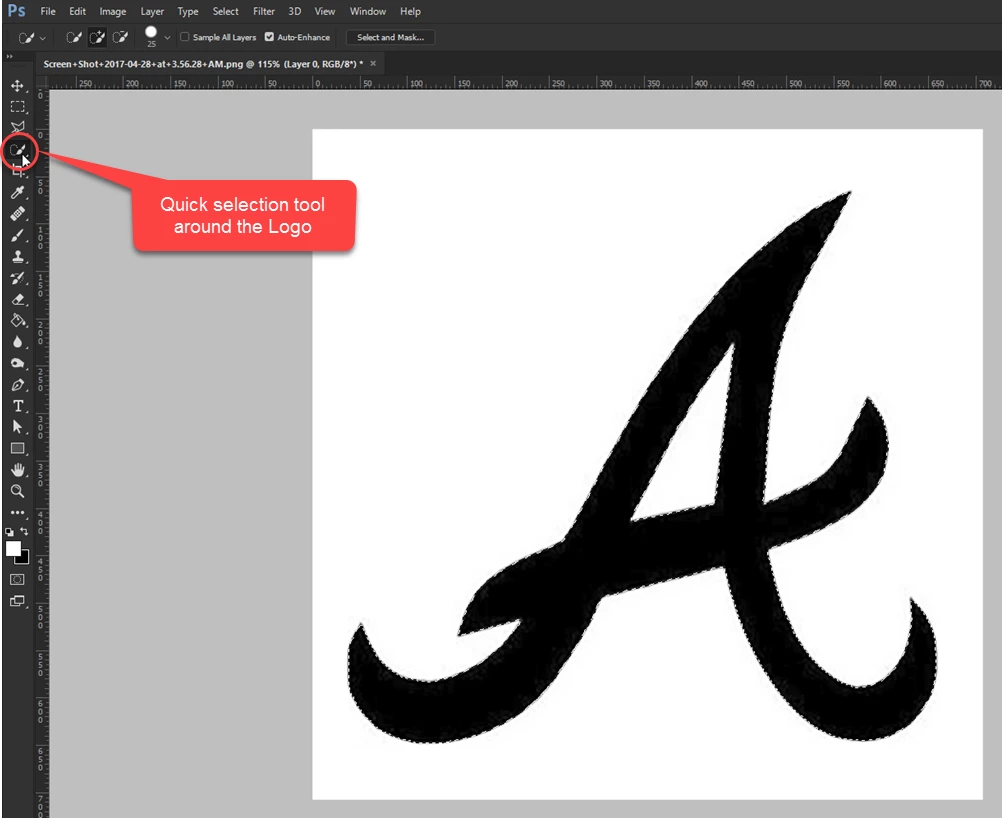
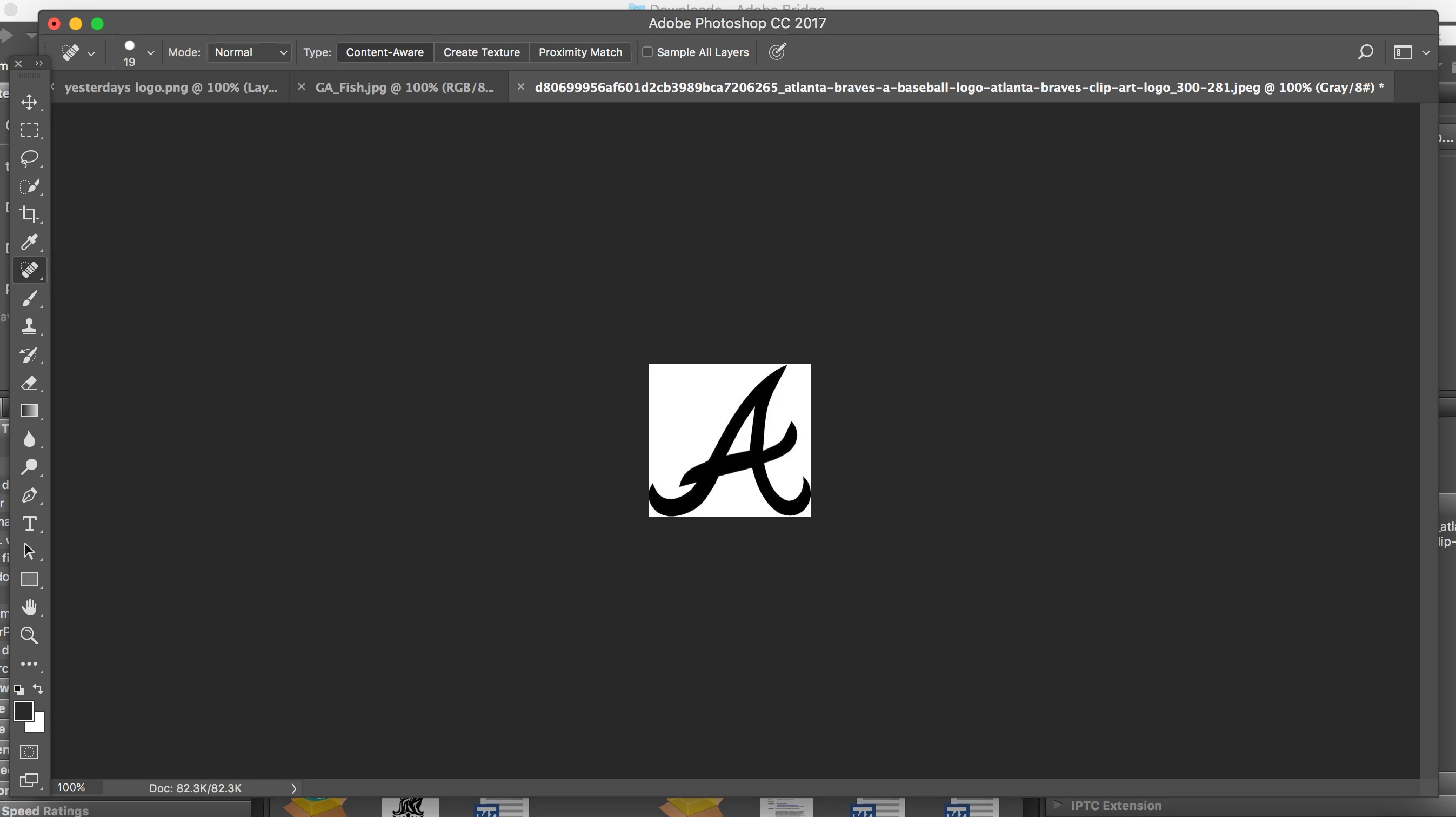
Select the actual logo using the quick selection tool... click and drag the tool to select the areas you want.
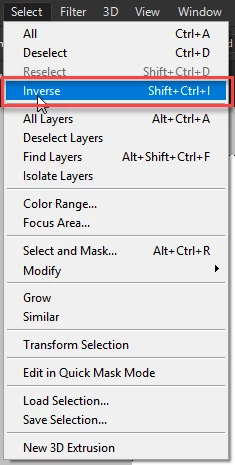
Now inverse the selection using Select > Inverse to select everywhere BUT the area we want to keep.
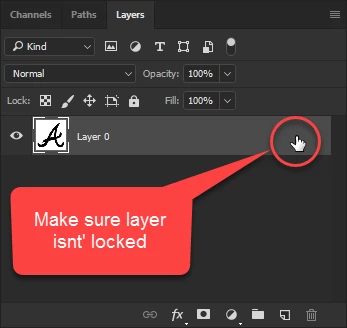
I would then make sure that your layer isn't locked or a background layer if you want to create an Alpha background (transparent).
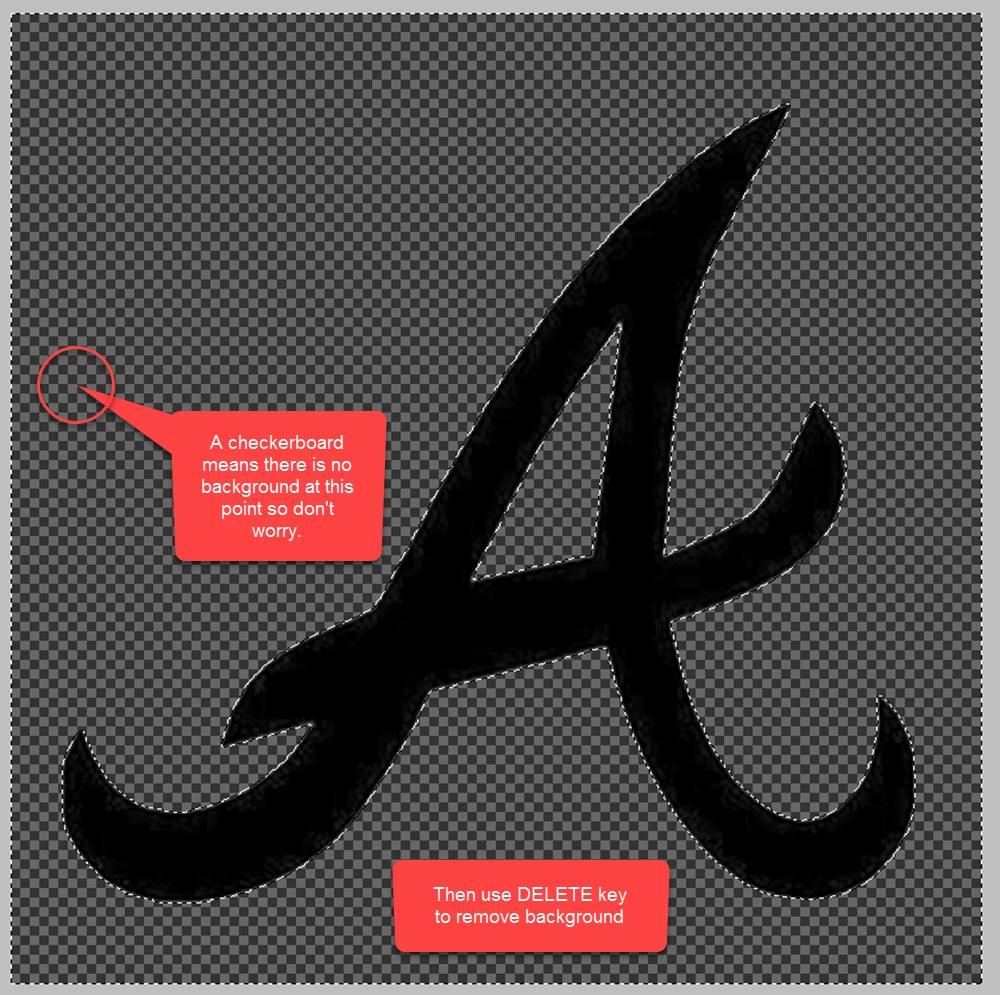
Then use the DELETE key on your keyboard to remove the white background and end up with something like this:
Technically we have now achieved what you wanted to do first... BUT you said you wanted to also be able to change the colours etc...The best way to do this in Photoshop is to create a Path and then use that to make a shape that is really easy to adjust the colour/stroke etc of.... The other advantage of doing this is when you eventually learn Illustrator you will be able to export this shape in your Photoshop file into Illustrator and it will remain vectored.

So from here we:

[EDIT] Make sure we inverse our selection back if not already - so that we only are outlining the Logo:
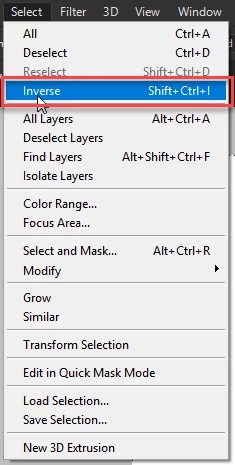
With that done then:
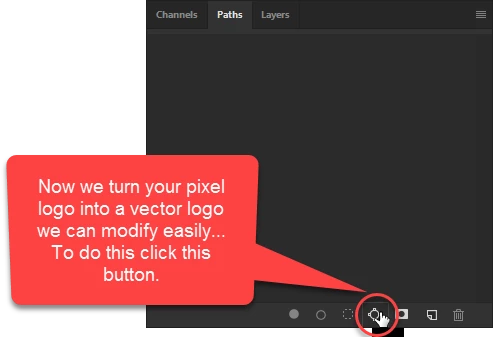
You should end up with something like this which you can then modify with your Pen Tools:
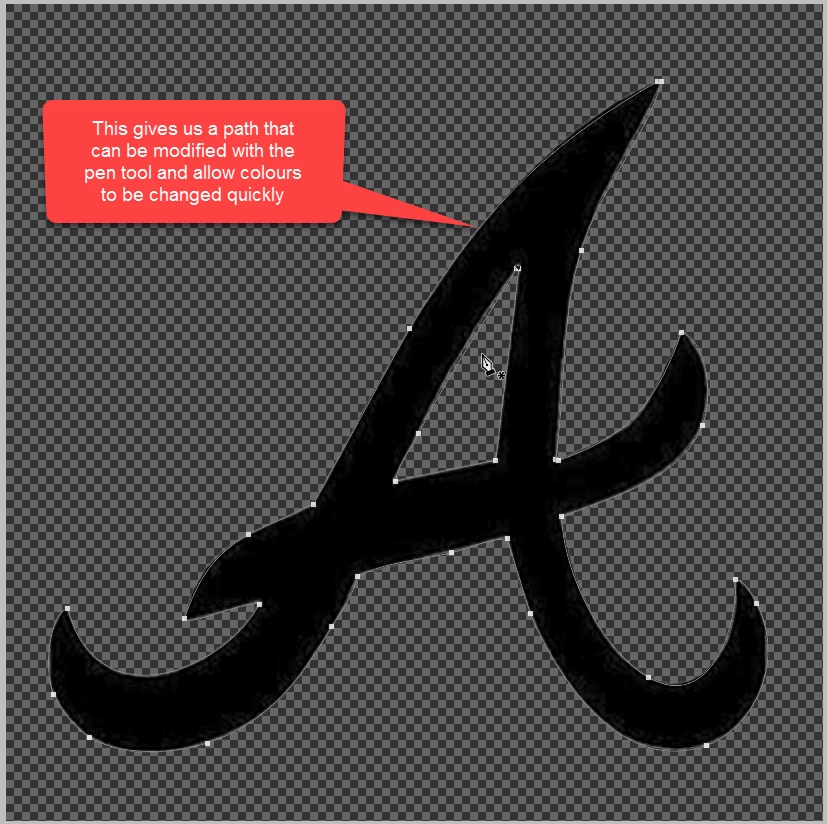
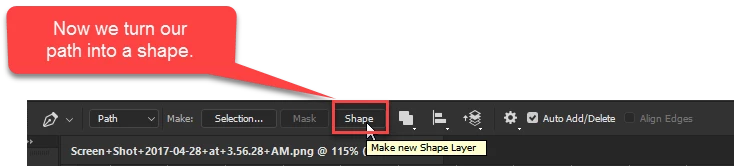
But as this is only a path at the moment lets go turn it into a shape...

With your Pen tool selected choose Path from the drop down box and then click shape like so:
From here the world is officially our oyster... I have used a bright colour to show the wonders of using shapes:
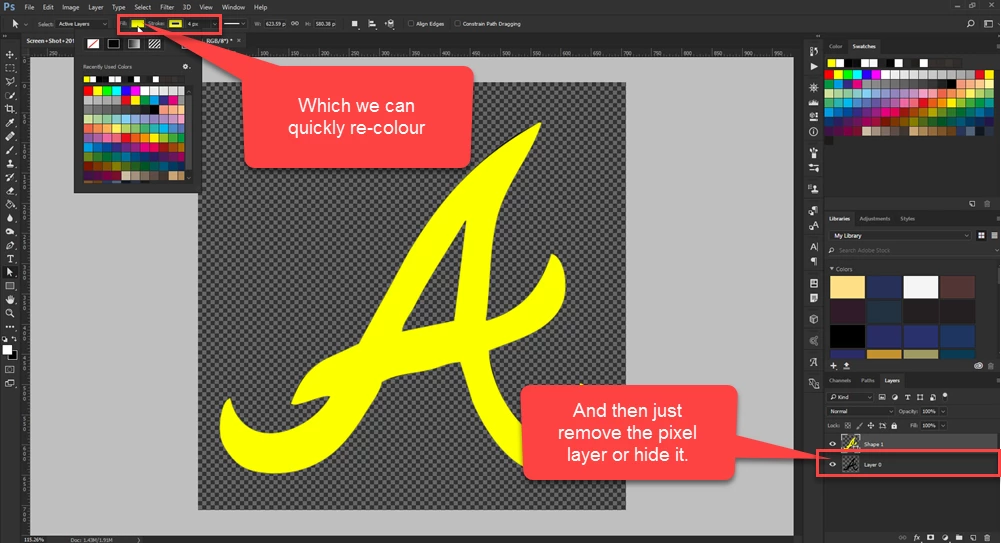
My example also uses a stroke just for fun > but you can make the changes however you require.

Then either simply delete or hide (by using the little eye symbol in the layers panel) the old pixel path beneath.

Et Voila!!

I hope this helps you with your question...

Let me know about the stickers thing.

Best wishes,

EW

3 replies

Eternal Warrior
Eternal WarriorCorrect answer
Inspiring
April 28, 2017

Hi again www.yesterdaysattic.com

So it's quite easy and you could probably skip some steps that I show here if you wanted to but I've gone and shown the "extreme" version which if you spent a little more time tinkering with would give you the best result.

As your new to adobe and Photoshop.... I have shown how to do this in only Photoshop... However I would recommend that for long term logo design and use > you teach yourself how to use Illustrator (not as daunting as it sounds!) > As you can avoid much work and hassle and create stunning logos and (you guessed it...) illustrations.

With that said here goes:

Select the actual logo using the quick selection tool... click and drag the tool to select the areas you want.

Now inverse the selection using Select > Inverse to select everywhere BUT the area we want to keep.

I would then make sure that your layer isn't locked or a background layer if you want to create an Alpha background (transparent).

Then use the DELETE key on your keyboard to remove the white background and end up with something like this:

Technically we have now achieved what you wanted to do first... BUT you said you wanted to also be able to change the colours etc...The best way to do this in Photoshop is to create a Path and then use that to make a shape that is really easy to adjust the colour/stroke etc of.... The other advantage of doing this is when you eventually learn Illustrator you will be able to export this shape in your Photoshop file into Illustrator and it will remain vectored.

So from here we:

[EDIT] Make sure we inverse our selection back if not already - so that we only are outlining the Logo:

With that done then:

You should end up with something like this which you can then modify with your Pen Tools:

But as this is only a path at the moment lets go turn it into a shape...

With your Pen tool selected choose Path from the drop down box and then click shape like so:

From here the world is officially our oyster... I have used a bright colour to show the wonders of using shapes:

My example also uses a stroke just for fun > but you can make the changes however you require.

Then either simply delete or hide (by using the little eye symbol in the layers panel) the old pixel path beneath.

Et Voila!!

I hope this helps you with your question...

Let me know about the stickers thing.

Best wishes,

EW
Participant
April 28, 2017

You're the man! Thank you so much.

Eternal Warrior
Inspiring
April 28, 2017

You're welcome!

Participant
April 28, 2017

I am getting stickers made for my friends company. I was just asking if anyone knew of a reliable website that will allow you to make quality stickers.

Thanks for your time,

Tyler Goodman

<Tyler please don't post your email address here as that will probably  result in you getting inundated with spam-moderator>   

Eternal Warrior
Inspiring
April 28, 2017

For the first part I'm drafting an answer now.. But what do you mean about customising stickers?

Participant
April 28, 2017

I am getting stickers made for my friends company. I was just asking if anyone knew of a reliable website that will allow you to make quality stickers.

Thanks for your time,

Tyler Goodman

<email removed by moderator>