Participant
October 10, 2015
Answered

How do I feather an image in photoshop?

  • October 10, 2015
  • 3 replies
  • 24587 views

How do I feather or airbrush an image in photoshop?

    This topic has been closed for replies.
    Correct answer Trevor.Dennis

    Norman has an excellent suggestion as always, but I really like the Camera RAW tools for doing this.  You also have two options with the Camera RAW filter

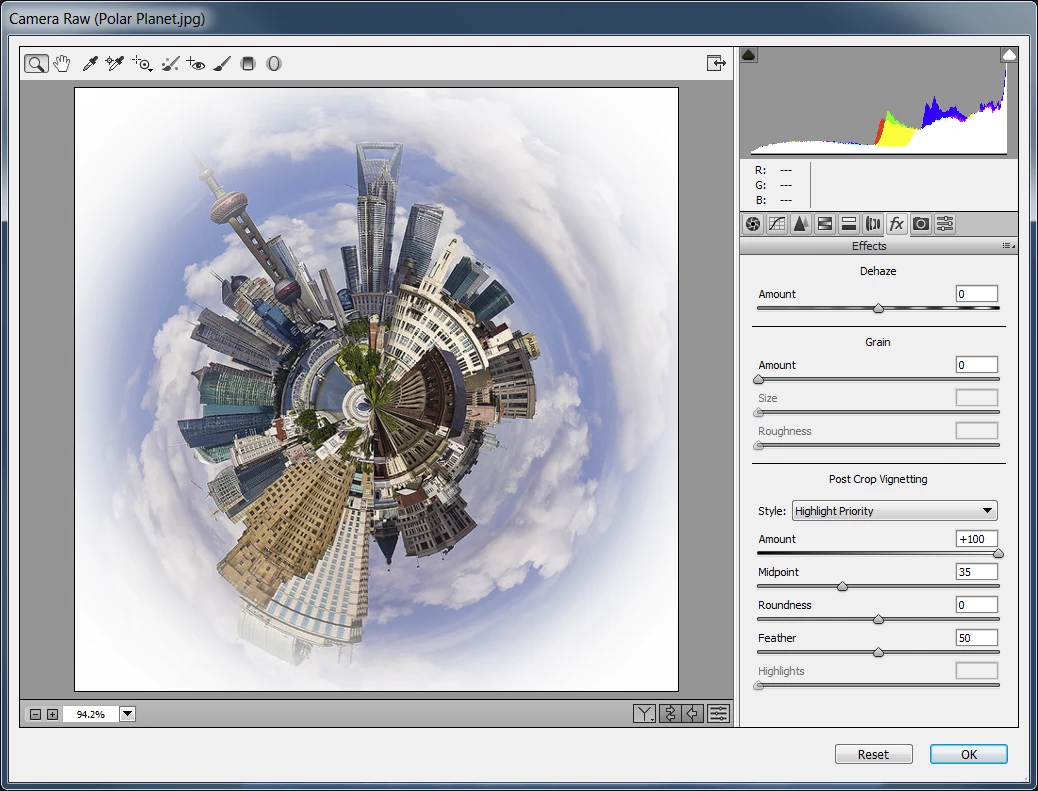
    The first is to use Post Crop Vignetting, but move the Amount slider to the right.  Note that you have further control with sliders after Amount.
    The other is the Radial filter (J) Set the Effect to Outside, and adjust Exposure for amount.  You have to drag an ellipse over the image initially, but you can resize by dragging the handles.
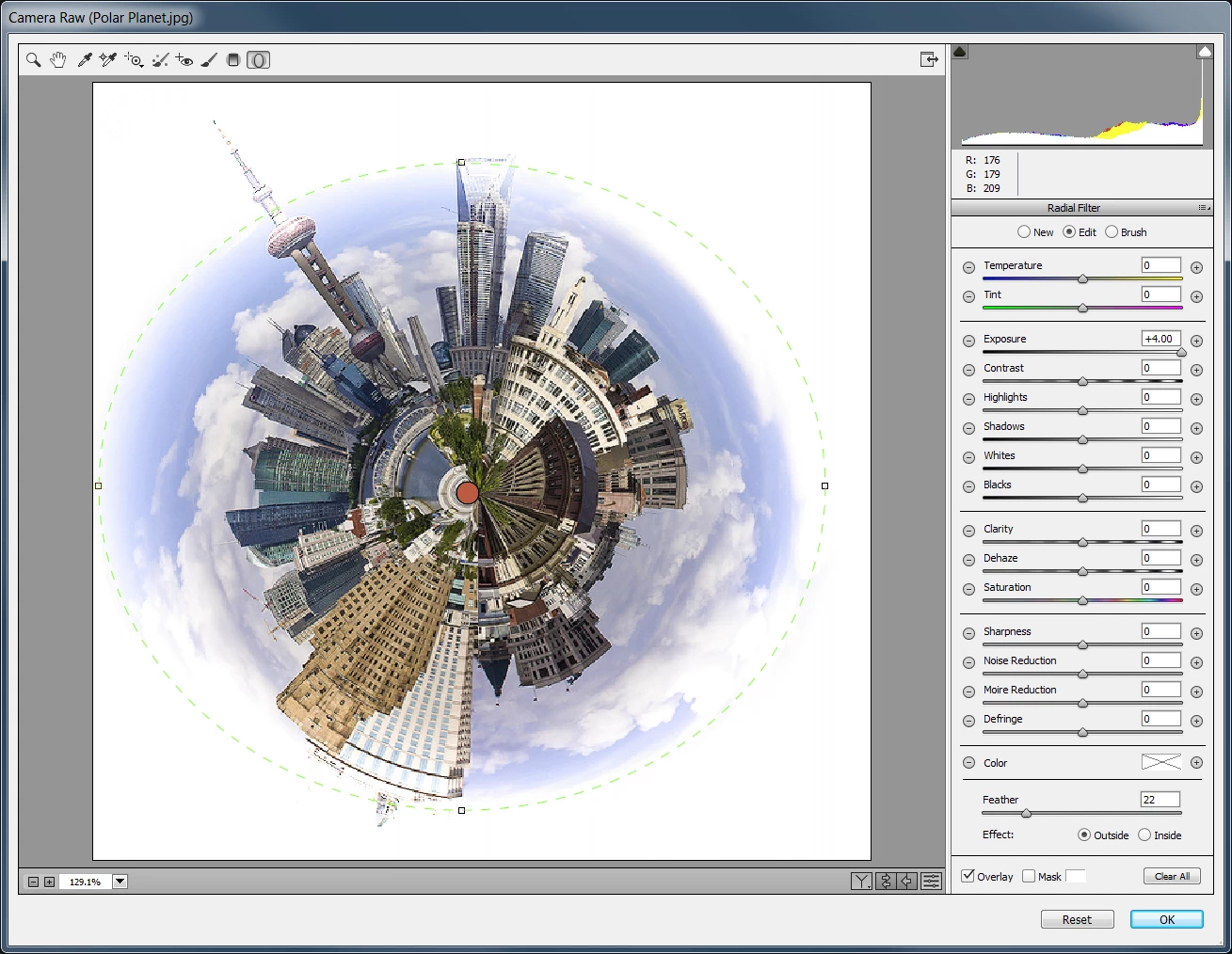
    The examples above are a fair representation of how well they work.  Vignetting is the more controllable method IMO, and gives a lovely soft effect.   Norman's method is non destructive.  To have a same advantage using Camera RAW filter you need to make the layer a Smart Object.

    3 replies

    Terri Stevens
    Legend
    October 10, 2015

    Hello to feather make your selection using any of the tools

    In the box apply a numeric value in pixels. In this case each side of the selection is feathered by 2 pixels

    Then you can use a brush or use an air brush to modify the feathered selection whichever way you want

    Norman Sanders
    Legend
    October 10, 2015

    There are several ways to create a vignetted image using Photoshop. One which will allow you to view and adjust the degree of edge fade visually as you work is this: (It takes longer to describe than to do.)

    1. Open the file containing the image you want to vignette. In the Toolbox, set the foreground color to black, and the background color to white by striking the D key.

    2. In the Layers panel, drag the Background layer lock into the trash. This will convert the Background to an unlocked, editable layer: Layer 0.

    3. Cmd click on the Create New Layer symbol at the bottom of the layers panel next to the Trash symbol. It creates Layer 1 beneath Layer 0. To fill Layer 1 with white choose Edit > Fill and in the Contents field select Background Color or White.

    Or:

    Use a key shortcut: Since the Background Color was set to white in Step 1, Cmd+Delete to fill Layer 1 with White.

    4. Click on Layer 0, which contains your image. Then select the Elliptical Marquee tool, and in the Options bar, set Feather to 0.  Select part of the image. To reposition the selection, click in its center and drag it.

    Note: If, after creating the selection, you want to alter its dimensions, choose Select > Transform Selection, and make the adjustment. Then either click on the Commit checkmark in the upper right of the Options bar, or use the Return key to complete the change.)

    5. Still in Layer 0, click on the Add Layer Mask symbol at the bottom of the Layers panel. It is the second symbol from the left. This will produce a hard-edged oval containing the selected portion of the image.


    CS5: With the mask in the Layers panel highlighted, go to Filter > Blur > Gaussian Blur, adjust the slider to produce the degree of vignette you prefer, and click OK.

    CS6  and later: Choose the Properties panel, move the Feather slider to produce the degree of vignette you prefer and click OK. If the Properties panel does not currently appear, choose Window from the

    Menu bar and click on Properties from the drop-down menu.

    At this point you may drag Layer 1 (the image with its linked mask) over another Image. Simply click on Layer 1 and drag it to the new image. Then use the Move tool to place it with greater precision.  You may also resize the vignetted image by choosing Edit > Transform > Scale. When scaling, hold down the Shift key to maintain the current proportion. Then either click on the Commit checkmark in the upper right of the Options bar, or use the Return key to complete the change.

    Trevor.Dennis
    Community Expert
    Trevor.DennisCommunity ExpertCorrect answer
    Community Expert
    October 10, 2015

    Norman has an excellent suggestion as always, but I really like the Camera RAW tools for doing this.  You also have two options with the Camera RAW filter

    The first is to use Post Crop Vignetting, but move the Amount slider to the right.  Note that you have further control with sliders after Amount.

    The other is the Radial filter (J) Set the Effect to Outside, and adjust Exposure for amount.  You have to drag an ellipse over the image initially, but you can resize by dragging the handles.

    The examples above are a fair representation of how well they work.  Vignetting is the more controllable method IMO, and gives a lovely soft effect.   Norman's method is non destructive.  To have a same advantage using Camera RAW filter you need to make the layer a Smart Object.

    Terri Stevens
    Legend
    October 10, 2015

    That's nice

    Inspiring
    October 10, 2015

    Hi sandrag,

    I would suggest you to please have a look at the following video : Retouch, Airbrush, and Smooth Skin Professionally in Photoshop - YouTube

    Regards,

    Tamik