Participating Frequently
December 25, 2022
Question

How do I make these boxes disappear?

  • December 25, 2022
  • 3 replies
  • 572 views

I am new to using layers.  When I bring a smaller layer onto my main piece, I can see the thin outline of the transferred photo.  What should I do?
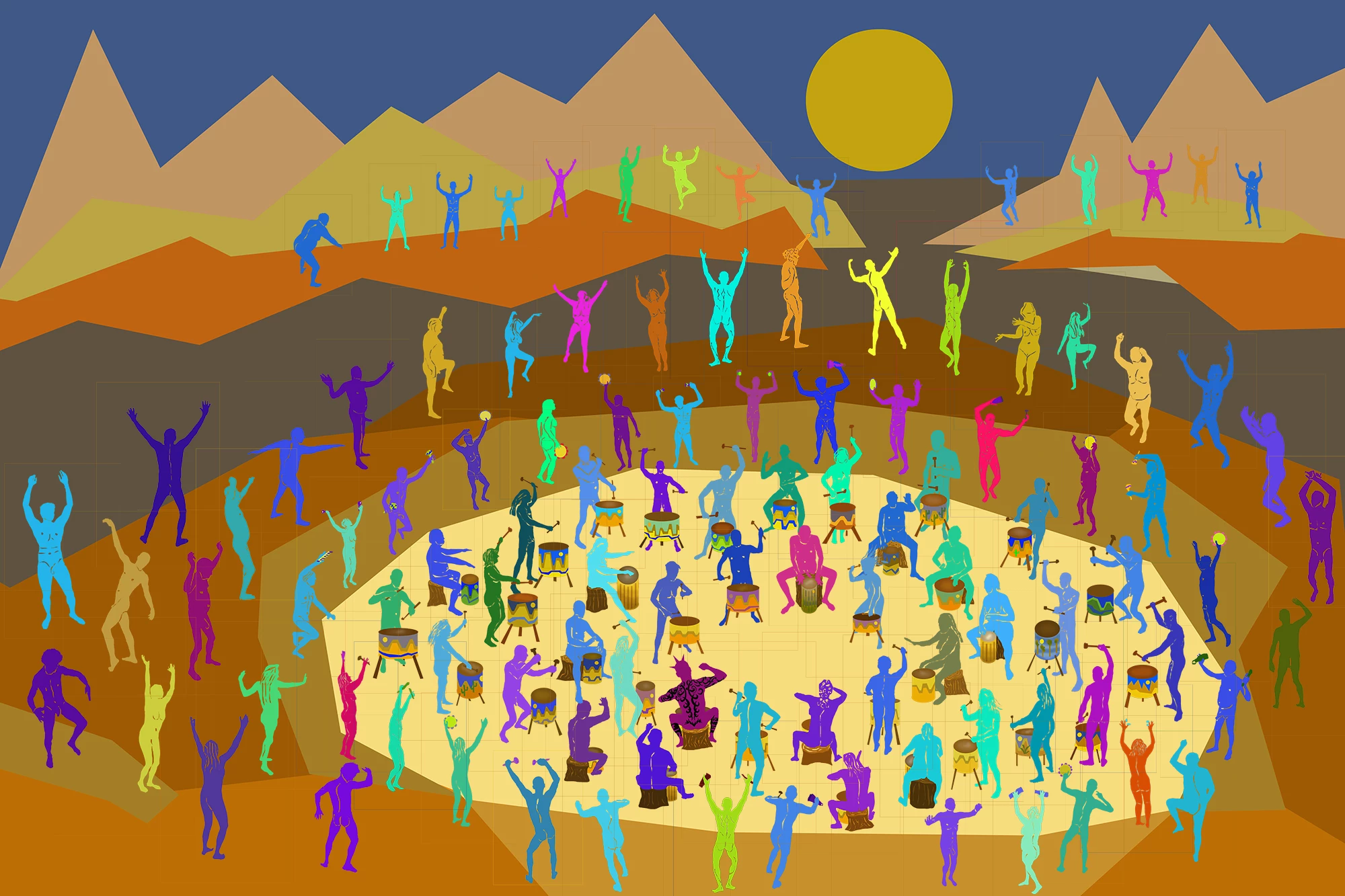
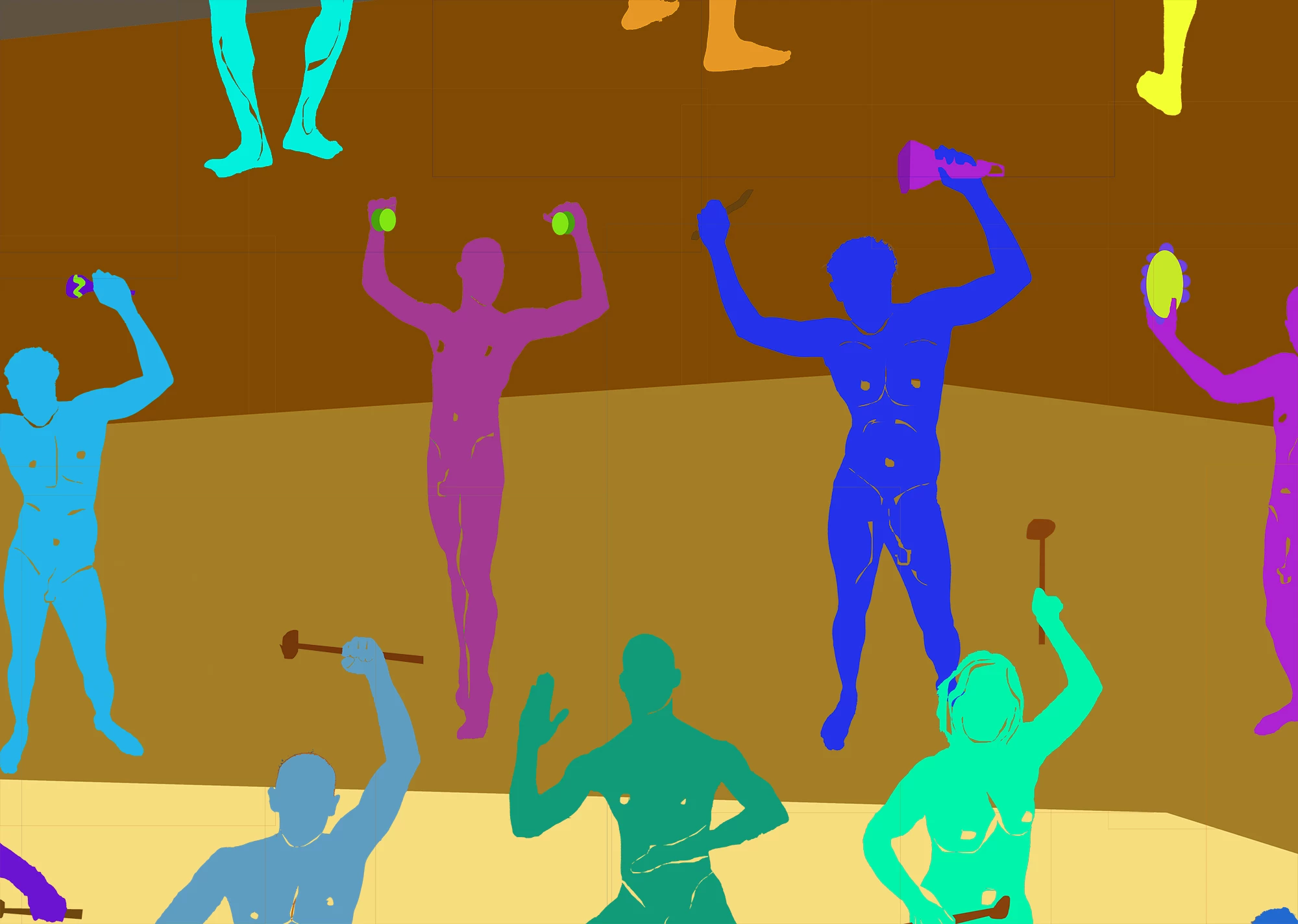
This topic has been closed for replies.

3 replies

Jumpenjax
Community Expert
Community Expert
December 28, 2022
Lee- Graphic Designer, Print Specialist, Photographer
mglush
Community Expert
Community Expert
December 28, 2022

Hi!

How do you bring your images into Photoshop? Do you drag and drop? That might be the issue. Try Copying and Pasting the image into your new document--I believe it will come in without the box.


Let us know if that works?

Michelle

Mylenium
Legend
December 25, 2022

You probably need to revisit your source documents and properly remove the remnants from your not so clean cutouts. What you see is what typically happens when you just select stuff e.g. with the magic wand and then hit delete to erase the background without considering that there may be partially selected pixels that won't be fully removed. You need to scratch them out with the eraser or by using other selection tools to select the faint pixels and cutting them away.


Mylenium

Participating Frequently
December 25, 2022

I do use the magic wand to select what I want removed, but the I use Layer/Layer Mask/Hide Selection to mask the background.  The lines that show up on the entire piece are the outside edge outline of the original source photo. Multiplied by the 100 source photos of all the subjects I've added.