Participant
May 1, 2013
Answered

How do I print a very large photo across multiple 8 x 10 pages?

  • May 1, 2013
  • 14 replies
  • 510968 views

I am trying to use Photoshop to create a glass pattern that is larger than letter size paper.  Is there a way to print a single photo split across multiple pages?

Correct answer Conrad_C

Although that works, it’s a lot more work than the other suggestions. Using the automatic tiling in Acrobat or InDesign means you just set it up, click Print, and it works.


The Slice tool method also has several problems:

  • The Slice tool cannot create overlaps like real print tiling features do. Auto-tiling can automatically create overlaps between tiles to cover up any gaps between printed tiles when they are mounted together later. 
  • Because each slice gets exported as a separate file, you have to print them individually. 20 tiles means you do 20 print jobs. With automatic tiling, you print once and you are done. 
  • Because Save for Web is not designed for printing, the image resolution metadata (and therefore the print dimensions) may be lost unless it is exported with All Metadata selected. 
  • If print color quality is important, attention must be paid to the document color profile vs what Save for Web is set to export. 


Overall, it is much easier, faster, and more reliable to use automatic tiling.


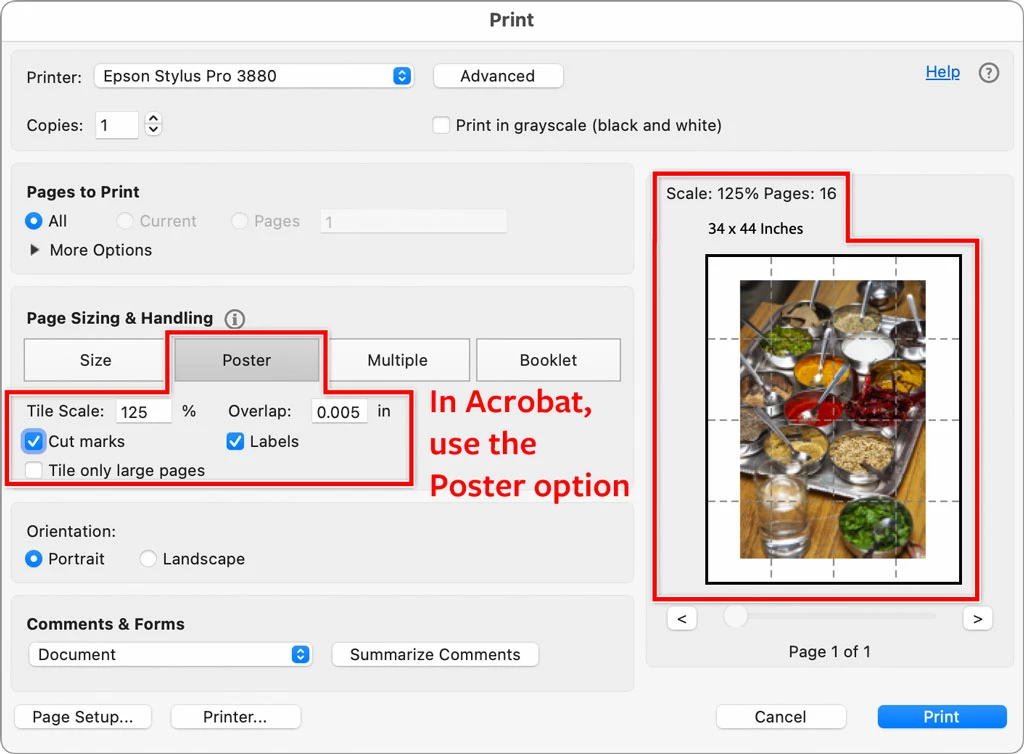
Using Acrobat is easy because the Reader is free, and can open Photoshop files, so you can be ready to print in less than a minute. Just open the Photoshop file in Acrobat, choose Print, set up tiling, and you are done. 


I agree this feature should be in Photoshop. But until then, tiling in Acrobat or InDesign is the simplest, fastest way. In the picture below, a Photoshop file is shown ready to tile in the Print dialog box in Acrobat.

 

14 replies

Participant
October 25, 2024

You can do this in photoshop. Slice the image into the desired pieces with the slice tool, File > Export > Export for Web (Legacy). When you Sav..., choose Images only and choose to save each slice.

Format: Images Only
Settings: Default (or whatever)
Slices: All Slices

Conrad_C
Community Expert
Conrad_CCommunity ExpertCorrect answer
Community Expert
October 25, 2024

Although that works, it’s a lot more work than the other suggestions. Using the automatic tiling in Acrobat or InDesign means you just set it up, click Print, and it works.


The Slice tool method also has several problems:

  • The Slice tool cannot create overlaps like real print tiling features do. Auto-tiling can automatically create overlaps between tiles to cover up any gaps between printed tiles when they are mounted together later. 
  • Because each slice gets exported as a separate file, you have to print them individually. 20 tiles means you do 20 print jobs. With automatic tiling, you print once and you are done. 
  • Because Save for Web is not designed for printing, the image resolution metadata (and therefore the print dimensions) may be lost unless it is exported with All Metadata selected. 
  • If print color quality is important, attention must be paid to the document color profile vs what Save for Web is set to export. 


Overall, it is much easier, faster, and more reliable to use automatic tiling.


Using Acrobat is easy because the Reader is free, and can open Photoshop files, so you can be ready to print in less than a minute. Just open the Photoshop file in Acrobat, choose Print, set up tiling, and you are done. 


I agree this feature should be in Photoshop. But until then, tiling in Acrobat or InDesign is the simplest, fastest way. In the picture below, a Photoshop file is shown ready to tile in the Print dialog box in Acrobat.

 

NB, colourmanagement
Community Expert
Community Expert
October 30, 2024

@Conrad_C Using the automatic tiling in Acrobat or InDesign means you just set it up, click Print, and it works.

Kudos for the succinct explanation - and it uses free software, some very nice tips there. 


neilB

Participant
August 4, 2023

Thanks for PosteRazor

Participant
April 17, 2023

Hi Paul. The Print Settings dialog refers to the settings for your printer - not all printers will have a tile option (mine doesn't).

NB, colourmanagement
Community Expert
Community Expert
July 7, 2022

HI, there's some help here


neilB

Participant
July 4, 2022

What correct size we use for all iver

Participant
January 20, 2020

Thanks for the great info. 

Tomsm13
Participant
July 20, 2014

See this video tutorial - How to print large format posters and banners with Poster Printer - YouTube, it may help you to solve your problem.

Silkrooster
Legend
May 5, 2014

If I recall the free adobe reader can print tiled pages. If it does, just save your images to pdf. (I see this is a year old thread, sorry. But I will keep this info here just in case someone else has this issue.

Inspiring
April 22, 2014

Its incredible that there is no tiling feature. I think PS is alone on this. Maybe when printers become obsolete they'll add the feature.

Anyways, thanks for the PS Extension link, i may try that.

An alternative is Microsoft Paint, yes that free tiny program (that many people criticise). Open your pic with Paint, print preview, change paper size from Scale to 100% and it'll tile to your paper size.

VolcanoLPAuthor
Participant
May 1, 2013

The easiest way to do this is create a Photoshop PDF file from the large document and then open the file with Adobe Acrobat (I have Reader) and print it as a banner.  This correctly tiles the document to fit across multiple pages.  Thank you for all your quick responses to my question.  If anyone from Adobe is listening - why not put tiling into Photoshop???

Silkrooster
Legend
May 2, 2013

Hmm, I could have sworn Photoshop had such an option, oh well, here I found the next best thing, (sort of, since I have not tried it)

http://www.adobe.com/cfusion/exchange/index.cfm?event=extensionDetail&extid=1044988

Participant
May 2, 2013

Eh....I dunno. Sure you can do it from Photoshop but what's this 5x5 and  3x3 stuff? In Illustrator it's very straightforward. You simply make  your image as big as you want it to be and then specify how much you  want the prints to repeat along the edge (1/2 inch, 1/4 inch etc.,)  Illustrator automatically put it on as few sheets as possible to print  it at the size you need. What could be easier? But that's assuming you  have Illustrator of course.

