Participant
February 23, 2022
Answered

How do I remove dirt and noise from backround of my image?

  • February 23, 2022
  • 2 replies
  • 973 views

Hi, 


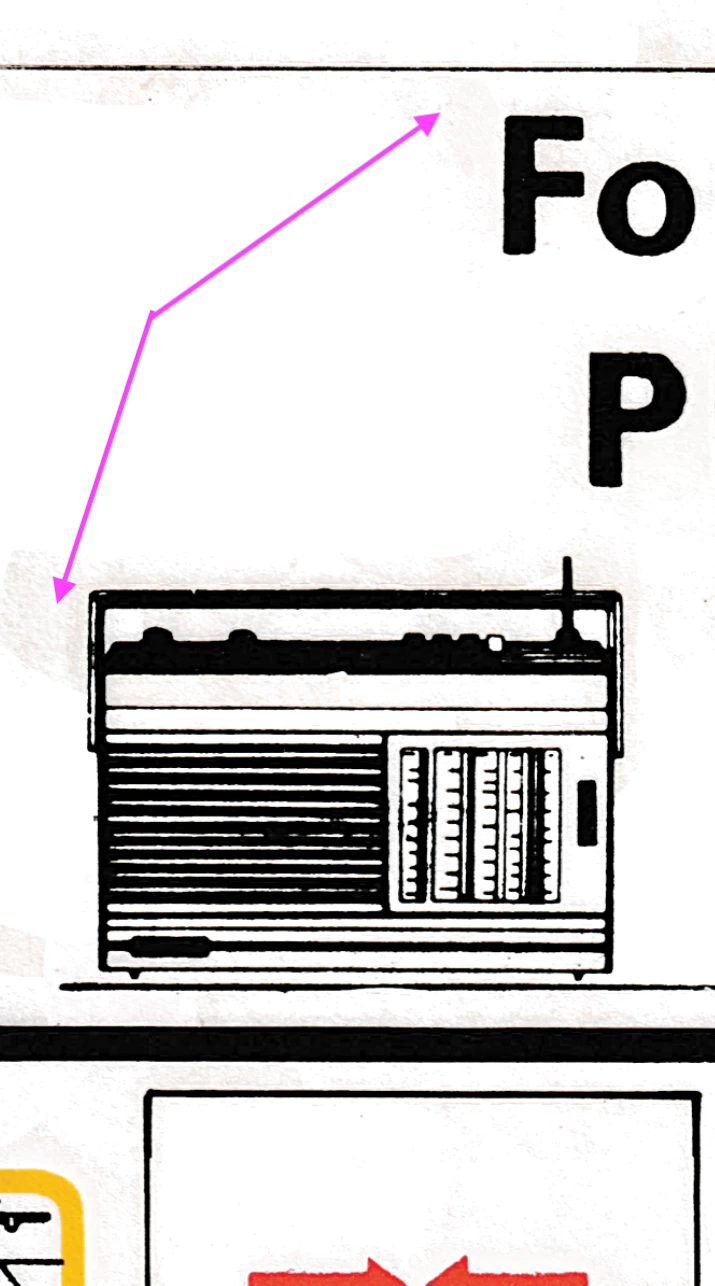
I have a document I have scanned that was on old paper. The scanned image has dirty patches from where the old paper had age stains. 


I tried to select areas of similar color and remove them, but there is so much on the page that it's too difficult. 


Do you have any ideas on how I can improve this image? Is there a way I can lift the bold text from the page to remove the dirty parts? There is a lot of small text so the quick selection tool does not work well. 

Thanks a lot! 
This topic has been closed for replies.
Correct answer Bojan Živković11378569

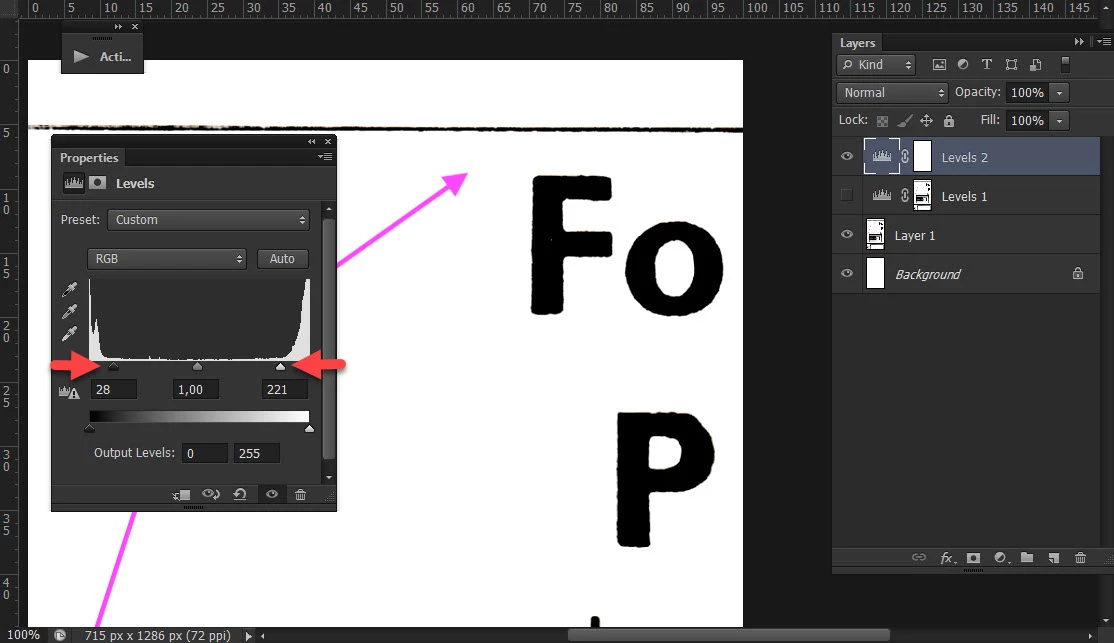
Try with Levels adjustment, just drag invard white and black point. If that does not work try to select light areas using Channels > Cmd + click on composite or any channel to load selection then go to Layer > New Adjustment Layer > Levels or Curves.

2 replies

barbara_a7746676
Community Expert
Community Expert
February 23, 2022

One way would be to double-click on the right side of the layer to bring up the Layer Style dialog box. Hold down Alt or Option to drag the right edge of the black point slider for This Layer. Move it to the right until you're satisfied. 

To make the effect permanent, have a blank or white layer underneath the image layer and merge the two layers. 

Once the effect is permanant, you might want to do some additional touchup with the Dodge tool set to Highlights in the Options bar.

The drawing is poor quality so nothing will make it perfect other than redrawing it.

Participant
February 24, 2022

Thank you Barbara! 

Bojan Živković11378569
Community Expert
Community Expert
February 23, 2022

Try with Levels adjustment, just drag invard white and black point. If that does not work try to select light areas using Channels > Cmd + click on composite or any channel to load selection then go to Layer > New Adjustment Layer > Levels or Curves.

Participant
February 23, 2022

Perfect! Thanks a lot Bojan! 
This is exactly what I needed. I just added a new adjustment layer and moved the white tab in very slightly and it fixed my problem.

Thanks for your help 😄