rodger c.p5205067
Inspiring
December 7, 2016
Answered

How do I stop Work and Layers from being deleted without telling it to delete?

  • December 7, 2016
  • 5 replies
  • 2679 views

Everyday I have to spend 10 hours on Photoshop repeating the same task over and over because 1 wrong click and all my work gets moved or deleted and I have to start all over again from scratch. In some cases I do the same steps 20x or more. If I make 1 wong key stroke -all is lost and I have to start over.

Layers, disappear, reappear  I have no idea why they are not there until I command it to be deleted.

Does anyone know where Photoshop auto deletes and files to layers and are they recoverable If I never instructed the program to delete the work?

I have learned my lesson - ouch - a filing cabinet still has many advantages.

[Moved from After Effects​ to Photoshop General Discussion​ - moderator]

    This topic has been closed for replies.
    Correct answer Rick Gerard

    Just lost another 3 hours of work  - 1 wrong key stroke and all my work seems to disappear forever and I am left to start from scratch over and over and over.  Iam easily on 7 times with this one. I follow the " experts " step by step instruction butt if I make one wrong clcik , it all vanishes. With most soft ware you must explicity tell the machine to delete the files - I do not know what happens here - they just vanish along with memory and HD space. I cannot undo errors with CTRL Z , becaus eit works for 1 key stroke and seems to loop so error is unrecoverable, amking any error permanent so I have to start the same thing over and over again.


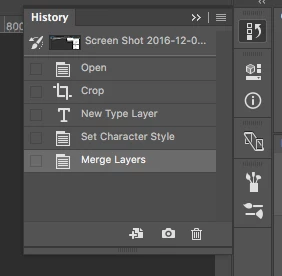
    If you are working in Photoshop and you have your history panel open and you delete layers or do anything else then you can immediately go back by just returning to the history panel.

    If you are loosing hours of work in a single click then your entire workflow is flawed. I've been using Photoshop since there was Photoshop and I've never lost anything that I didn't want saved because I follow a standard workflow. You just have to pay attention and learn how to use the software.

    Sorry to be so harsh but following the experts instructions and suddenly having many layers vanish because of a wrong click tells me you are not following an expert and you don't know what you are doing. Work doesn't vanish, you have to delete layers or merge layers or do some other action. All of those actions are recorded in the history panel. You can set the number of steps you want to save, you can save out various versions. There is no "Danger Will Robinson" button that you can click anywhere that will delete things that you cannot either go back using the Edit Menu - Step backward option or the history panel to recover.

    Here's the history Panel. Learn how to use it.
    5 replies

    Trevor.Dennis
    Community Expert
    Community Expert
    December 7, 2016

    It's a valid question, and I am sure you are not the only person gets into similar problems.  I have taken to routinely locking layers and groups I don't want changed, but not so much to stop me deleting them, and more to stop me painting on the wrong layer.  The sort of thing that happens is that I add another blob of colour to my pallet layer, and several minutes later I discover I am still on that layer!

    Like I said earlier, I can't remember deleting layers, but something that used to happen to me was loosing everything from after I opened a document and started working on it.  That had me confused for a while, until I realized that the gaming keyboard I was using had the G key to the left of Ctrl, default to F12 with is Revert.  Because I am forever hitting that key by accident, I don't use it to trigger actions or macros, but have made it a duplicate Ctrl key.

    rodger c.p5205067
    Inspiring
    December 7, 2016

    I'm done, I want bother anyone at Adobe again. I am sincerely sorry, I get frustrated at  why it seems so easy for everyone else and not me. Thanks for trying.

    P.M.B
    Legend
    December 7, 2016

    Ctrl-Z works differently in Photoshop.  Just hitting Ctrl-Z over and over will only toggle the last "action" back and forth.  To undo multiple steps you need to hold Alt-Ctrl then tap Z however many times.  By default you have 50 undos but you can change that in preferences.

    You may be getting frustrated because you are rushing.  You should start from the very beginning with Adobe certified training materials.  First learn the interface and take your time, go slow,  especially if you have a problem with hitting the wrong keys or clicking the wrong things.

    Everyone learns differently and you need to figure out how YOU learn.  When I started i would actually transcribe entire tutorials hours long because I was always forgetting tiny details (which there are tons of).  I made notes on times of certain information I though was important. I made flash cards & indexes & filled notebook after notebook.  I sometimes filled entire notebooks on just a single tool or technique.

    Don't compare your abilities to others.  Just figure out what works for you and be patient.

    ~Gutterfish
    rodger c.p5205067
    Inspiring
    December 7, 2016

    Mea Culpa 100%

    Photoshop is way out of my league.

    rodger c.p5205067
    Inspiring
    December 7, 2016

    I appreciate the follow up.

    Thank you for your time.

    Dave_LaRonde
    Inspiring
    December 7, 2016

    You might want to ask this question in the Photoshop forum instead of the After Effects forum.  You'll probably get a speedier reply.

    rodger c.p5205067
    Inspiring
    December 7, 2016

    Thanks, I think it will be easier to take the   TKO by  Photoshop and call it the price of an education.

    ciao - please close the thread.