Known Participant
July 31, 2019
解決済み

How do I take an existing image and make only one part of the image transparent?

  • July 31, 2019
  • 返信数 3.
  • 1205 ビュー

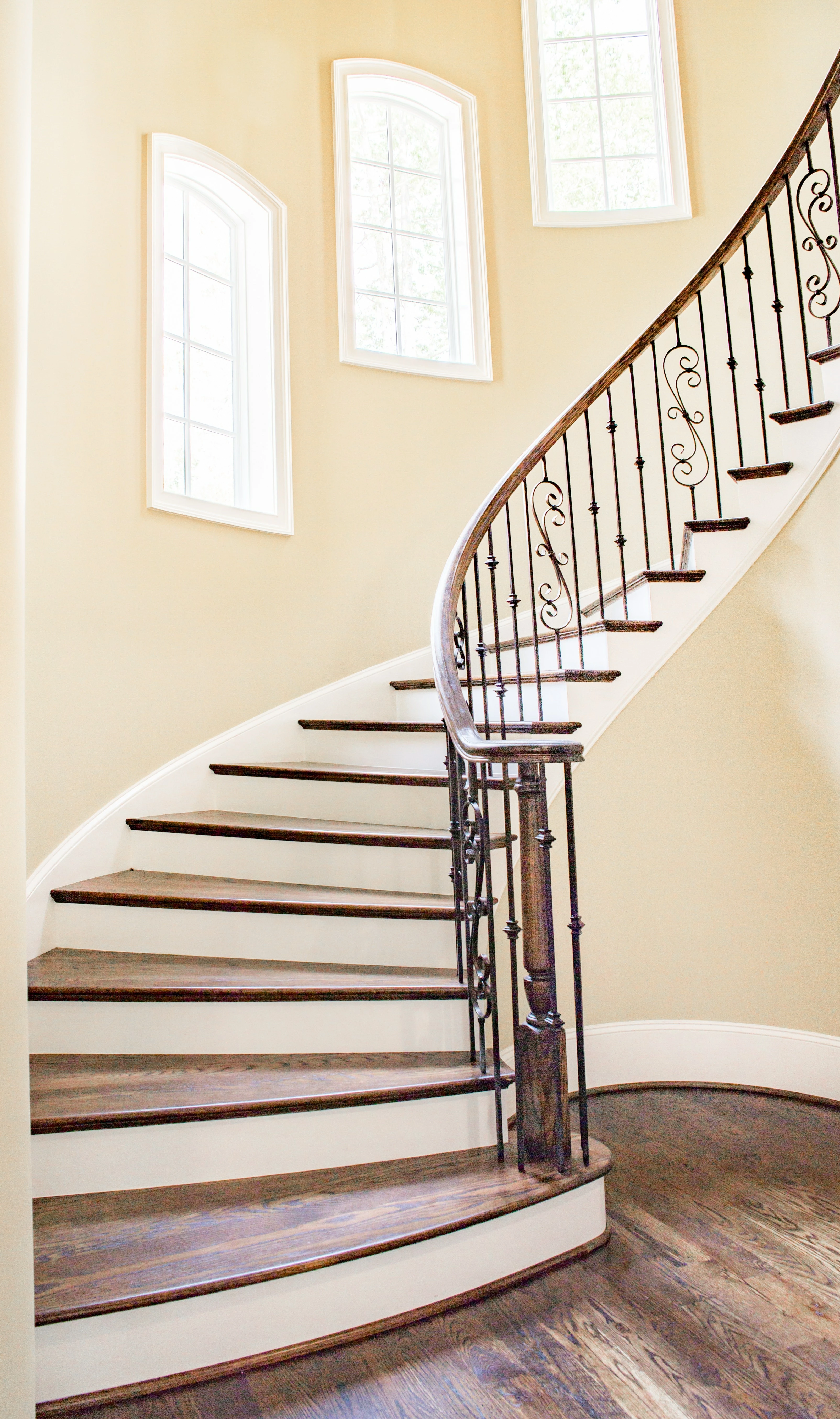
This image is just an example. Lets say the middle window I would like to make transparent. Is there a way to select any part of an image and only make that one part of the image transparent?
このトピックへの返信は締め切られました。
解決に役立った回答 Bob_Hallam

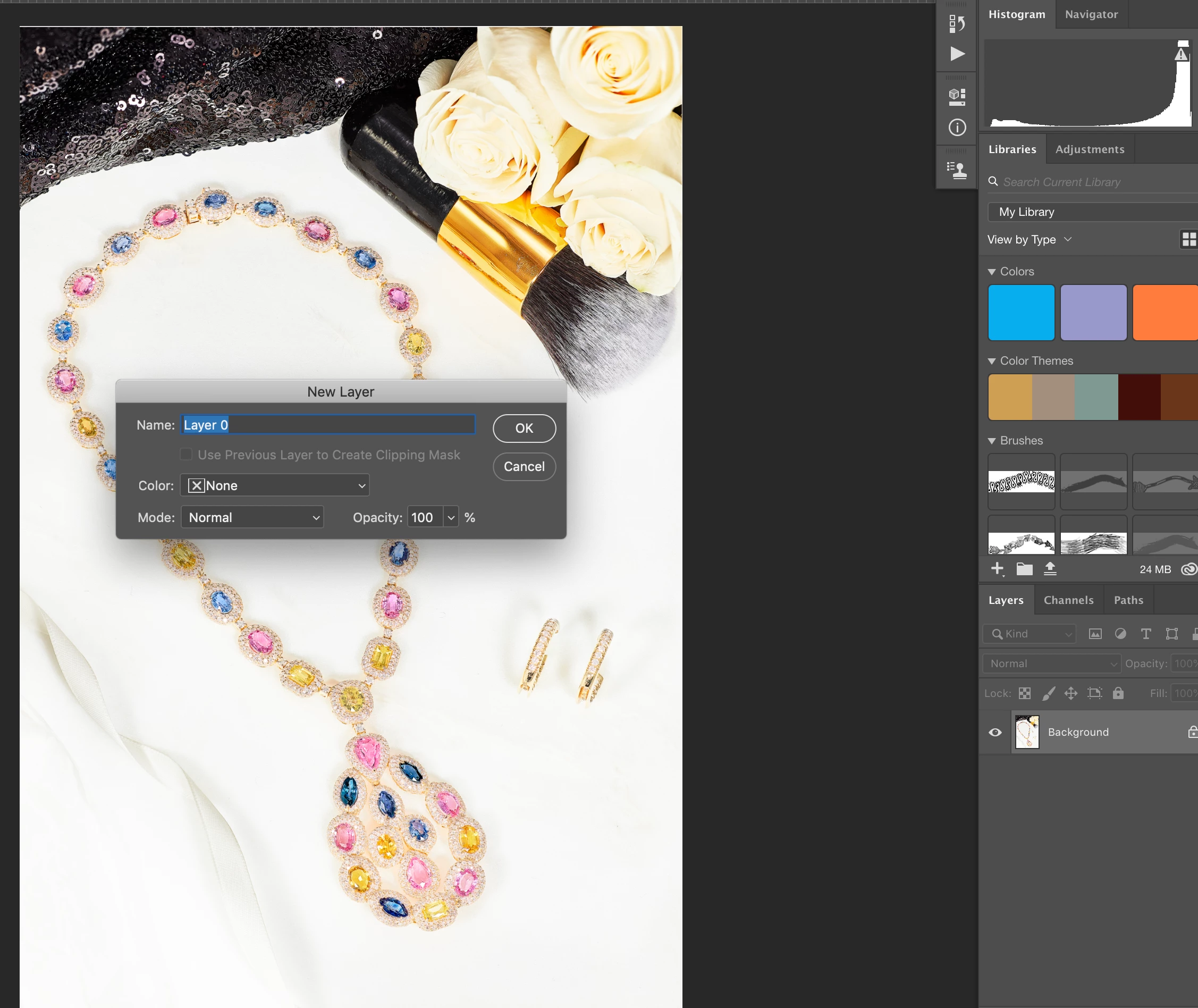
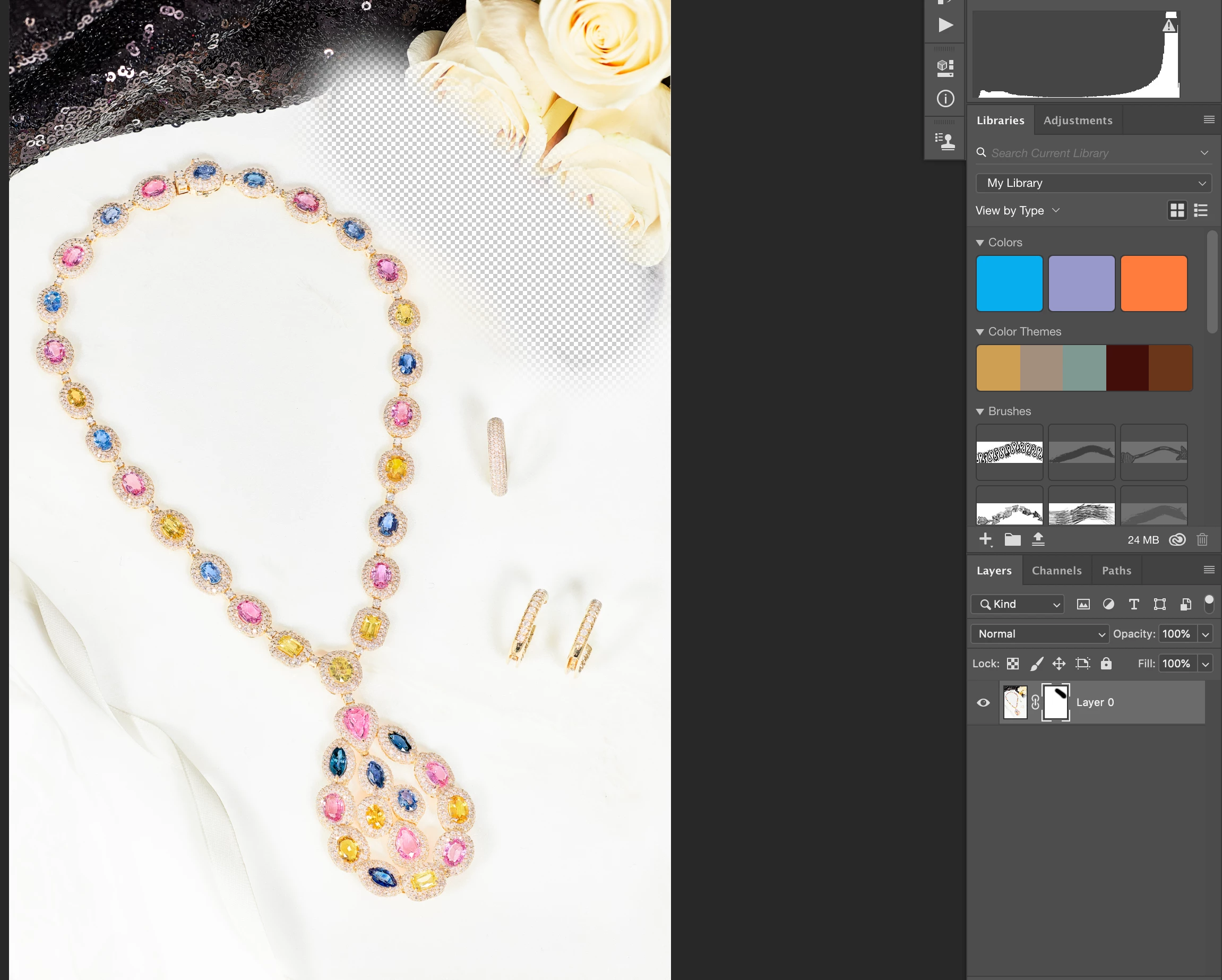
Easy!  Just take a background layer and double click it to make it Layer 0.

Then add a layer mask and paint with Black!

返信数 3

Norman Sanders
Legend
July 31, 2019

I recognize this inquiry has already been answered, but if your actual image has such light adjacent values (window pane to casing) as the image you posted, creating a mask may be extremely difficult. The following may help:

1. Convert the file to Lab Color,

2. Make an additional L channel (Alpha)

3. Apply the Curve shown above. (Note the Light to Dark scales that I customarily use. The usual grid works just as well.)

4. Use that to image as the basis to construct the mask.

5 Return to RGB and apply the mask to the image.

c.pfaffenbichler
Community Expert
Community Expert
August 1, 2019

1. Convert the file to Lab Color,

I would recommend using a duplicate (Image > Duplicate), though, to avoid converting the image multiple times.

c.pfaffenbichler
Community Expert
Community Expert
July 31, 2019

For masking the window both Selection Tools (Quick Selection, Magic Wand, …) or the Pen Tool could be employed.

Bob_Hallam
Bob_Hallam解決!
Legend
July 31, 2019

Easy!  Just take a background layer and double click it to make it Layer 0.

Then add a layer mask and paint with Black!

ICC programmer and developer, Photographer, artist and color management expert, Print standards and process expert.
Known Participant
August 5, 2019

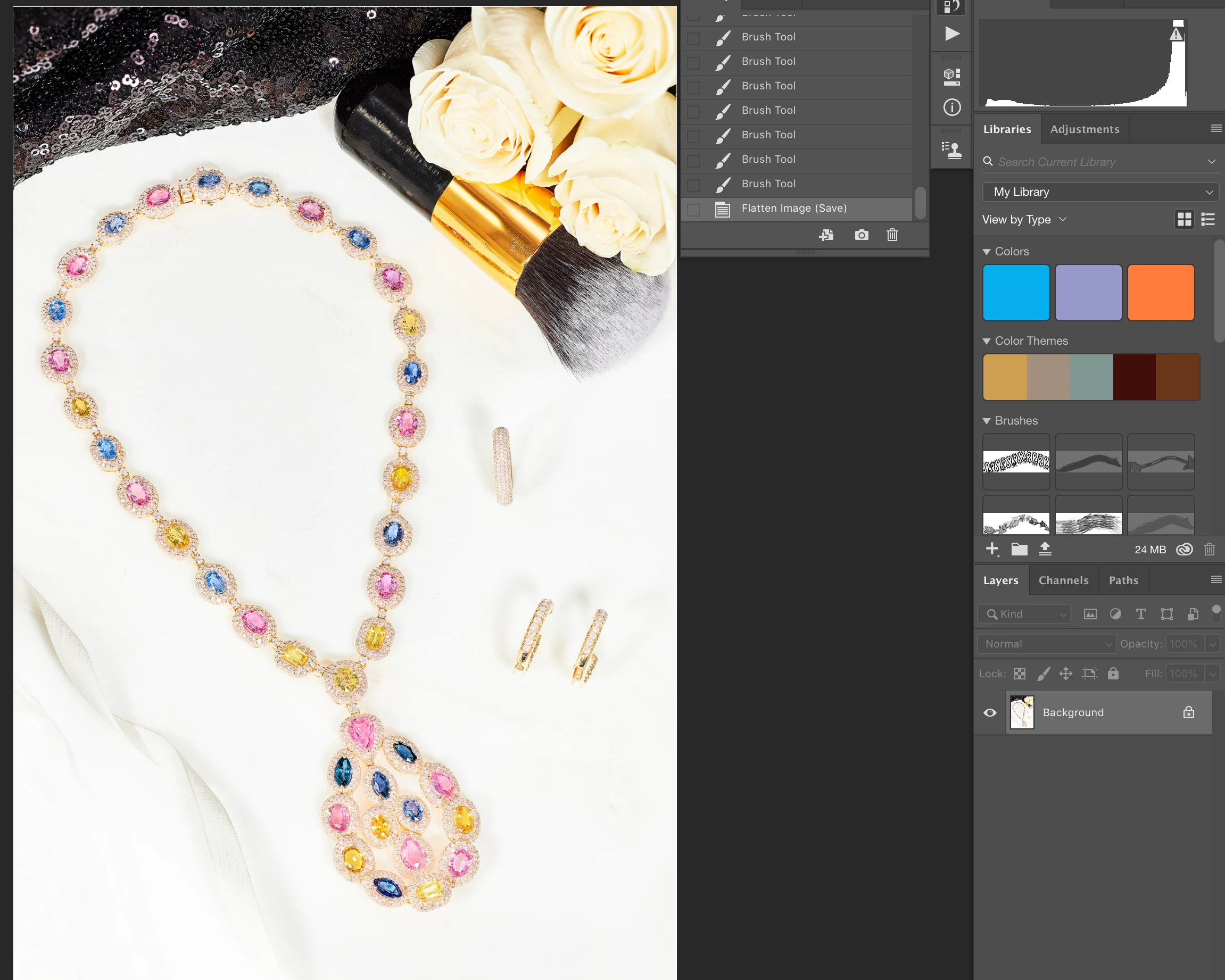
I did what you said but I may need further clarification. please watch the following video and respond when you can.

photoshop part transparent - YouTube

Keith