Answered
How do i type text vertical from bottom to top with the correct orientation for a graph?
How do i type text vertical from bottom to top with the correct orientation for a graph?
How do i type text vertical from bottom to top with the correct orientation for a graph?
Hello there! Below I will demonstrate on how to have text vertical in two different ways.
Example 1:
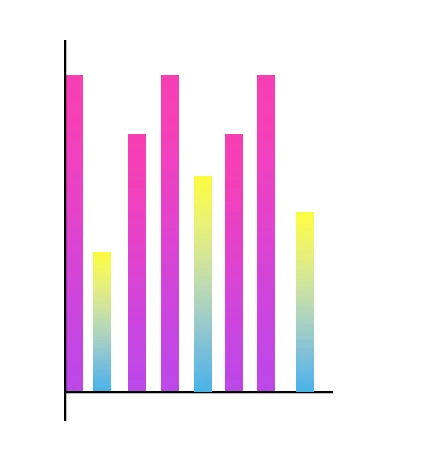
1. Below I have a graph, and want to label its vertical axis.
Select the Type tool, then the Vertical Type Tool.
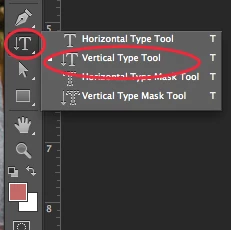
2. With the Vertical Type Tool, I type out my vertical label.
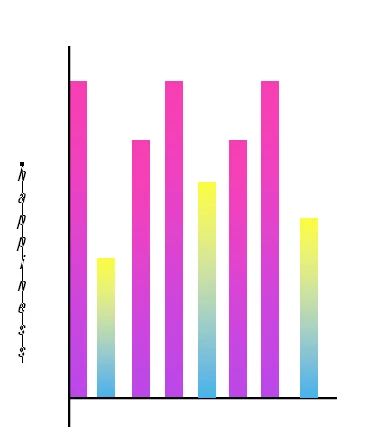
3. With the Move tool, I can then orientate the text in a position desired, as shown in the examples below.

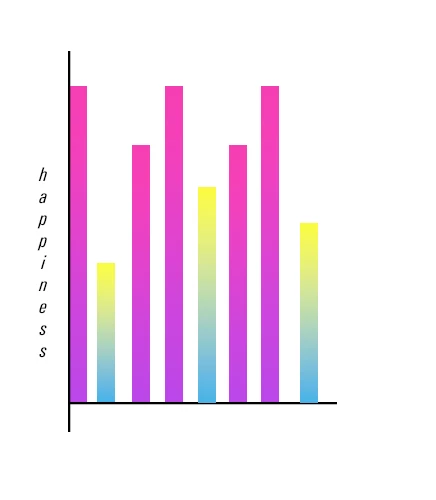
If this is not the desired orientation of the vertical type you would like. I have Example 2 below.
Example 2:
1. After typing my text vertically with the Vertical Type tool (in the example 1), I want to switch it back to a Horizontal position. I can go up to the option panel, and select the "toggle text orientation" icon, circled below. this will switch the text back and forth between Vertical and Horizontal.

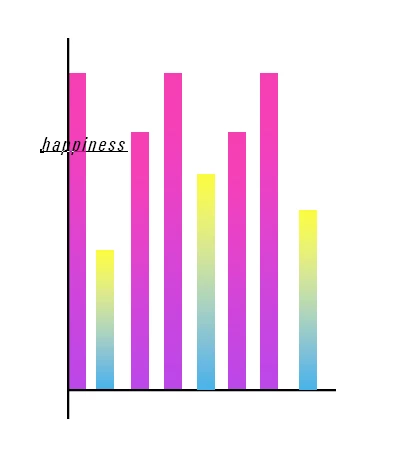
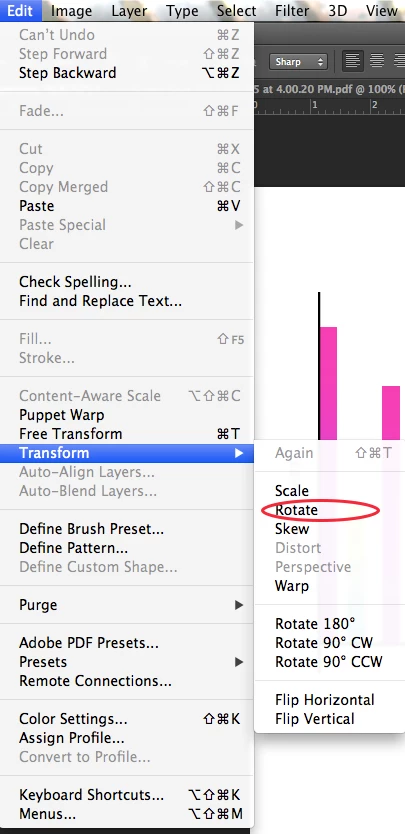
2. After switching the text to horizontal, I am going to want to edit the text orientation so it is aligned with my vertical axis. Go to Edit > Transform > Rotate as shown below.
3. You are going to want to then rotate the text as shown below.
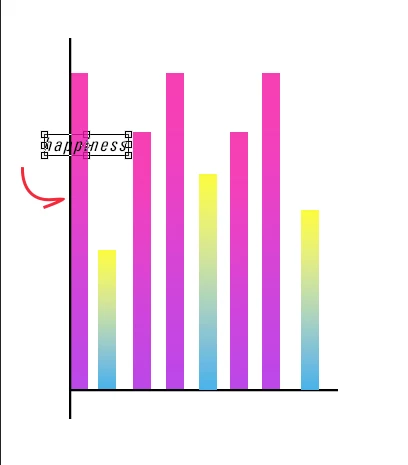
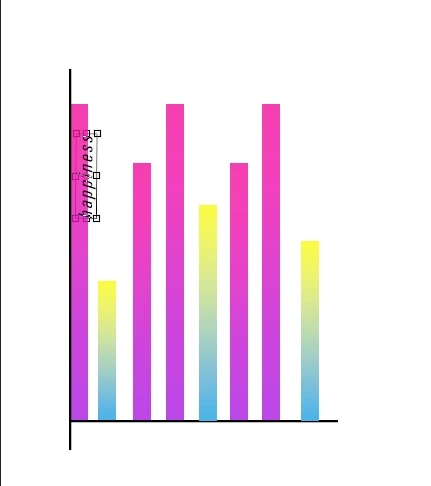
4. The text is not in the right position that we want, so we will have to move the text, as shown below. Press enter/return to make the transformation complete.
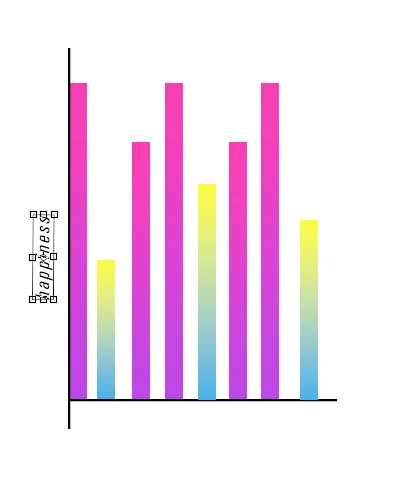
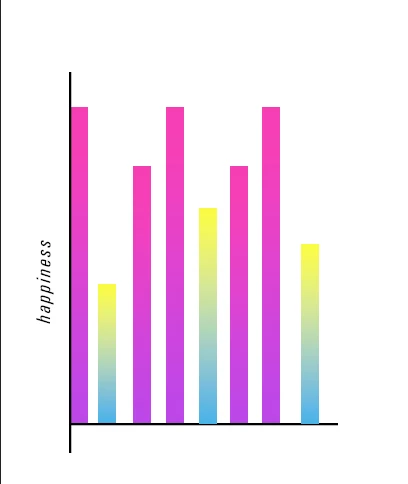
5. The completed text is shown below.
Additional Links:
Please post back with any questions,
Janelle
Already have an account? Login
Enter your E-mail address. We'll send you an e-mail with instructions to reset your password.
 AdChoices