
michaele23935946
Participating Frequently
December 27, 2018
Answered

How do you Apply Different Colour Strokes to Different Colour Letters?

  • December 27, 2018
  • 5 replies
  • 3820 views

For example: I type out the letters ABCDE. In my artwork each of these letters is a different colour. The font isn't bold enough and so I would like to add a 1 pixel stroke around them all. I then want to change the stroke colour to match the individually coloured letters. Is this possible somehow?? Thanks in advance.
This topic has been closed for replies.
Correct answer Daniel E Lane

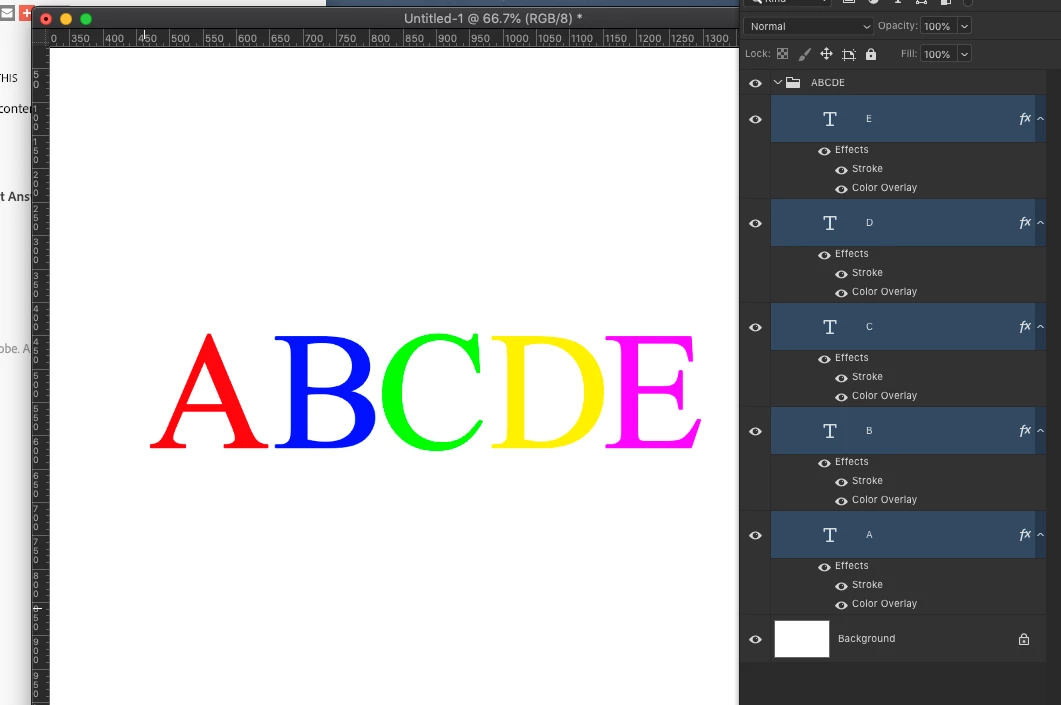
No easy way to do it in Photoshop. Easier in Illustrator for sure. But one way I came up with that works is in this image...

All of the actual text is just black. I separated each letter into it's own layer. Added a layer effect that color overlayed each letter some color, then used that same color on a stroke on each letter. Lastly, I grabbed all of those letter layers and grouped them into a folder so that folder could be manipulated as a single item in the overall layout/design of what I would be working on. Cumbersome but it works.

5 replies

Semaphoric
Community Expert
Community Expert
December 27, 2018

So, is the color of every letter sampled from an underlying image, rather than a fixed palette? If you're willing to have a fixed palette, you could do this:

Add a Posterize adjustment layer, and set it to a value that's high enough to keep the image integrity. Select each color with the Magic Wand, set to zero tolerance with Contiguous un-checked. Or you could use Select > Color Range. Also use the Eyedropper to make the color your foreground color.

Once you have the selection, turn it into a work path via the Paths panel. Select either the Pen or Shape tool, and make the path a shape. Now, add a Stroke layer effect.

You could also do this using the selection as a mask for a Color Fill layer, but it's better to do it with vectors, so the can be re-sized nicely.

Daniel E Lane
Inspiring
December 27, 2018

I will suggest though trying to spend some time to learn illustrator. In there you can have every character separate and editable in such a way that you can manipulate it to the Nth degree, and it's a vector image. So if you ever wanted to print one of these out at 6 feet high and keep it totally sharp, you could do it easily. Just a thought...

Semaphoric
Community Expert
Community Expert
December 27, 2018

Do you have access to Illustrator? There, you could Select > Same > Fill Color for each color, and add the stroke en masse.

michaele23935946
Participating Frequently
December 27, 2018

Thanks Semaphoric. I don't really know my way around Illustrator - so all my works are created in Photoshop. If you see the image below - the text is all in one layer [one single font] and I've hand-coloured each letter individually using the colour dropper tool. I wanted to add a stroke to all the letters to make them bolder - however the stroke needs to be the same colour as each individual letter...  Best, Mike

hammer0909
Community Expert
Community Expert
December 27, 2018

I'm curious how you're keeping all of the text on one layer? Photoshop almost makes it difficult to do that. Is the text still editable? Are you flattening layers as you go?

Chuck Uebele
Community Expert
Community Expert
December 27, 2018

You could also keep the text on one layer, then add several clipping masks to the text layer, with the colors you want, and masked loosely around each letter.

joanH
Inspiring
December 27, 2018

Hi, Chuck Uebele -  Not so difficult to select letters with magic tools and change each letter in the same layer. I have accomplished this for very complex book covers and always in Photoshop. And I transform letters individually for shape and size difference in the same layer. Give it all a try, use your favorite. Best regards, JH Happy New Year!

michaele23935946
Participating Frequently
December 27, 2018

Yep - I change each letter manually in the single text layer by using the colour dropper tool. It then keeps it as a vector layer which enables re-sizing to any size... Best, Mike

Daniel E Lane
Daniel E LaneCorrect answer
Inspiring
December 27, 2018

No easy way to do it in Photoshop. Easier in Illustrator for sure. But one way I came up with that works is in this image...

All of the actual text is just black. I separated each letter into it's own layer. Added a layer effect that color overlayed each letter some color, then used that same color on a stroke on each letter. Lastly, I grabbed all of those letter layers and grouped them into a folder so that folder could be manipulated as a single item in the overall layout/design of what I would be working on. Cumbersome but it works.

michaele23935946
Participating Frequently
December 27, 2018

Hi Daniel,

Thanks for replying and thanks for your solution. Yes, having each letter in a separate layer is the only solution I could think of.. Thing is - with the artworks I create - there are thousands of different-coloured letters! [See attached] Which means thousands of layers... This was why I was seeing if there was a way of altering stroke colours on the single text layer. But I think you're right - it isn't possible yet. Many thanks for your help. All the best, Mike