Participant
August 21, 2019
Question

How fit shape into specific material

  • August 21, 2019
  • 3 replies
  • 932 views

Hi!

I don't really know how explain my problem (maybe that's why I can't find solution nowhere). I want my shape to fit into background material - for example when we have creased peace of paper and we want the image to be creased on this paper too. Maybe it will be easier if I put images there.

So I want this shapes (with "Hakuna matata" and lion):
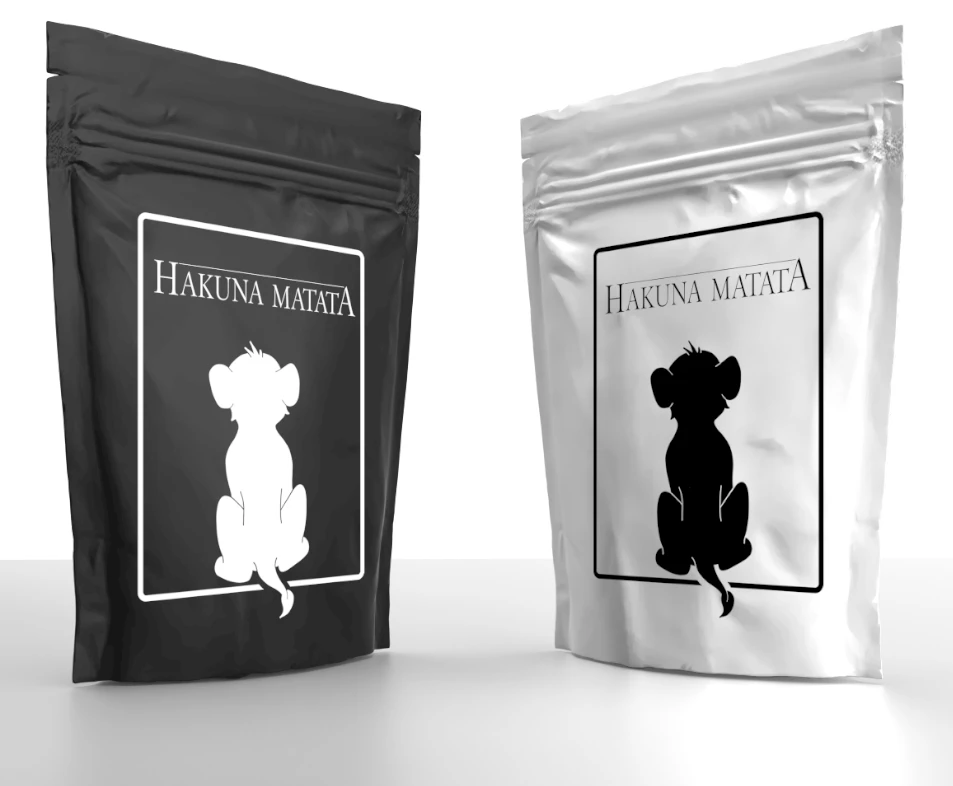
Look like this:
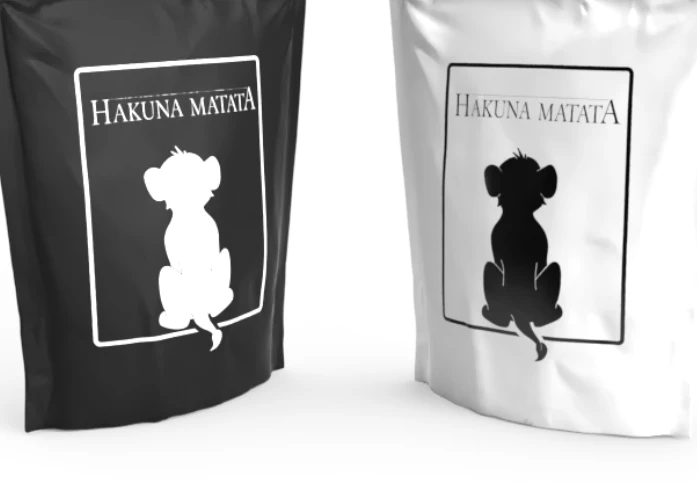
I've done second image in Adobe Dimension, but I must wait too long to render so I must do the same in Photoshop.

So to be clear I want this labels to lay on package and I don't know how to do this in Ps.

This topic has been closed for replies.

3 replies

Myra Ferguson
Community Expert
Community Expert
September 12, 2019

I'd recommend a combination of free transform and a displacement map. Here's a tutorial that should help. https://photoshopcafe.com/wrap-text-around-photo-photoshop-tutorial-displacement-map

Michael Bullo
Community Expert
Community Expert
September 12, 2019

To get the label lined up with your packaging I would first recommend turning the label into a Smart Object to protect the contents of the label. You can Free Transform the label and the trick to moving corners independently of each other is to hold down Command/Control while moving a corner. While you are in Free Transform there is also a Warp mode that you can enter by using the icon in options bar (see image)

Grant H
Community Expert
Community Expert
September 12, 2019

one option: you can try the Liquify Tool to manipulate the graphic to better fit the creases

Trevor.Dennis
Community Expert
Community Expert
September 12, 2019

As Michael has said, it is highly desirable to make the graphic layers into a smart object, but not just to protect its contents. When we start the Free Transform, the bounding box handles will be in the corners like this:

With a smart object, if you need to refine the transform, the corner handles will be where you left them.  Note we can use the bounding box to align with the package

With a normal layer we lose that editability.  It becomes a huge PITA trying to line things up.

Trevor.Dennis
Community Expert
Community Expert
September 12, 2019

To go a stage further, we can use a Displacement map.  You use a blurred image of the package and save it as a PSD file.  It has to be the same size as the image you applying the map to.

You need a rasterized layer with the package and graphic combined, which you can create using Copy Merged (Shift Ctrl Alt E)

Select that layer and go Filter > Distort > Displace

The default settings are 10 and 10, but 5 and 5 worked better in this instance

When you OK this panel it asks for a file, and you select the PSD file you saved earlier

The shadow information on the map will distort the graphic like so

You'll need to experiment to get best effect, but you can see how it has worked.


BTW  So far I HATE the new forum!!!