
Participating Frequently
March 14, 2025
Question

How replace color works

  • March 14, 2025
  • 4 replies
  • 539 views

Hello everyone.
I am new to photoshop. I use replace color to change the color of the wall. However, I can't get the color I want. I am posting here to ask about how replace color works. I want a darker color like the bottom photo but I can't. I thank you in advance for any comments coming soon.
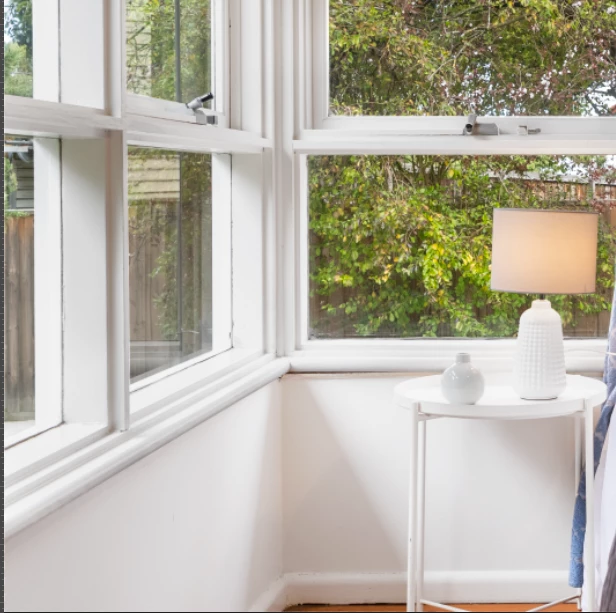
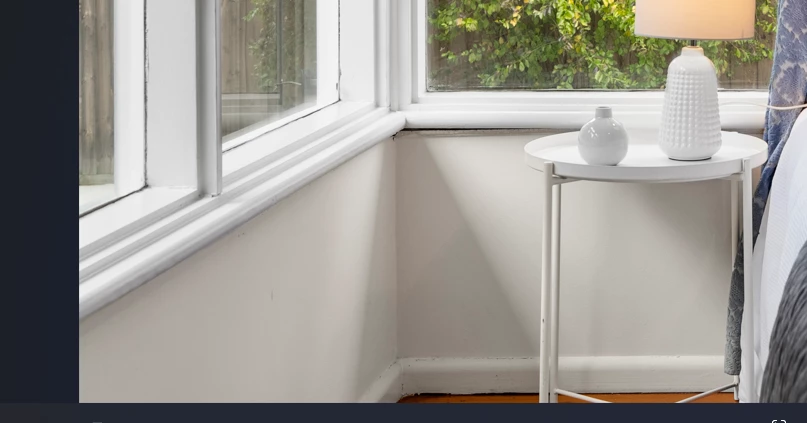
 

4 replies

Trevor.Dennis
Community Expert
Community Expert
March 15, 2025

One reason you can't change the colour, is because there is no colour to change.  Using the Color Picker tool we see a perfect light grey at position #1 and the merest hint of red at position #2 (which is what D Fosse told you)


When we attempt to adjust colour in Photoshop, it does not affect full black and full white, and has the most effect at a mid grey.  The layer filled with red and set to Color overlays a black to white gradient, and demonstrates  where it is working and where it has no effect.


D Fosse
Community Expert
Community Expert
March 15, 2025

That's correct. "Color" in Photoshop has a narrower and more precise meaning than it does in everyday speech.


In Photoshop, you need to make a distinction between Color and Luminance. In your example, you want to change the luminance component, not the color component. In fact, the white wall doesn't have any color at all.


White > Gray > Black are not colors, they are the complete absence of color. It's the luminance scale. Hence, Replace Color is not applicable here as the others say.


What you need to do is to select the area you want to modify, and make a mask in an adjustment layer that allows you to do what you want (Curves or Levels).

josantgomez
Legend
March 15, 2025

Probaría seleccionando el área a oscurecer. Y Ajustes/ Corrección selectiva, elegir blanco y desplazar el negro hacia la derecha hasta tu objetivo de oscurecimiento... O hacer lo que dice Fosse, también

c.pfaffenbichler
Community Expert
Community Expert
March 14, 2025

In my experience Replace Color is worthless for serious work because it is destructive. 


It generally affects color – not luminance. 

The problem being that »color« has some variety of meaning, but here it roughly refers to a combination hue and saturation. 


I would recommend using Adjustment Layers. 

josantgomez
Legend
March 16, 2025

Agradecer tu voto a mi aportación tan simple. Cuándo la pregunta lleva implícito un nivel de experiencia escaso, creo que los tecnicismo, enriquecen para puede que acaben complicando más que ayudando.  Por cierto,
¿Has profundizado en la verdad de la afirmación de la "edición destructiva"?  Lo hice y me pareció que esa expresión es un gran hallazgo del marketing. Algo parecido a como los partidos de izquierda se apropiaron del adejtivo "progresista" quitándoles esa idea a la competencia.  Ya se sabe que el que no es progresista pues !es otra cosa¡.  Sería como tratar de preguntar al consultantes si sabe que sin luz no hay color... El humor es un modo leal y no beligerante cuando el contraopinante te desmerece.

c.pfaffenbichler
Community Expert
Community Expert
March 16, 2025

»Have you delved into the truth of the "destructive editing" claim? I did,  and I found that expression to be a great marketing find.«

I am not sure I follow.

Replace Color cannot be applied as an Adjustment Layer or a Smart Filter so it needs to change actual pixels, destroying original values in the process and therefore being »destructive«. 


One could argue that one can always duplicate the Layer before editing it and that this could then be called »non-destructive« as the orginal data still exists, but as the settings are in this case not stored (unless one manually saves them as an axt-file, notes them own or saves screenshots …) making changes to the effect would be too cumbersome to be considered a valid option in serious image editing – in my opinion.