webmaster698
Known Participant
March 25, 2019
Answered

How to add border to a letter

  • March 25, 2019
  • 4 replies
  • 1403 views

Hello,

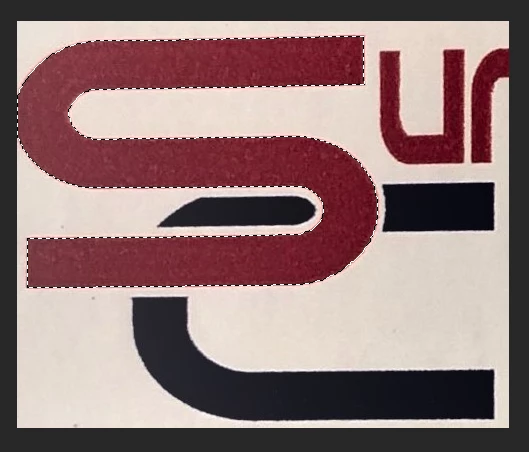
I have an image, just an "S" partly on top of a "C". I am looking for a way to make a white border around the "S", so it offsets the "C". I don't really know how to better explain, so I uploaded a crude picture of what I want to do.  I don't know if Photoshop or Illustrator is best, but I have both.

Thank you for any help

    This topic has been closed for replies.
    Correct answer Sahil.Chawla

    Hi there,

    You can make a selection of "S" with the quick selection tool.

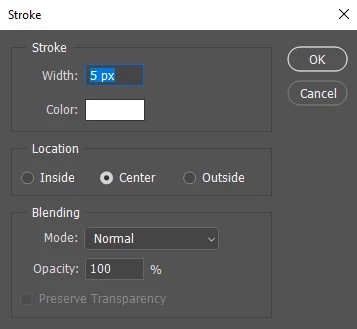
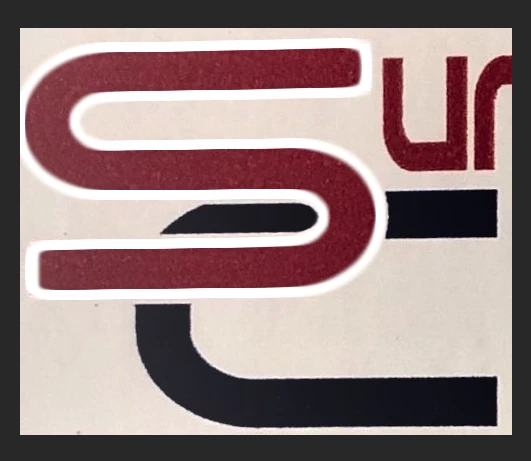
    Then create a new layer and go to Edit > Stroke, and give a white stroke around the letter "S". (You can change the width according to your preference).

    Regards,
    Sahil

    4 replies

    Trevor.Dennis
    Community Expert
    Community Expert
    March 25, 2019

    It's the sort of graphic that simply demands to be rebuilt as vectors.  An immediate advantage is the square corners to the white stroke.  I used a layer style stroke with the background colour outside the S to create the space between the letters S and C.  I am not sure what is supposed to be happening in the top right corner, so had to guess, but the bottom line is it took five minutes, and produced a sharp graphic you could making into  Smart Object, and save to a CC Library for future use.  It's also a good opportunity to practice with the Pen tool.

    JJMack
    Community Expert
    Community Expert
    March 25, 2019

    I left the borders off and saved it as an animated gif I should have turned off the shadow effect

    JJMack
    JJMack
    Community Expert
    Community Expert
    March 25, 2019

    Yes better without shadow

    JJMack
    Sahil.Chawla
    Adobe Employee
    Adobe Employee
    March 25, 2019

    I approve it as the letters "S & C" are my initials.

    davescm
    Community Expert
    Community Expert
    March 25, 2019

    Hi

    If it is against a white background then just add a white stroke around the outside of the S shape/letters, For shapes -do this in the options bar, as shown below, if using type then add in layer styles.

    Dave

    Sahil.Chawla
    Adobe Employee
    Sahil.ChawlaCorrect answer
    Adobe Employee
    March 25, 2019

    Hi there,

    You can make a selection of "S" with the quick selection tool.

    Then create a new layer and go to Edit > Stroke, and give a white stroke around the letter "S". (You can change the width according to your preference).

    Regards,
    Sahil