Participant
December 28, 2016
Answered

How to add different colors inside a circle in Photoshop?

  • December 28, 2016
  • 1 reply
  • 5906 views

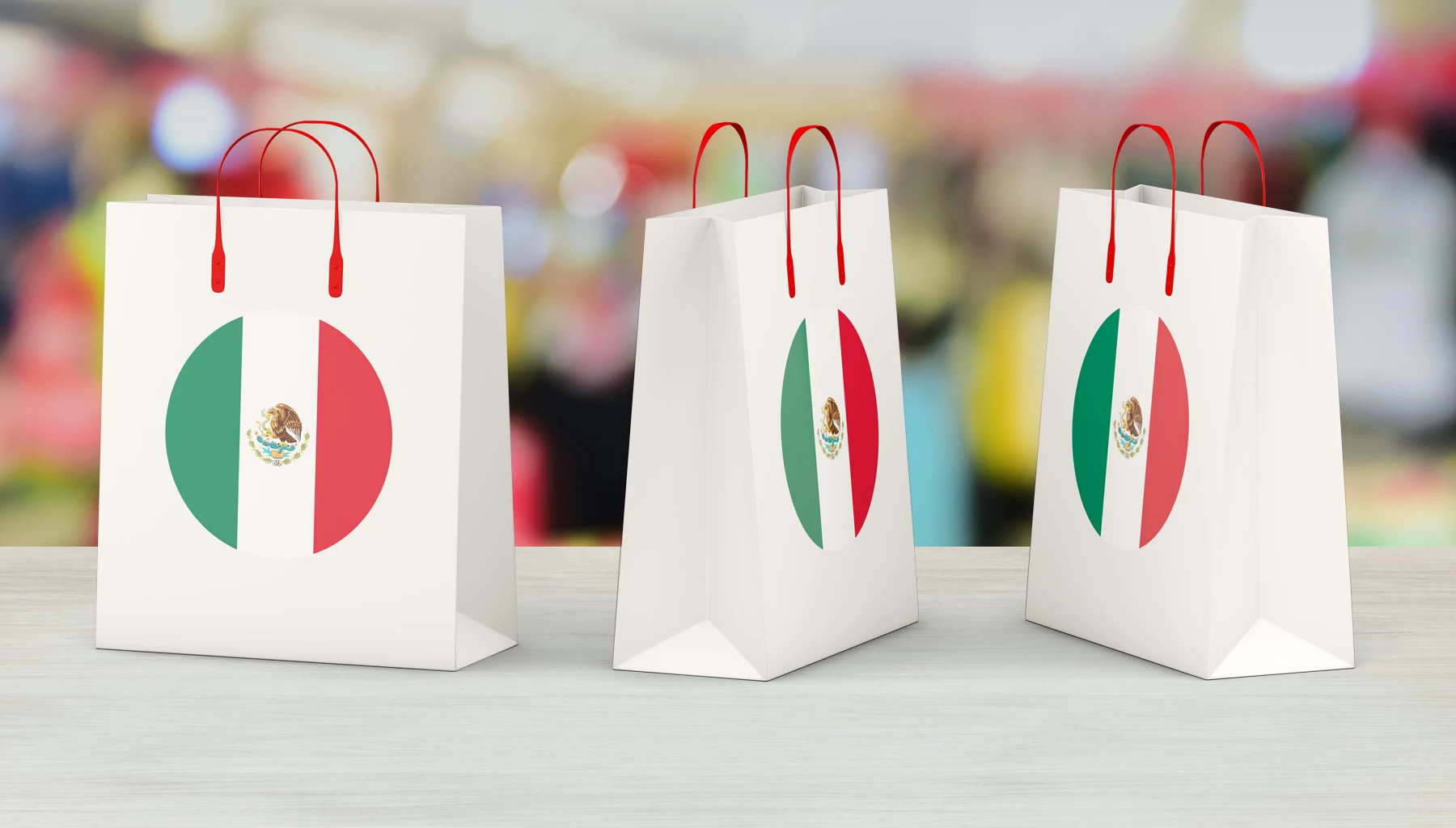
This picture has three circles, filled with green, white with symbol and red. But I want to have white with symbol removed and both green and red color filled with half by half inside of all of these three circles. How can I do it?
This topic has been closed for replies.
Correct answer davescm

Hi

Try this:

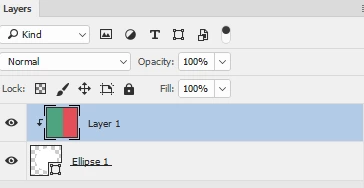
Use the shape tool to draw a circle (filled with any colour)

On the layer above use the marquee tool to draw two rectangles filled with green and red.

Now click on the border so that the top coloured layer clips to the circle below

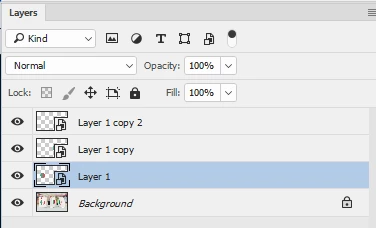
Now convert those two layers into a smart object and duplicate that mart object object twice so that you have a total of three circles.

Now it is just a matter of using the transform tools to put each circle onto each bag as below

I hope that helps

Dave

1 reply

davescm
Community Expert
davescmCommunity ExpertCorrect answer
Community Expert
December 28, 2016

Hi

Try this:

Use the shape tool to draw a circle (filled with any colour)

On the layer above use the marquee tool to draw two rectangles filled with green and red.

Now click on the border so that the top coloured layer clips to the circle below

Now convert those two layers into a smart object and duplicate that mart object object twice so that you have a total of three circles.

Now it is just a matter of using the transform tools to put each circle onto each bag as below

I hope that helps

Dave