When a Photoshop file is imported into After Effects, there is a choice (Import Kind): It can be imported as Footage, or a Composition.
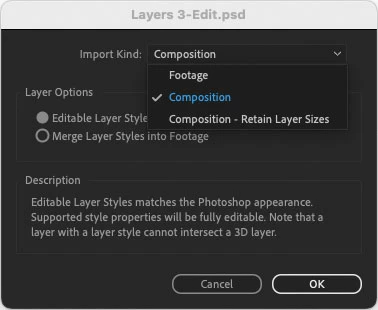
If it is imported as Footage, all layers are merged so it is a single file in After Effects. If the original Photoshop file is edited, the instance in After Effects updates automatically. However, because Footage imports it as merged layers, the Footage method can’t be used to animate the layers separately in After Effects.
Because you wanted to animate the Photoshop file layers separately in After Effects, it was necessary to choose the other option: Composition. In After Effects, this appears in the Project panel as multiple new items: Each layer separately, and also a new composition that includes the layers to reproduce how they looked together in Photoshop. This does allow animating each layer separately, but the problem is, because the file had to be disassembled to get at the individual layers, the new pieces do not automatically update when the original Photoshop file is edited.
There might not be an automatic way to resolve your problem, but one way would be to bring in just the one new layer to add it (select Footage, then select only the new layer), and position it in the existing After Effects composition in the same way as in the updated Photoshop file.
Another way might be to import the new Photoshop file, copy and paste the animation keyframes from the old layers to the corresponding new ones, delete the old composition, and then animate the new layer.
It looks like you also posted this in the After Effects community. They may have more or better ideas, because many of them know After Effects much better than I do.



 AdChoices