
Participant
October 11, 2024
Answered

How to address dulled Color when dragging into a new file

  • October 11, 2024
  • 4 replies
  • 897 views

Hello - 

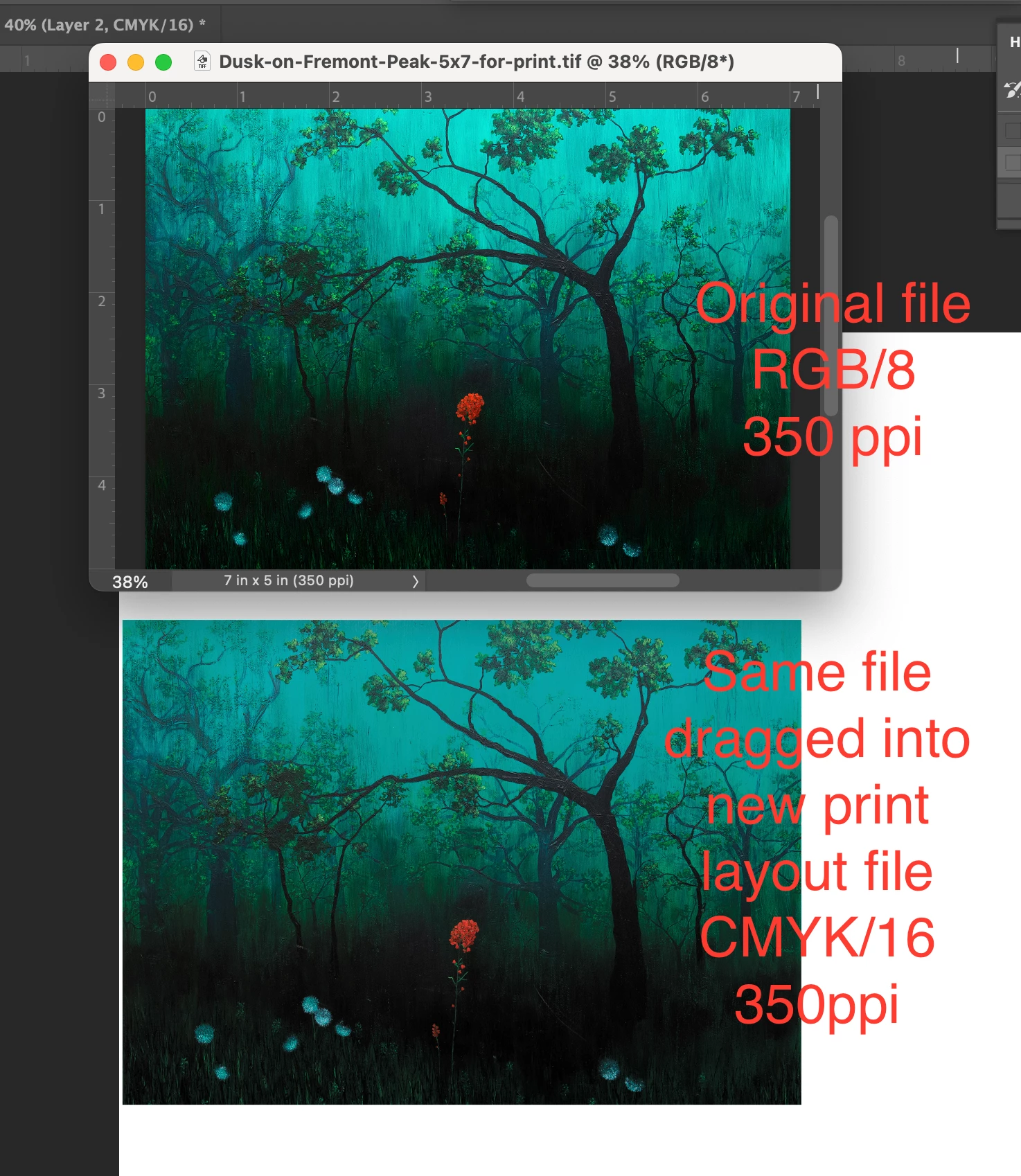
I have an art print in a file with RGB Color, 8 bits per channel, 350 ppi.

When I drag it into a print layout file (for printing multiples on one sheet). The color is flat and the depth disappears. The print layout file is CMYK color, 16 bits per channel and 350 ppi.

I'm not sure how to keep the brilliance and depth of the originals I'm dragging into this print ayout file, or why it makes files I drag into it more dull?
 

This topic has been closed for replies.
Correct answer davescm

Are you sending your layout file to a printing company or just printing directly to a photo ink jet printer. If the latter, do not convert to CMYK. Many ink jets contain additional inks that can print wider than just CMYK. That said, ink on paper will not print all RGB colours.


Dave

4 replies

davescm
Community Expert
davescmCommunity ExpertCorrect answer
Community Expert
October 15, 2024

Are you sending your layout file to a printing company or just printing directly to a photo ink jet printer. If the latter, do not convert to CMYK. Many ink jets contain additional inks that can print wider than just CMYK. That said, ink on paper will not print all RGB colours.


Dave

NB, colourmanagement
Community Expert
Community Expert
October 16, 2024

@Laura_Lippay2633 - @davescm makes a very good point there


"Are you sending your layout file to a printing company or just printing directly to a photo ink jet printer. If the latter, do not convert to CMYK"

thanks for pointing that out @davescm 


RGB to CMYK an un-neeeded and inadvisable conversion for work sent to any regular inkjet that runs without a RIP*. The standard inkjet printer driver is designed to accept RGB files, if sent CMYK, will convert it back to RGB, then convert to its own ink mix. 


*A software RIP is sometimes needed for inkjet printing, if single colour work - like black only text, needs to print with only black ink, that can’t be achieved through an RGB driver. 


I hope this helps
neil barstow, colourmanagement net - adobe forum volunteer - co-author: 'getting colour right'
google me "neil barstow colourmanagement" for lots of free articles on colour management
Help others by clicking "Correct Answer" if the question is answered.
Found the answer elsewhere? Share it here. "Upvote" is for useful posts.

Participant
October 21, 2024

Thank you! I did read elsewhere to use Adobe RGB 1998, so I changed the color profile of my files to that. I am printing directly to a Canon Pro 1000. The Photoshop print settings window that comes up when I go to print had:

Color handling: Printer manages colors

Printer profile: sRGB IEC61966-2.1

I read that sRGB doesnt have nearly as many colors as Adobe RGB.

But when I change it to:

Color handling:Photoshop Manages Colors

Printer profile: Adobe RGB (1998)


I get a warning that "No Color Management is not supported... Please use Adobe Color Printer Utility if you need to print with No Color Management".

I dont think I'm trying to do no color management - I'm trying to use what's in the dropdown.

I've just been canceling out of that and printing anyway.


Is there a correct setup there?


NB, colourmanagement
Community Expert
Community Expert
October 15, 2024

@Laura_Lippay2633 as @D Fosse writes the selection of CMYK profile to use as destination in your conversions (from RGB) is a vital part of getting print work to appear as you expect it to. 

Once the correct CMYK ICC profile to use has been confirmed by your printer, then, rather than a simple blind conversion,  I'd attempt to convert within Photoshop - using the various tools available to you, to perhaps pre- conversion reign in excessive gamut. 

View/ gamut warning will help you 


A note on Photoshop's "GAMUT WARNING" option

Steve Upton, color management guru and owner of Chromix wrote

"It would be wise to clarify one thing.

The "Gamut Warning" function in Photoshop, it turns out, is a delta-E warning (hence my quotes around Gamut Warning).

So, if a profile has a significant color shift that is in gamut, it could show up in the "Gamut Warning" function."


So. Gamut Warning can show you it's warning overlay in areas of colour that aren't actually beyond the destination gamut, that said it’s a pretty useful tool. Colorthink Pro, programmed by Steve Upton has a far more sophisticated out of gamut feature. 


I hope this helps
neil barstow, colourmanagement net - adobe forum volunteer - co-author: 'getting colour right'
google me "neil barstow colourmanagement" for lots of free articles on colour management
Help others by clicking "Correct Answer" if the question is answered.
Found the answer elsewhere? Share it here. "Upvote" is for useful posts.

D Fosse
Community Expert
Community Expert
October 11, 2024

The color is out of gamut and cannot be reproduced in the target CMYK profile.


Generally, this can happen if one of the files lacks an embedded color profile. But in this case, the explanation is simpler, it's just out of gamut.


CMYK is based on actual, physical offset print processes, using physical inks on certain paper stock, on an offset press calibrated to a certain standard. There are limits to how much saturation you get from ink on paper.


Every offset printing process has a corresponding CMYK profile that characterizes that particular process. That's why you have the long list of CMYK profiles. There is no such thing as a generic "standard" CMYK. You need to know which profile to use. The Photoshop default just happens to be US Web Coated (SWOP), but chances are it's not the right one, and it certainly won't be if you're outside North or South America. Always ask the printer.


The gamut of a color space is a hard limit. There is nothing you can do about that, except soft proof and compensate as best you can.

Participant
October 11, 2024

They're both .tif files by the way