Participant
July 22, 2018
Answered

How to Apply Multiple Clipping Masks?

  • July 22, 2018
  • 2 replies
  • 11545 views

Hey Everyone:

Any way I can add two clipping masks to the same layer? I'd like to make a clipping path with my "Car Freshener" path AND my "Hole" Path.

I tried to merge the two paths but the clipping mask would not cut out both paths.
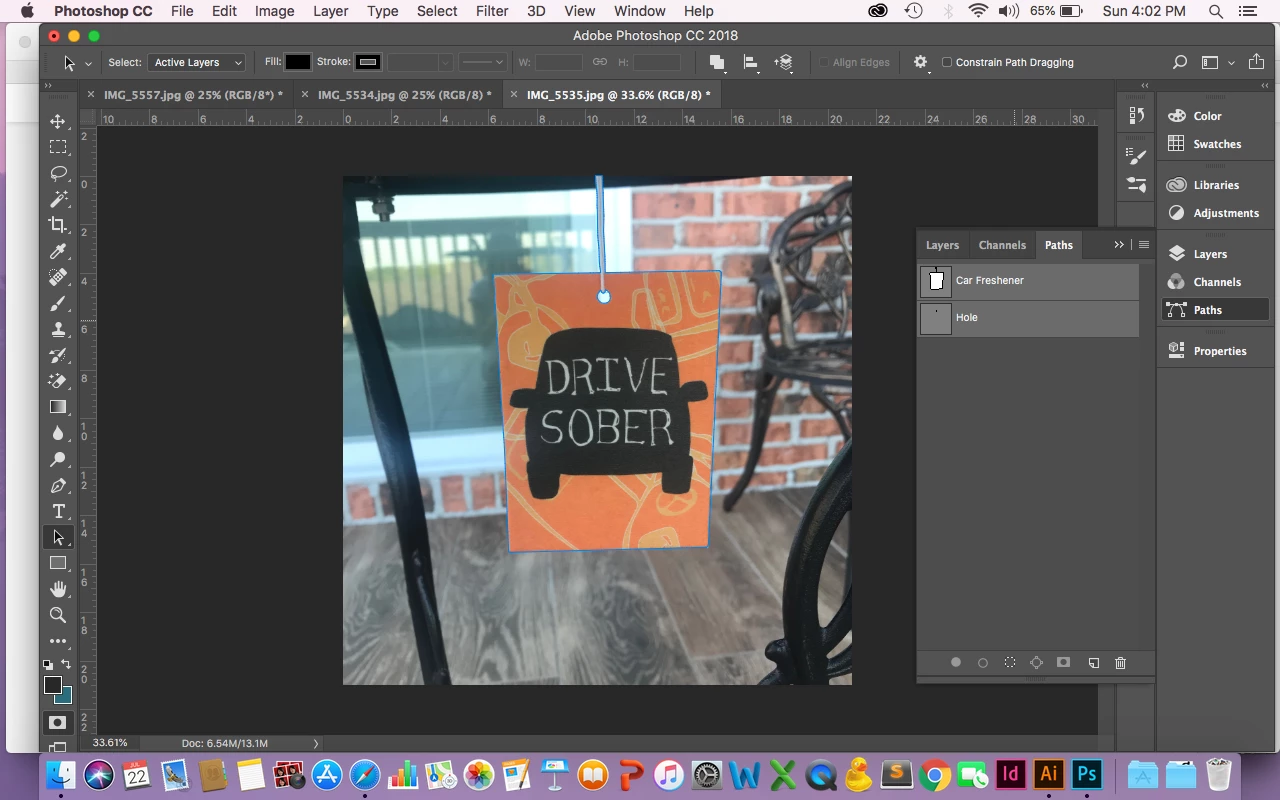
Thanks,

Lucy

    This topic has been closed for replies.
    Correct answer Stephen Marsh

    I ran out of time to post before, however here is the visual that I worked up (presuming that all paths objects are combined):

    2 replies

    Semaphoric
    Community Expert
    Community Expert
    July 22, 2018

    You could copy the Hole path, and paste it into the Freshener path. With the Path Selection tool, click on Subtract Front Shape under Path Operations in the Options, followed by Combine Shapes.

    Stephen Marsh
    Community Expert
    Stephen MarshCommunity ExpertCorrect answer
    Community Expert
    July 23, 2018

    I ran out of time to post before, however here is the visual that I worked up (presuming that all paths objects are combined):

    JohanElzenga
    Community Expert
    Community Expert
    July 22, 2018

    What you can do is select the layer and the clipping mask, and turn that into a smart object. Then you can add another clipping mask to this smart object. You could repeat this as many times as you want.

    -- Johan W. Elzenga