Inspiring
March 10, 2020
Answered

How to automate the proces of center aligning a photo to the printdimensions and fill the gaps.

  • March 10, 2020
  • 3 replies
  • 690 views

Hi you all, 

I'm searching for the following automated proces in Photoshop:

Let's assume you have a bunch of photo's you want to resize to the max proportions of a given printer, as I am.  Say 30 x 40 cm. Not only that, but the gaps of each photo must be filled with black and the original dimensions must be in dead center.


It can be done manually but it is rather tiresome, there must be a better  and more precise way to do so in Photoshop. Thanks in advance for your input!

    This topic has been closed for replies.
    Correct answer JJMack

    If you use a conditional step there will be two action one to create portrait print files  3400 px x 4600 px and one to create landscape print files   4600 px x 3400px files,


    You start by recording the Landscaper Action

    1 Set 120Pixels/cm print resolution  Image size resample not checked set resolution

    2 Fit image  4600 px width  3400px height

    3 Canvas size  4600 px width 3400px height make sure both width and height  settings are  recorded.   To do this you can start  recording  the action on  a new document  witha a canvas size like 10px by 10px at 100pcv.   To record the actop on. Then step one Sete the PPC resolution as the first step then  record the 3 Canvas size  4600 px width 3400px height then the Fit image step stop recording the action amy move the fit image step before the canvas size step. 


    Next you record the main Action PortraitLandscape 

    Create a new document 10px by 10px at 100PPC.  Start recording your new PortraitLandscape action immediately  click the Stop recording button in the action palette then use the Action palette flout menu to insert a conditionals step. If document is Landscapet  then play Landscape.  Next click the record button in the action palette and continue recording the action to create the portrait print file like you recorded the landscape action.
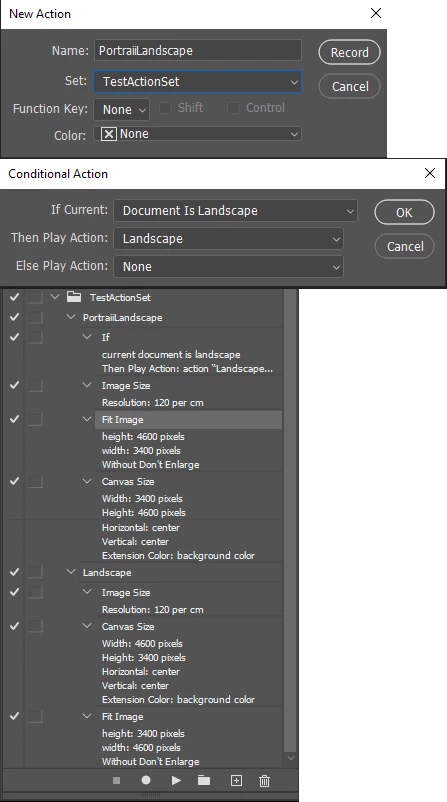


    Then use menu File>Scripts>Image Processor to batch the PortraitLandscape action and save the print  file to where you want them stored. as Jpeg, Tiff or PSD files.

    3 replies

    JJMack
    Community Expert
    Community Expert
    March 10, 2020

    It can be automated with an action or two.  Photoshop is a Pixel Image Editor so you need to look at this process as editing your image pixels.  For the Print Image you want and how you want to handle your images aspect ratio, image sized and image print gaps.


    1.) 30CM x 40CM is a portrait aspect.  Do you want all Prints to Portrait with black borders to preserve  your images content. Or do you want to Print you Image  with either 30cm x40cm Portrait ore 40cm x30cm Landscape Aspect ratio depending on you Image's aspect  ratio.


    2.) Prints are printed at some pixel density. The print resolution. For a print dimension  30cm x 40cn you need to specify the print resolution.  So you know how many Pixels are needed for the print..  A 120pixel/cm Print would be 3400px by 4600px 


    3.) When you set you images size to 120pixel/cm without resampling  Yoru image's size will  need to be scaled for the print size you want. You can use Photoshop Plug_in Fit Image  to resize you image to fit within the print 3400px by 4600px  canvas.  Then set the canvas size to 3400px by 4600px  to fill in the Gaps with black.  With fit image you have the option of not scaling small image up in size they would have black boarders on all four sides.  Images that are scaled down in size will have boarders on two size.  If you want all Image to have black boarders on all 4 size you can set fit image to  fit thet image to  a size smaller then 3400px by 4600px  then set the Canvas size to 3400px by 4600px to add black on all four sides.


    4.) The first thing the action could do is to use a simple script to rotate landscape image 90 degrees and process all image as portraits.  Or use a conditional step and have two actions one for Portrait and one for Landscape. Or Force all to be Portrait where Landscape images will have large boarders top and bottom. 

    JJMack
    Inspiring
    March 10, 2020

    Thank You all for your input, especially mr JJMack. I didn't know about the plugin Fitimage. The common denominator you all point out is: use print resolution instead of a measurement unit when you resize to the max proportions of the printer. Indeed the max print proportions, at least the printer I'm using is 30 x 40 cm. If I would use 120 pixels per centimeter wouldn't that mean a resized image of 3600 px by 4800 px instead of 3400 x 4600 px? Some are in portrait mode others are in landscape mode. How to define a conditional step in actions I would not know. For your convenience some samples of the project I'm working on. Again thank you all.

    JJMack
    Community Expert
    JJMackCommunity ExpertCorrect answer
    Community Expert
    March 10, 2020

    If you use a conditional step there will be two action one to create portrait print files  3400 px x 4600 px and one to create landscape print files   4600 px x 3400px files,


    You start by recording the Landscaper Action

    1 Set 120Pixels/cm print resolution  Image size resample not checked set resolution

    2 Fit image  4600 px width  3400px height

    3 Canvas size  4600 px width 3400px height make sure both width and height  settings are  recorded.   To do this you can start  recording  the action on  a new document  witha a canvas size like 10px by 10px at 100pcv.   To record the actop on. Then step one Sete the PPC resolution as the first step then  record the 3 Canvas size  4600 px width 3400px height then the Fit image step stop recording the action amy move the fit image step before the canvas size step. 


    Next you record the main Action PortraitLandscape 

    Create a new document 10px by 10px at 100PPC.  Start recording your new PortraitLandscape action immediately  click the Stop recording button in the action palette then use the Action palette flout menu to insert a conditionals step. If document is Landscapet  then play Landscape.  Next click the record button in the action palette and continue recording the action to create the portrait print file like you recorded the landscape action.


    Then use menu File>Scripts>Image Processor to batch the PortraitLandscape action and save the print  file to where you want them stored. as Jpeg, Tiff or PSD files.

    JJMack
    Bojan Živković11378569
    Community Expert
    Community Expert
    March 10, 2020

    You already have good direction instructed by Chuck. You can record in action step and extension color selected in Canvas Size dialogue. When recording action there are some questions to ask yourself like how to resize or resample images during batch process. I will suggest to you to work with pixels to avoid any potential mistakes caused by wrong resolution while using cm, in or some other mesurement unit.

    Chuck Uebele
    Community Expert
    Community Expert
    March 10, 2020

    You can do that with a script, but you should be able to to that with image processor and an action run in a batch. I don't use actions much, since I do scripting. But I would use image processor to size all the images to the max size you want. Then an action could flatten the image, make black the background color, then resize the canvas to 30x40. Since the bg color was set to black, that should make the black edge you want to fill the gaps.
