
Participant
March 13, 2020
Question

How to change alpha value in curve adjust method?

  • March 13, 2020
  • 2 replies
  • 6979 views

Hi , we all know we can adjust RGB value by curve method , cause it is more smooth,but how can i adjust alpha value in the same way ?


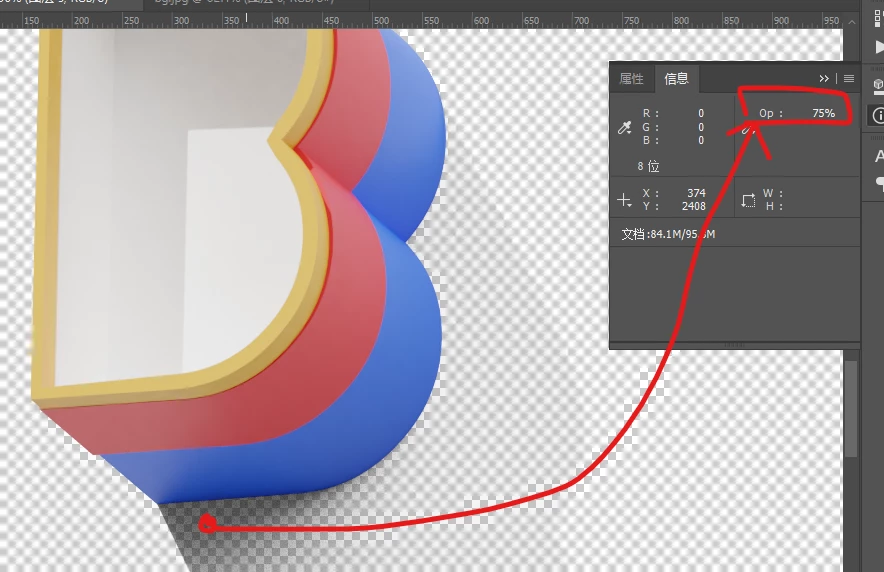
In the beneath example, the shadow part i have noted in red dot have opacity 75%, 
 

and farther part of shadow has a lower alpha value ,in this case , it is 11%
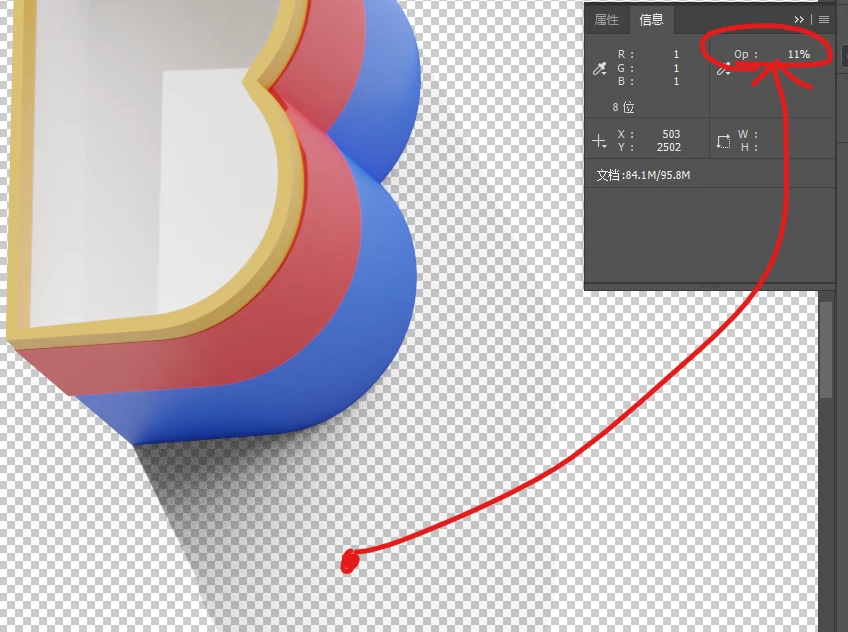
i now certainly can adjust the darker shadow part by eraser tool manually , but is there any way to finish it by curve tool like adjusting RGB value ?


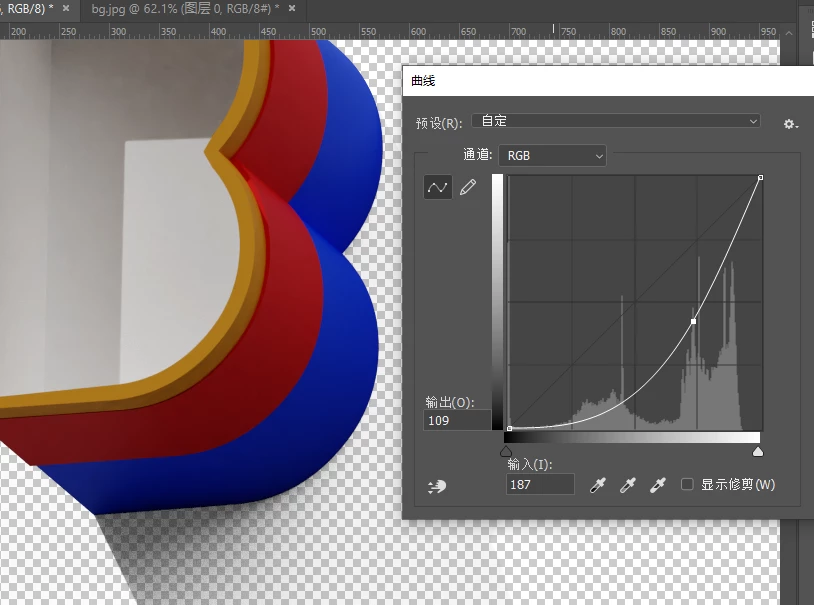
Until now , i dont really find a way to adjust alpha value by curve , in normal curve tool, it only influences RGB value , but the alpha value doesn't change at all! 
This topic has been closed for replies.

2 replies

rayek.elfin
Legend
March 13, 2020

I don't think this is directly possible: Photoshop hides the transparency channel, or at least, it is not possible to affect transparency directly - only through layer masks, for example. Transparency/alpha is not adjustable via the curves without converting it first to a layer mask.


Another option is Layer>Layer Mask>From Transparency. It will convert the layer's transparency to a layer mask. Then Alpha becomes available in the Curves. Bit of a work-around, though. And it will not work with multiple layers.


It's a known legacy limitation in Photoshop. In other image editors curves do support direct adjustment of the transparency values, though. Would be nice if PS gets this option at some point.


*oops, c_pfaffenbichler beat me to it.

PECourtejoie
Community Expert
Community Expert
March 13, 2020

Rayek, did search or create a thread on the topic on https://feedback.photoshop.com site, watched by Adobe staff. Make sure to provide as many relevant details as possible, on how it could improve your workflow...

c.pfaffenbichler
Community Expert
Community Expert
March 13, 2020

I understand what yuo mean (edit: at least I think so), but in Photoshop that is called »transparency« and not »alpha«. 


The only way I can think of is 

• Layer >Layer Mask > From Transparency 

• select the resulting Layer Mask

• apply the Adjustment on that 

Participant
March 13, 2020

Ya, that counts, thanks!