Noel Carboni
Legend
March 24, 2012
Answered

How to Change Opacity via Alt-Right Click Brush Sizing?

  • March 24, 2012
  • 5 replies
  • 27572 views

Opacity is shown along with Diameter and Hardness, when Alt - Right click is done while using a round brush (in this case, with the Dodge tool).
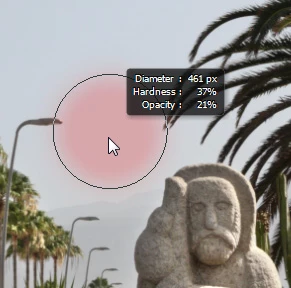
I guess it's late, but I don't sense a gesture that causes the Opacity to change in this mode.  Am I just missing it?  I tried all the modifier keys and moving the mouse every which way.  I even tried the scroll wheel, but couldn't get the Opacity to change.

How do I change the Opacity (besides the old traditional way)?

-Noel

    This topic has been closed for replies.
    Correct answer Pattie F

    As far as I know, here is what you can do:

    Pattie

    On Screen BRUSH RESIZING and HARDNESS/OPACITY

    Mac

    • Left/Right drag = brush resizing: Opt+Ctrl+click-drag
    • Up/Down drag = brush hardness: Opt+Cmd+Ctrl+click-drag
      (or opacity if option is unchecked)

    Windows

    • Left/Right drag = brush resizing: Alt+right-click-drag
    • Up/down drag = brush hardness: Alt+Shift+right-click-drag
      (or opacity if option is unchecked)

    Note: In Edit Preferences>general you can uncheck vary round brush hardness based on HUD vertical movement if you want to change opacity instead of hardness.


    5 replies

    laurad55514357
    Participant
    July 14, 2015

    I have a decent solution with my wacom tablet set up.

    I created 2 actions in PS.

    Opacity Mode (F3) > Set general preferences To: [uncheck] Vary Round Brush Hardness based on HUD vertical movement.

    Hardness Mode (CTRL + F3) > Set general preferences To: [check] Vary Round Brush Hardness based on HUD vertical movement.

    I hotkeyed F3 to the doubleclick (top button) on my pen since I found I wasn't using it.

    I have CTRL modifer hot-keyed to my tablet. 

    Needing two actions for this makes it extra clunky but I found this set up has made these two really important settings a lot more conveniently at my finger tips.

    Adobe should really implement a solution to toggle the two modes when Alt-Clicking, that would be a lot smoother, and obviously the functionality is already there.

    mike23551318
    Known Participant
    November 25, 2018

    How did you locate "Vary Round Brush Hardness based on HUD vertical movement"?

    I'm currently using Photoshop Elements 15.

    Jeff Arola
    Community Expert
    Community Expert
    November 26, 2018

    That's a photoshop cs6/cc only setting, not in photoshop elements.

    In other words while the shortcuts above generally work in later photoshop elements versions, there is no preference in photoshop elements to pick between Hardness or Opacity. Photoshop elements does Size and Hardness.

    Noel Carboni
    Legend
    May 18, 2012

    Heh, I just figured if it's going to list 3 parameters, as well as represent them with the characteristics of the overlay, then it might be kind of nice to be able to adjust all 3 with the shortcut process.

    -Noel

    Participant
    October 11, 2012

    you can change opacity by shortcut:

    [Enter]+[UP]+[Enter]+[Esc]

    For down use down arrow key.

    I use it on cintiq and ituos.

    For bigger change repeate [UP]'s as much as you like

    Participant
    October 11, 2012

    some shortcuts not working on my 5.5

    Inspiring
    March 24, 2012

    You can choose two out of the three options of Brush Hardness, Size or Opacity but not all three.

    If the option in the prefs shown in this screen shot is checked, the HUD will control Size and Hardness but not Opacity.

    If checked, you get Size and Opacity but not Hardness.

    I keep mine checked and just set Opacity from the keyboard in the traditional way but it would be nice if we could have all three options from the HUD.

    Trevor.Dennis
    Community Expert
    Community Expert
    March 24, 2012

    Not sure what to think about this.  I am sure I won't disable the Preferences setting because I am used to working with size and hardness.   Seems to me if you need to hold down a modifier key to toggle between hardness and opacity, then that same finger could just as easily hit the number keys.    Hmmm... just tried it and it doesn't work. you need to let go of the Alt key to change opacity.  My thinking is that it _might_ be useful to see the affect of opacity change on the fly, but that would not work with using a modifier key with Alt right click, because you are looking at the quick mask colour, but then again, hitting a modifier key could change from quick mask colour to foreground colour, and show its opacity.  That I would find useful.

    Pattie F
    Pattie FCorrect answer
    Participating Frequently
    March 24, 2012

    As far as I know, here is what you can do:

    Pattie

    On Screen BRUSH RESIZING and HARDNESS/OPACITY

    Mac

    • Left/Right drag = brush resizing: Opt+Ctrl+click-drag
    • Up/Down drag = brush hardness: Opt+Cmd+Ctrl+click-drag
      (or opacity if option is unchecked)

    Windows

    • Left/Right drag = brush resizing: Alt+right-click-drag
    • Up/down drag = brush hardness: Alt+Shift+right-click-drag
      (or opacity if option is unchecked)

    Note: In Edit Preferences>general you can uncheck vary round brush hardness based on HUD vertical movement if you want to change opacity instead of hardness.


    Noel Carboni
    Legend
    March 24, 2012

    Alt + Shift + Right click drag seems to bring up the HUD color picker on my Windows 8 system.

    Not sure if that's the expected behavior.  Perhaps the Control key could be used instead of Shift, then, e.g.,

    Alt + Right-click-drag right and left would change Size (as it is now)

    Alt + Right-click-drag up and down would change Hardness (as it is now)

    Alt + Control + Right-click-drag up and down would change Opacity. (new)

    And you'd still have one left (Alt + Control + Right-click-drag left and right) for who knows what.

    Right now the Control key adds nothing new to the activity.

    -Noel

    45634563545
    Inspiring
    December 23, 2012

    Alt + Right-click-drag right and left would change Size (as it is now)

    Alt + Right-click-drag up and down would change Hardness (as it is now)

    Alt + Control + Right-click-drag up and down would change Opacity. (new)

    I would absolutely love this functionality! Perfect solution. And I'm surprised it isn't already added; seems obvious. If added it would really enhance the already smooth Photoshop painting experience. When brushing, I love the new hardness change-on-the-fly thing, but find it jarring and unintuitive having to then hit keyboard numbers to or dragging the Brush Tool opacity scrubby bar to alter opacity.

    Has this idea been submitted to Adobe? If not, let's get the PS team to respond and see if we can't get them considering it, officially.

    Jeff Arola
    Community Expert
    Community Expert
    March 24, 2012

    I believe this setting in the general preferences is it, although i wonder if there's a way to have both opacity and hardness at the same time available for change in the hud.

    Noel Carboni
    Legend
    March 24, 2012

    It'd be kind of nice for a modifier key to affect that, maybe reverse the selection made in that configuration dialog...

    Shift maybe?

    -Noel