
barbiebytes
Participant
March 26, 2013
Question

How to convert spaced objects to different layers

  • March 26, 2013
  • 1 reply
  • 481 views

hi everyone

I have pdf version of slideshows that my professor gives us. Basically, each page of the pdf has like 4 or 6 rectangle (slides) and they are spaced apart.

Like this:
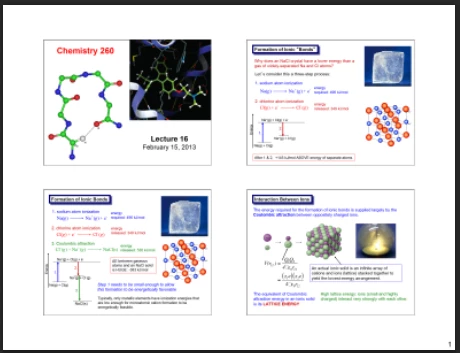
What I would like is to make a photoshop script to put each of the four rectangle slide pictures on thier own layer.

Any help?

This topic has been closed for replies.

1 reply

Participating Frequently
March 26, 2013

Hi,

Have you tried Split to Layers by David Jensen? It'll separate any segments floating in a layer to layers of their own. It works like a charm.

Maybe you could incorporate it into an action, especially if the size, number and placement of the slides are consistent. That way you could have the action knock out the white space around each slide then have the script separate the ‘floating’ slides into layers. You might need to change your units to pixels to place your selections precisely.

On second thought,  if the slides are consistent you could probably set up an action to do the whole thing. No need for the script. But get it – it's great.

barbiebytes
Participant
March 26, 2013

Rydiant,

thank you i checked out the link. I am able to now select the different boxes based on the coordinates i provided.

now I want to go through each slide of pdf and grab these little boxes and put them all in a vertical line!

any idea what would be the best way to do this?

Participating Frequently
March 26, 2013

Hi barbiebytes,

Assuming you've separated each panel to its own layer:

  1. Order your panel layers according to the arrangement you want them in the final layout.
  2. Extend the canvas to the dimension that will fit them all.
  3. Select the top panel layer and Free Transform the panel. Use the controls in the menubar to set the reference point to the top edge, then type in a Y-coordinate to place the panel as high as you'd like.
  4. Select the bottom panel layer and Free Transform the panel. Use the controls in the menubar to set the reference point to the bottom edge, then type in a Y-coordinate to place the panel as low as you'd like.
  5. To bring the panels to the center, select all the panel layers and again in the menubar, press the ‘align horizontal centers’ button.
  6. To spread out the panels vertically, then press the ‘distribute top edges’ button or the ‘distribute vertical centers,’button – whatever seems best.

That would be my strategy. Others might have different suggestions.

Good luck!