


April 11, 2019
Answered

How to copy and paste with transparent background?

  • April 11, 2019
  • 6 replies
  • 111278 views

I opened an image as follows. You can see it has a transparent background:

Then I click Ctrl-A to select all, Ctrl-C to copy the image. Click menu File->New.... In the dialog I select Clipboard and click "Create":
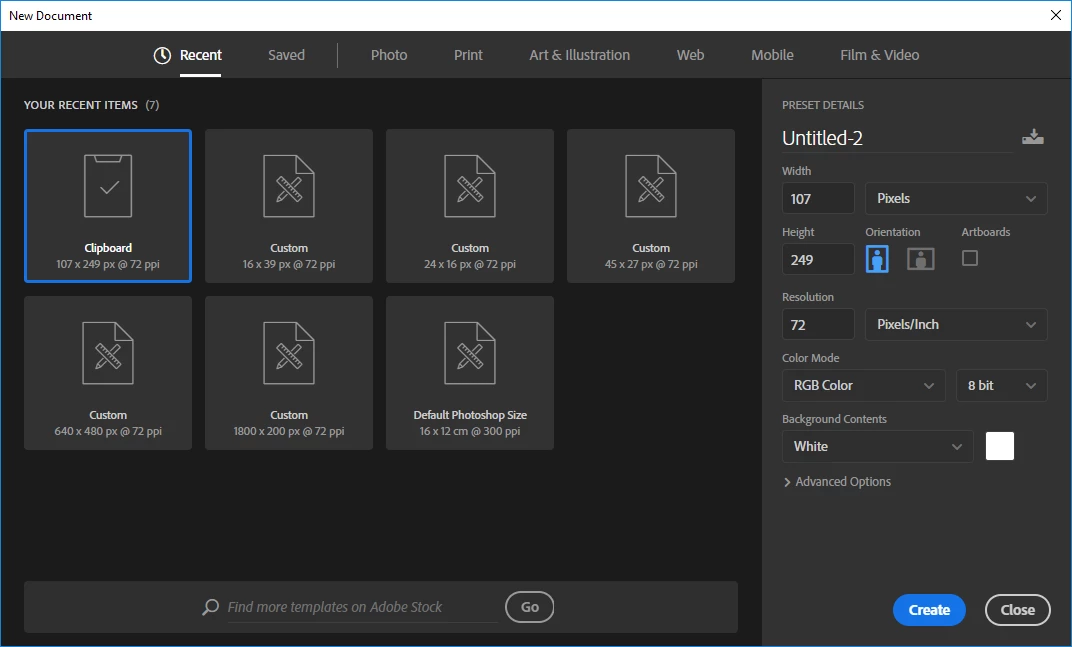
In the new document window, I click Ctrl-V and I got this.

As you can see, the image itself was pasted as expected, but the background are all white. I hope that the background can be copied as well, that is, the checkerboard in the source image which represents transparency. So, what is the correct operation to copy and paste in Photoshop with transparent background preserved? Or, if it is not possible, how can I convert the white background to transparency (i.e., checkerboard)? Thank you.

PS: I am using Photoshop CC 2019 on Windows 10.

PS2: I have spent a couple of days trying to learn to use Photoshop by paying and watching an online tutorial, but after so many days, the tutorial still refrains from telling me how to do it (even Ctrl-A was guessed out from other Windows software convention), so I'm out of patience and ask here.

Correct answer Nancy OShea

For a transparent document, go to File > New and select Background Contents: Transparent.


6 replies

Participant
November 9, 2024

Copy the html address of the image, click “Create” in PS and paste the link into the file path

Participant
November 9, 2024

 click “Open”!!!!!!!

Participant
January 24, 2023

i believe its a windows problem, i used both operating system, mac on office, windows at home...
on mac, copy and paste works fine. On windows, the transparency is not copied.

Been coping with this issue for a decade 😞


Zesty_wanderlust15A7
Known Participant
June 25, 2022

Win 10 PS v23.3.1

I can't easily replicate the problem, if at all.

What should also work is holding alt and drag that layer to the "new layer" icon.

You'll get this (pick New) and dimensions/transparency will stay.

dse-
Participant
September 14, 2022

Easy to replicate.
Open a webpage with selection of transparent images. I'm using .png in my example.
Copy the .png (don't download)
Paste into a new photoshop document. 
The transparent channel is ignored. 
This is relatively new; running the same operation in older versions of Photoshop (Photoshop6), the paste is correct; the transparent channel is recognized.  I noticed this nonsensical behavior 3-4 versions back.  Why transparent channels, whether .gif, .tif, or .png are no longer recognized in a paste, is a pain. We store our graphics on webpages for international access, vs localized, and I'm certain we're not the only ones working this way.  There is no reason to download and store a disposable graphic. 

Nancy OShea
Community Expert
Community Expert
September 14, 2022

The simple answer is your browser's copy command is losing data. 


The same thing occurs with copied animated GIFS.  When pasted, they become static.


If you want to preserve image data, save file to your desktop or a dedicated folder first. Then Place or Insert image the customary way. 


Nancy O'Shea— Product User & Community Expert
Participant
December 2, 2021

This is a Windows problem, please tell then it's annoying you too in the insider program.

https://aka.ms/AAf1dst

Participant
June 25, 2022

No, it's not. Paint.net (program, not a website as the name suggests) has no problem doing this. It's a photoshop issue.

Nancy OShea
Community Expert
Nancy OSheaCommunity ExpertCorrect answer
Community Expert
April 12, 2019

For a transparent document, go to File > New and select Background Contents: Transparent.


Nancy O'Shea— Product User & Community Expert
Participating Frequently
June 25, 2024

This discussion was 4 years ago and I do  see a workable answer. I wished this "correct anser" by Nancy worked because I am having the same problem when I insert a photoshop image (TIFF) into a pdf, but it does not. In photoshop, I certainly can create new>select background>transparent. But when I place the image (TIFF) into the new without background, the white textbox (technically not a text box but easier to convey info that way) that surrounds it comes along and it is not transparent. For a different workaround, I tried removing the background from the photoshop TIFF image, but as others before me in the comments have said, this removal is ignored when insterting into a pdf. Guess I'll play agound with other image types like png and see if that works.

Nancy OShea
Community Expert
Community Expert
April 12, 2019

Not sure what you're trying to do.   Your image is already on a transparent background.  Why are you pasting it onto a new document with a solid background?


Nancy O'Shea— Product User & Community Expert
Participant
August 22, 2020

I have the same problem.  I made an image with a transparent background, and am trying to copy>paste it into power point (or any other document).  The background always changes to white when I paste it.  How to preserve the transparency?

Nancy OShea
Community Expert
Community Expert
August 22, 2020

"The background always changes to white when I paste it."

Then don't copy & paste it.  Use the insert command and go directly to the named file on your hard drive.


Nancy O'Shea— Product User & Community Expert