How long is the video clip? What is its frame rate? What does it consist of? (i.e. computer game or real life?)
The problem is that GIFs are not very efficient, and anything more that a few seconds, will produce unwieldy files that take a long time to load and won't play well. I'd be inclined to open the video in Photoshop, and cut the clip down to just the bit you want. by positioning the Playhead, and clicking on the Scissors icon. Do this at the beginning and end of the desired footage, and delete the bits you don't want.

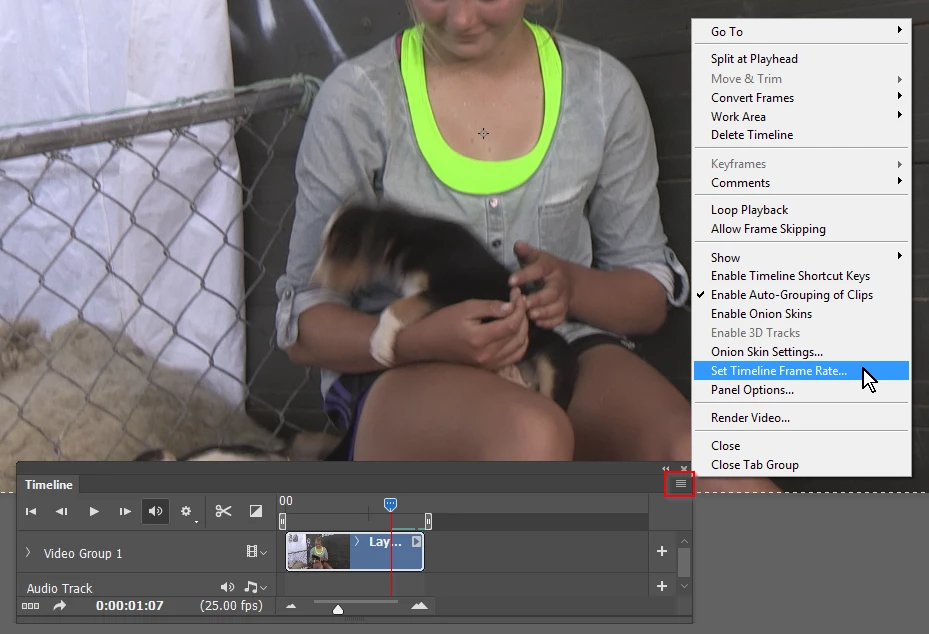
Click on the fly out menu (top right of Timeline) and set the Frame Rate to 12. That's about as fast as frame animation will play, and the normal 25 (ish) frames per second will bog things down.
Render out to a new mp4 video file.
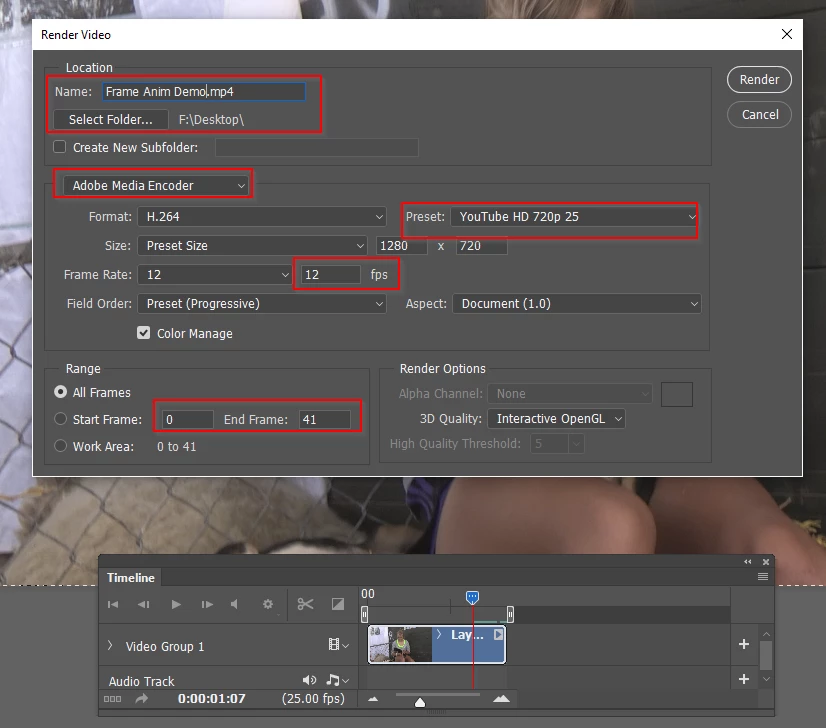
Choose a file name an location, and remember them. Desktop is convenient
Choose Adobe Media Encoder and use the settings below (outlined in red) unless you know different
Preset something like my YouTube HD 720p 25 (this keeps the file size down but your choice)
Change the frame rate back to 12 or it will play at the wrong speed.
I've shorted the heck out of my clip for the sake of demonstration, so it is only 41 frames, but leave yours as it is
Hit Render
When done, save as a PSD and close the file.
Find your MP4 file and test it. If OK, go back to Photoshop and go
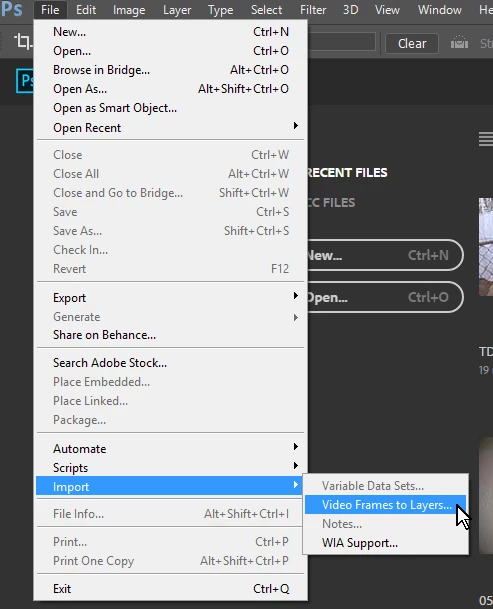
File > Import > Video frames to layers
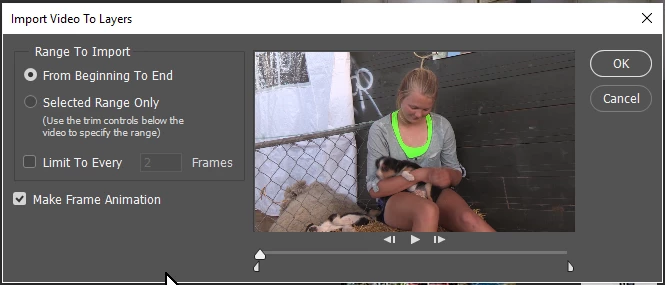
Set the Workspace to Motionif it does not do it automatically.
I have probably messed up with my frame rate (which was a guess) because mine only imported with 20m layers (plus the black layer)
The 720P preset gives you an image size of 1280 x 720 pixels. I have no idea what will work for you, but down size if you need to.
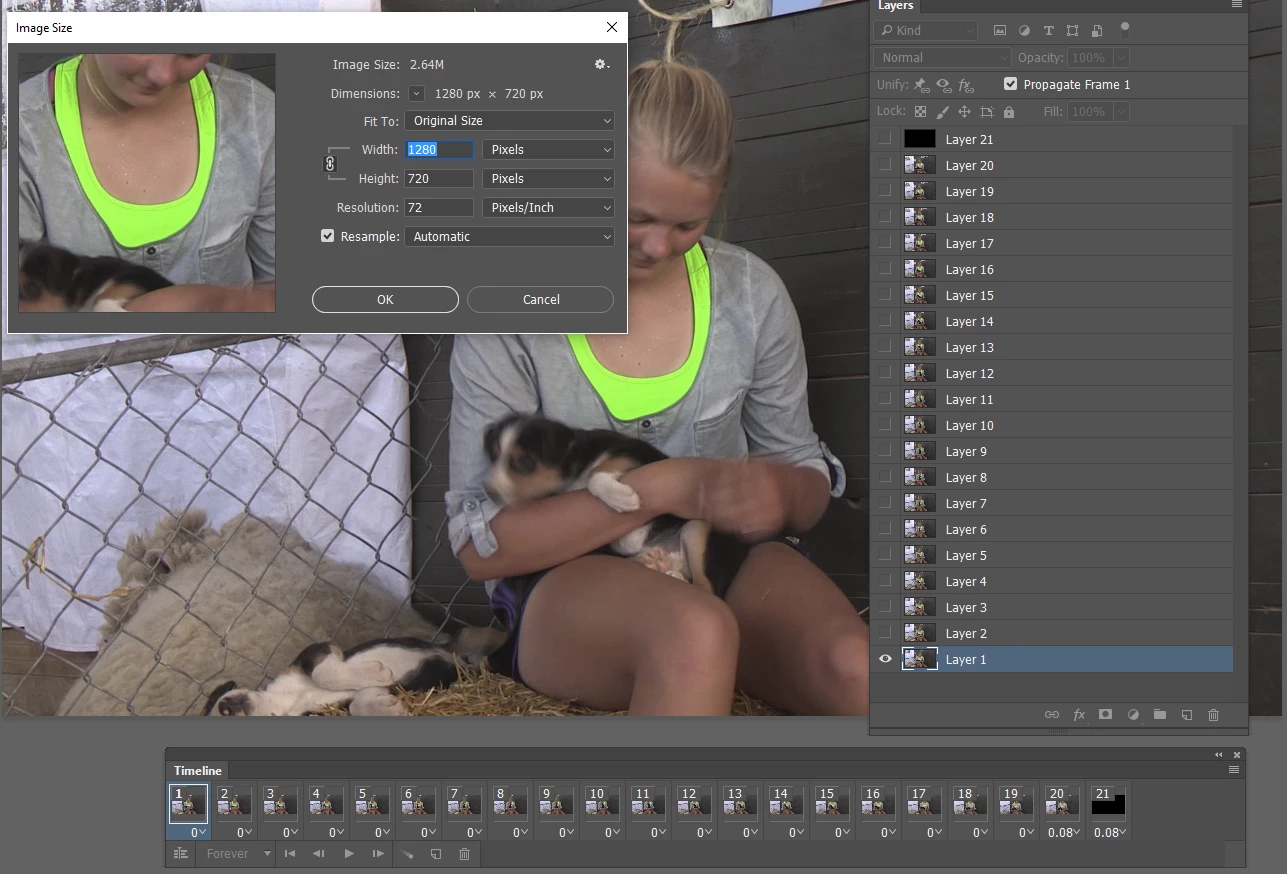
If you want to add titles, then select the TOP LAYER and ALL OF THE FRAMES and add your text. Add any character styles.
Set to Forever (bottom left of Timeline) and test. If the text flashes off and on, then you didn't have all the frames selected. Select all the frames again, and turn the type layer off and back on again.
I also set the delay to zero (you can do this all frames at once by selecting them).
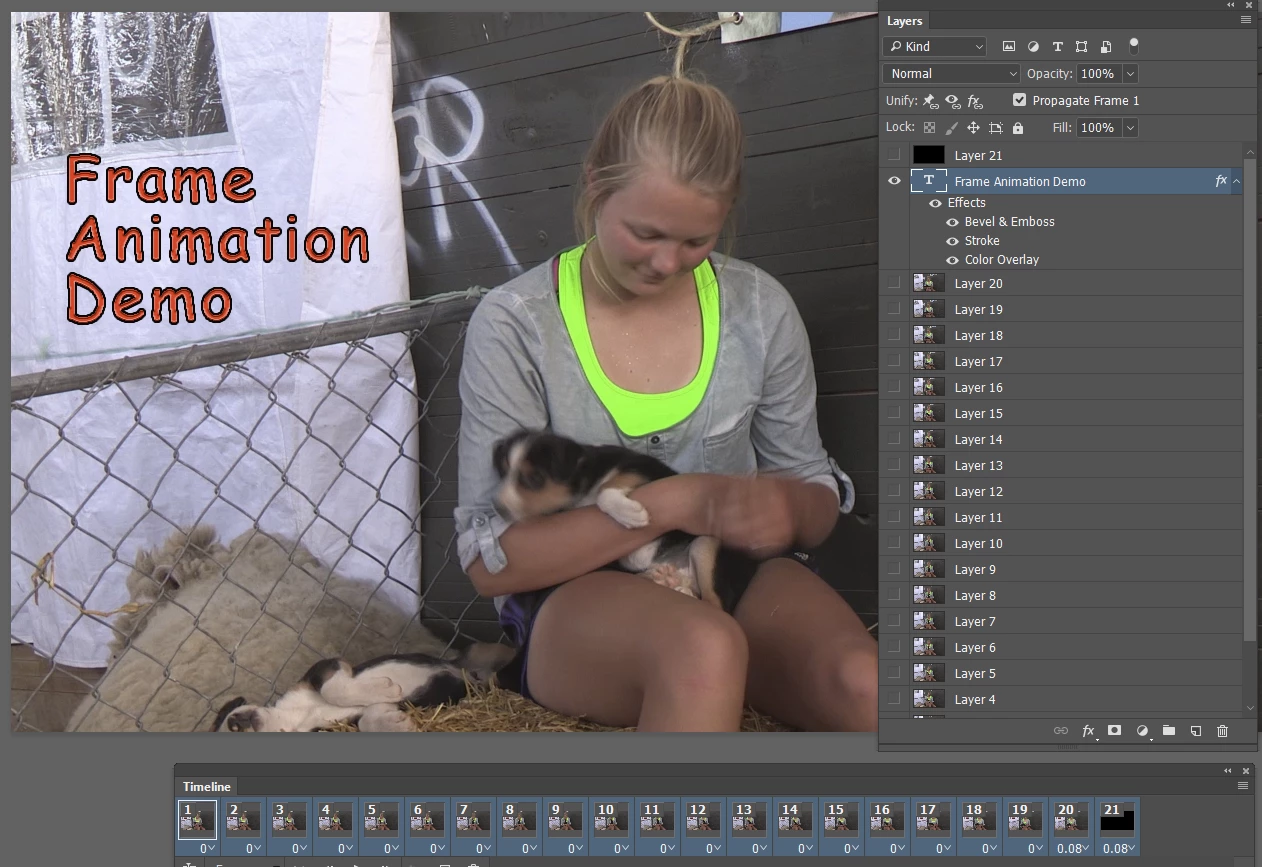
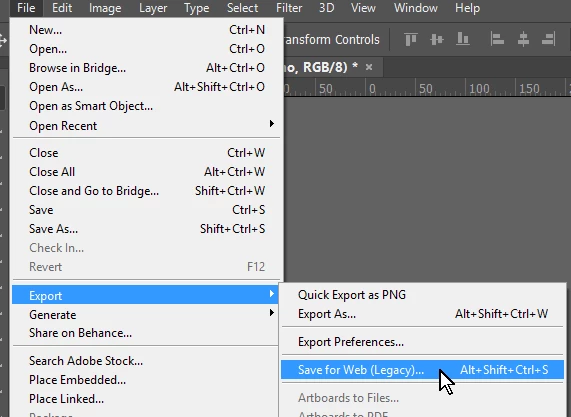
Test, and if it works, go
File > Export > Save for web (Legacy)
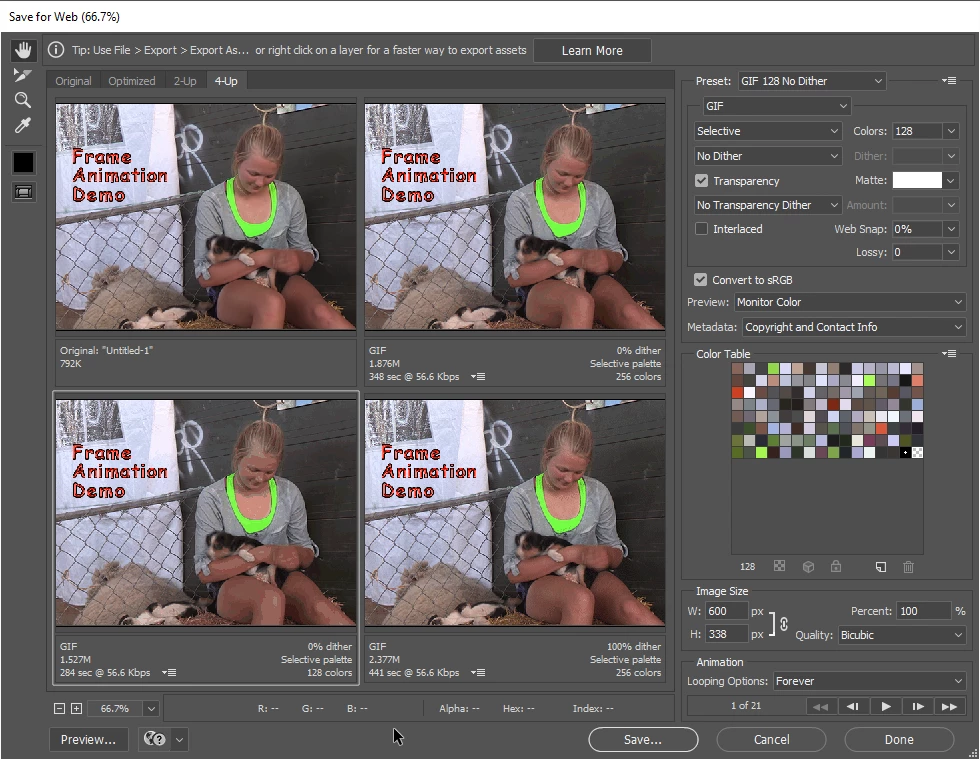
I like to use the Four Up option. Try different colour depths. I downsized my demo to 600 pixels wide, and with 128 colours the file size is still 1.5Mb. That's not ideal for uploading to websites.

Some of the other regulars (like Nancy OShea) know a lot more about optimizing for web uploads, but tell us some more about your file and what you want to do with it, and we can give a more detailed response, (that does not mean and even longer answer!)
Good luck
https://forums.adobe.com/people/Nancy%20OShea


 AdChoices