
Marjolein de Swart
Participating Frequently
March 17, 2021
Answered

How to create tapered path strokes in Photoshop?

  • March 17, 2021
  • 4 replies
  • 11375 views

For some reason I cannot seem to figure this out.
The lines need to be vector/smart object, so I can easily resize them.
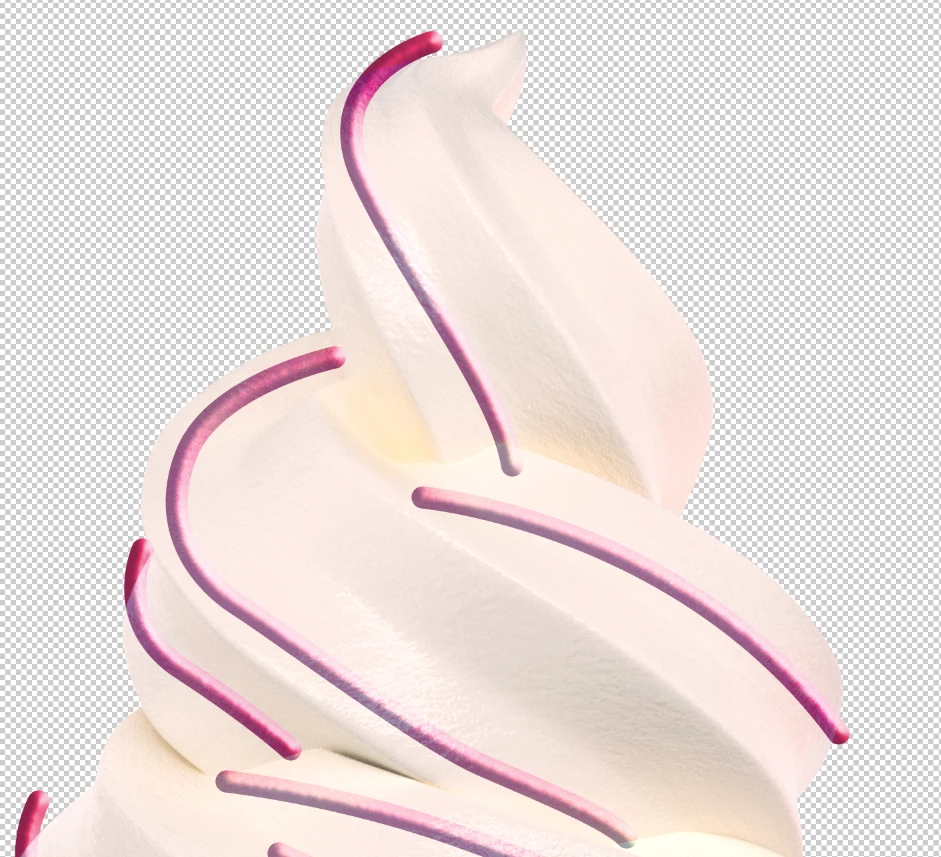
I drew a few strokes, gave them a width, a color and a layer effect. Now I need the strokes to be tapered instead of what it looks like now. See below for the images.

I have tried this YouTube tutorial: https://www.youtube.com/watch?v=fwKXARzvNmI
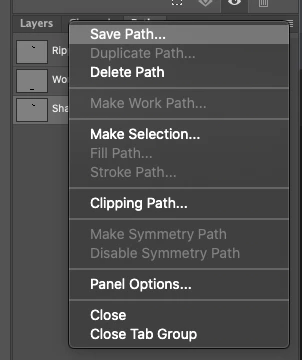
But when I select my path, the 'Stroke options' section is greyed out.

What am I doing wrong? 🙂
Thank you so much for helping me out!
This topic has been closed for replies.
Correct answer c.pfaffenbichler

Could you please post screenshots with the pertinent Panels (Toolbar, Layers, Paths, Options Bar, …) visible? 


Photoshop Layers cannot be converted to a Vector Smart Object as such, that only applies to placed/pasted vector content (pdf, ai, …). 

The workaround might be to create a svg or pdf and place that but pixels saved in a vector format-file are pixels nonetheless. 

4 replies

JJMack
Community Expert
Community Expert
March 17, 2021

You can not change Pixels in a Photoshop smart object with Photoshop tools in Photoshop. You can not use tools like a brush strokes, or  Create a path and stroke a path with any tool.  There are no paths in Photoshop for Smart Object layers.  Any vectors in a smart object layer are in the layers Object, These are processed by  Illustrator or Photoshop when you open the smart object for editing.  In Photoshop only Vectors Smart object are resized via vector graphics.  Other smart objects that have vectors in the object are resized via interpretation.

JJMack
Participant
December 29, 2021

i am reading your answer and it sounds so logical ! but some how cannot apply to my work.

i have created neon effect shape ! created smart path  i realised it is not wide enough for me 0 i wanted to cange the width ... can i do it after a neon effect?

JJMack
Community Expert
Community Expert
December 30, 2021

You created smart path! ?  I have no knowledge about any Photoshop Smart Path feature.  I know Photoshop has Smart  Object Layers and  and some Smart Objects are classified as vector smart objects.   I know Filters applied to Smart Object layer become Smart Filters associated with the Smart Object layer in Photoshop Layers palette and these is a Filter share a common filter mask for the smart object layer object content.   Smart Path ??? A path is a mathematical line plot there are no pixel or width....


A Photoshop Shape are basically a Fill layer that has a Vector Layer Mask of closed paths. Photoshop Shape layer support supports a stroke for  the merger Vector Later Mask Path.  The stroke can  be aligned  relative to the closed merged path  Outside, along or inside. The stroke can have a width specified in pixels and can be continuous or broken and there are options for how corners and end caps are created for the path's stroke. You can not paint on shape layers. They are Fill layers, Fill is either Empty, solid color, gradient, or pattern. 


Adobe Illustrator vector support will be better then what Photoshop has.  Photoshop is a pixels editor where Illustrator is a vector editor. Illistrator may have a smart Path feature. I do not know Illistrator.


Adobe does install a few neon layer style effects in Photoshop.

JJMack
c.pfaffenbichler
Community Expert
Community Expert
March 17, 2021

If the Layers are Shape Layers then naturally one cannot »Stroke Path« on their Vector Mask because the Layer is not a plain pixel layer. 

You could duplicate the vector masks or copy their pathItems into a »plain« path, then select a plain pixel layer and »Stroke Path« should become active. 

c.pfaffenbichler
Community Expert
c.pfaffenbichlerCommunity ExpertCorrect answer
Community Expert
March 17, 2021

Could you please post screenshots with the pertinent Panels (Toolbar, Layers, Paths, Options Bar, …) visible? 


Photoshop Layers cannot be converted to a Vector Smart Object as such, that only applies to placed/pasted vector content (pdf, ai, …). 

The workaround might be to create a svg or pdf and place that but pixels saved in a vector format-file are pixels nonetheless. 

Marjolein de Swart
Participating Frequently
March 17, 2021

Thank you for helping out! Here is a screenshot where I have selected all shape layers.

c.pfaffenbichler
Community Expert
Community Expert
March 17, 2021

If you want to »Stroke Path« you need a Path and a pixel Layer, not Shape Layers. 


If you use Illustrator the effect might be easier to create there. 

Marjolein de Swart
Participating Frequently
March 17, 2021

Additional info: I have created these strokes with the Pen Tool.