Participating Frequently
July 15, 2025
Answered

How to create this pattern in Photoshop or Illustrator

  • July 15, 2025
  • 4 replies
  • 1201 views

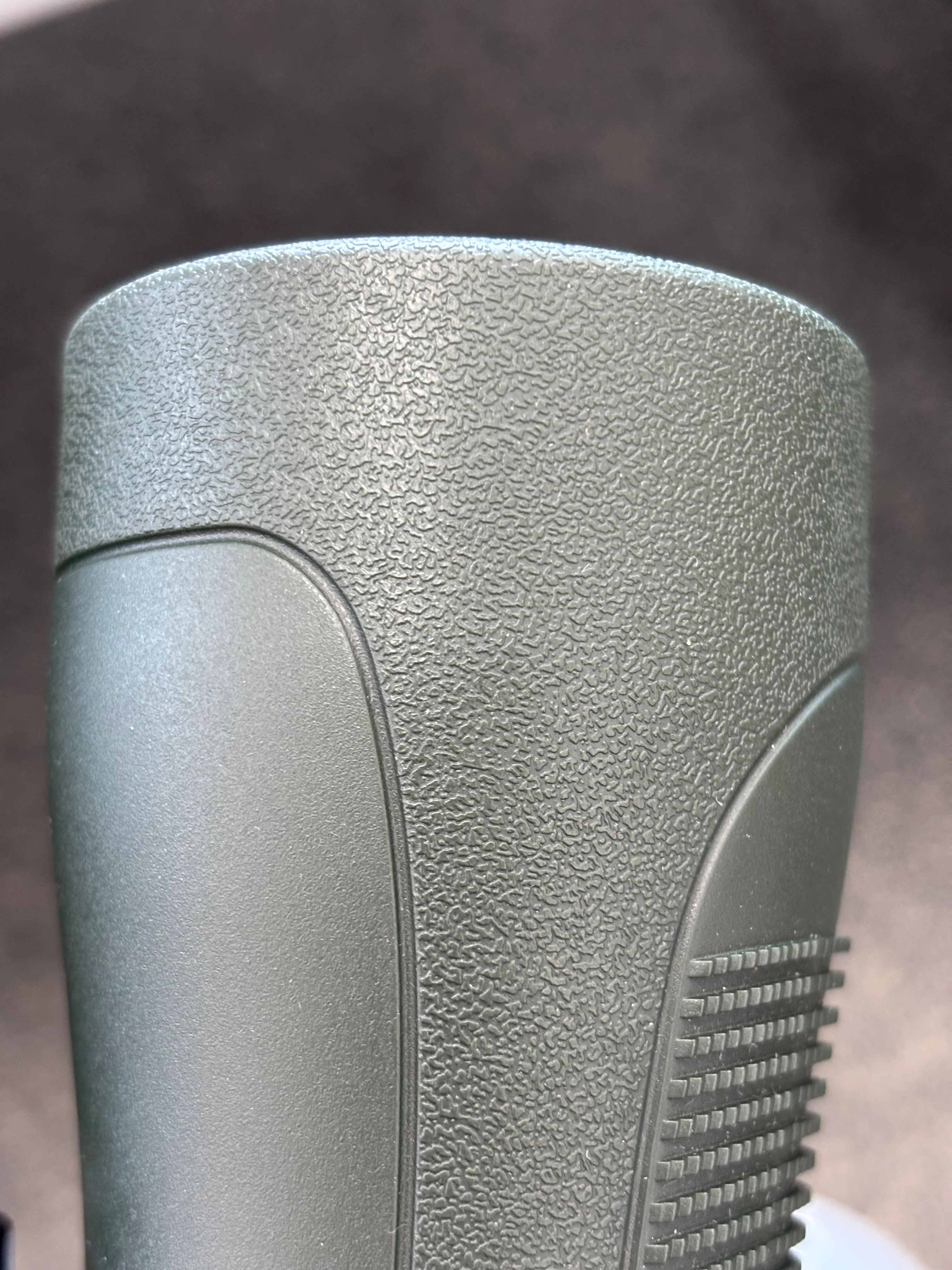
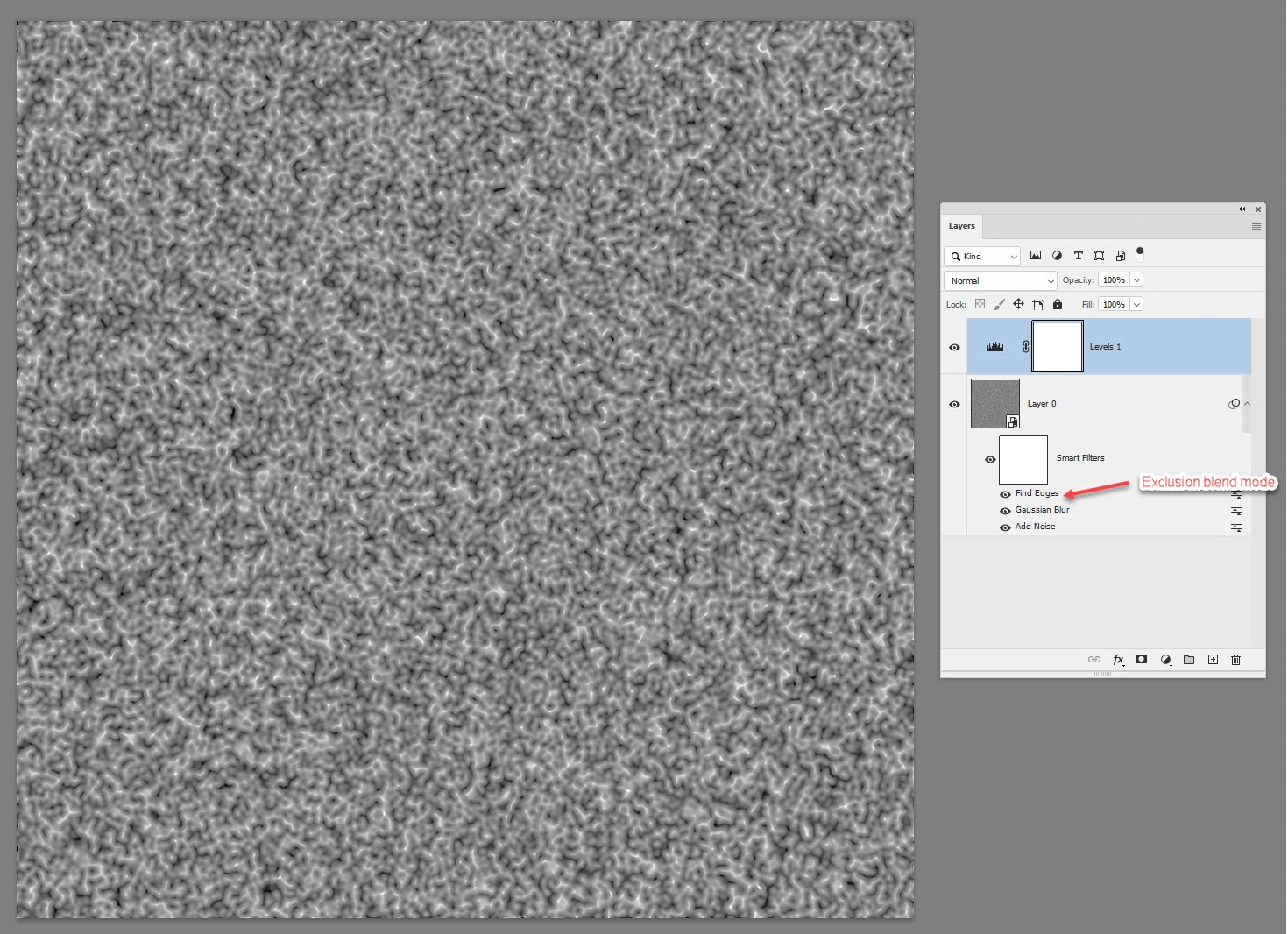
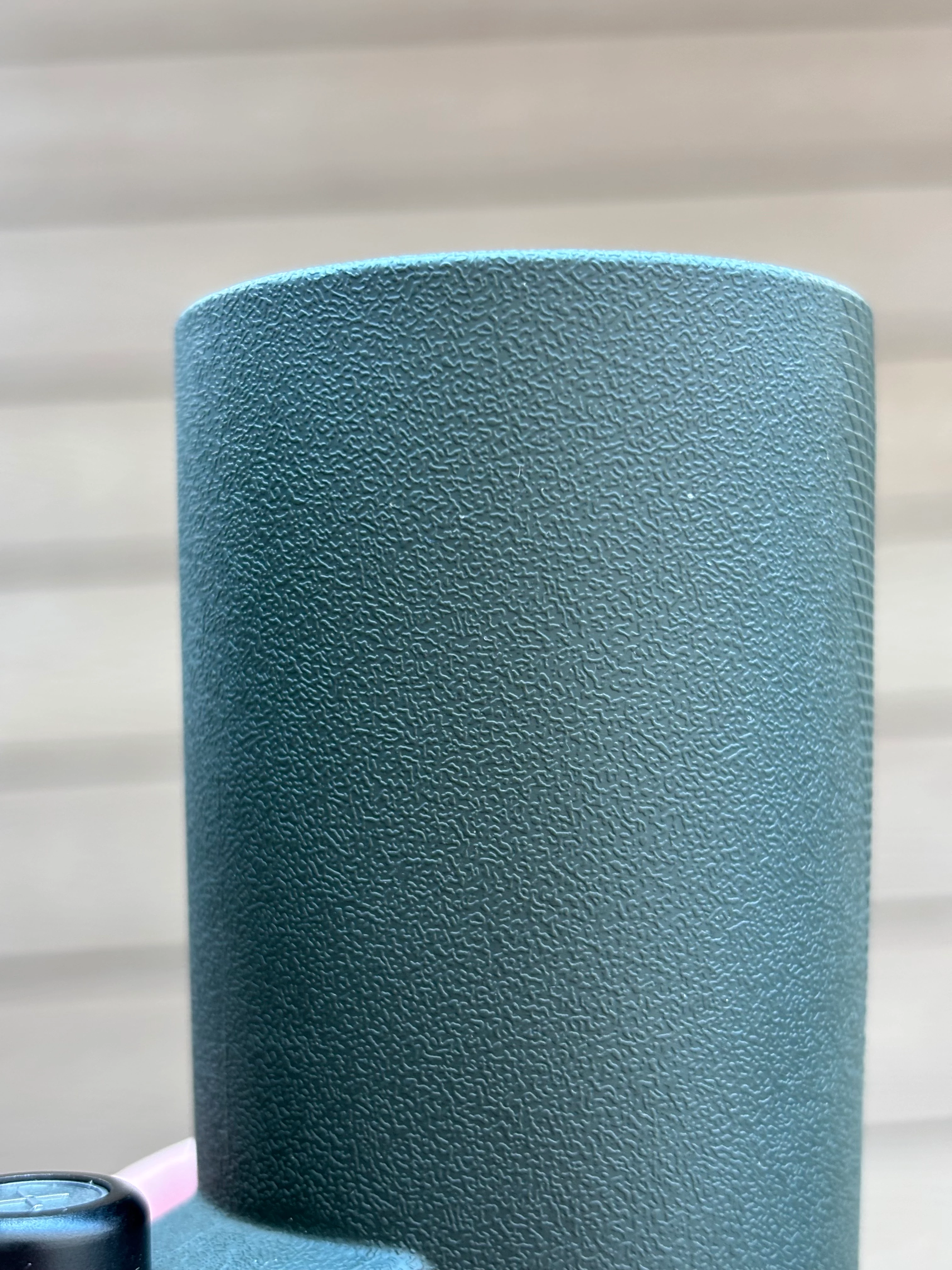
Hi, does anyone know how to create this pattern in Photoshop or Illustrator? I need to use it to create a bump map in another program. Thanks
 

Correct answer davescm

I had a few minutes so I tried both methods. 
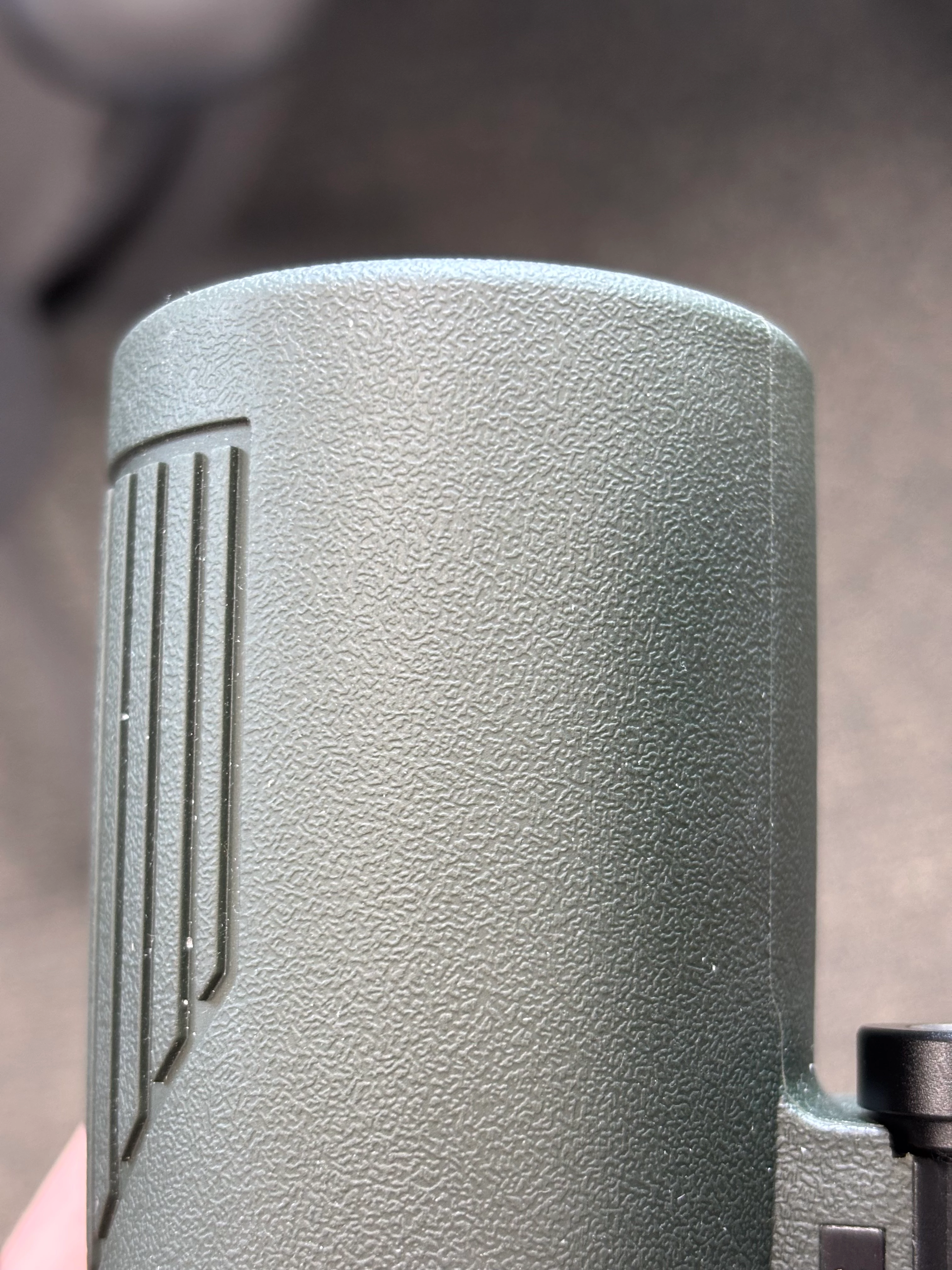
The first is Photoshop and uses the Add Noise, Blur and Find Edges filters. Note tje Find edges Filter is set to Exclusion blend mode. The resulting pattern is here :


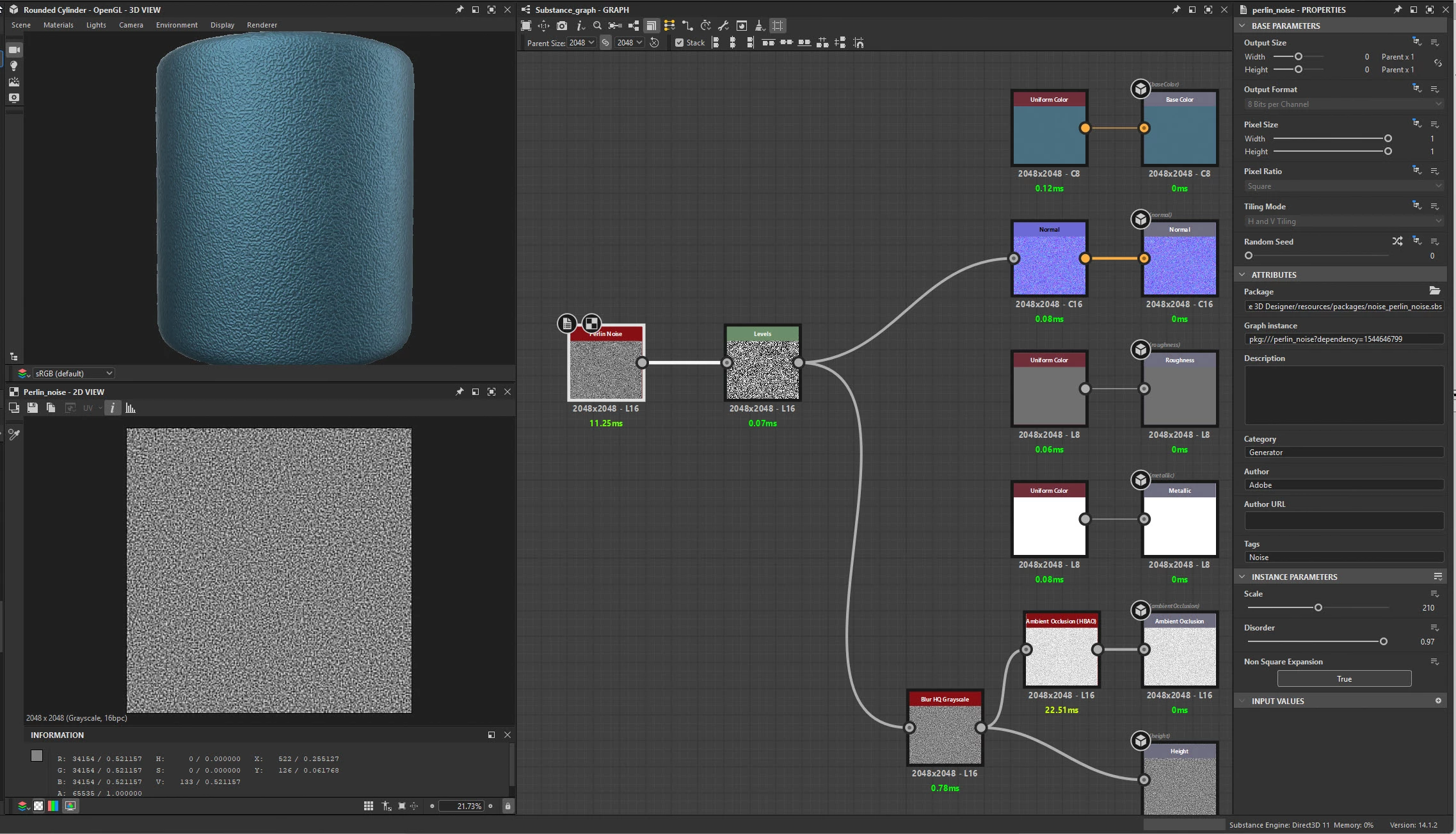
The second is Substance 3D Designer and the texture is based on a Perlin Noise node, plugged into the Height and Normal outputs. The top left window shows the tiled material on a cylinder.

The Substance Designer Method is closer and is also tileable.


Dave

4 replies

Inspiring
July 16, 2025

Just had a quick try with noise+curves+maximum+gaus+invert+curves:


What's the final app you need the bump map for? For something that simple there might be better built in solution like Perlin Noise is Substance 3D, Noise Texture in Blender etc etc

Paulo1988Author
Participating Frequently
July 22, 2025

I will be using the texture in Keyshot

Inspiring
July 23, 2025

I dont personally know Keyshot at all, but after quick google looks like there are some built in procedural noise textures, are these not good enough for what you are trying to achieve?

Myra Ferguson
Community Expert
Community Expert
July 15, 2025

Plastic Grainy is a Substance 3D material that is available through the Substance 3D Community Assets that's pretty close:

https://substance3d.adobe.com/community-assets/assets/a08477ed227779c3bc5b362d024185cc1fc59a6b


Or here's another approach to make a pattern like the picture that you could try in Photoshop:

  1. In a new document, set the foreground and background colors to the default black and white (click on the small color tiles at the bottom of the Toolbar)
  2. Go to Filter > Render > Clouds
  3. Go to Filter > Render > Difference Clouds
  4. Duplicate the Background layer
  5. Add a Levels Adjustment layer (go to the bottom of the Layers panel, click on the middle icon, and select Levels...)
  6. In the Properties panel, move the sliders under the histogram to make what you'll use as a mask:
    • the left slider a bit to the right to make thicker black borders
    • the middle slider to the left
    • the right slider to the left to make solid white sections
  7. Select the adjustment layer and the duplicated difference clouds layer, right-click, and select Merge Layers from the contextual menu
  8. Select the Background layer and click the Layer Mask icon to add a layer mask
  9. Copy the merged layer, select the new layer mask, Alt+click (Windows) or Option+click (macOS) to show just the layer mask, and paste
  10. Toggle off the visibility of the merged layer
  11. Double-click what was the Background layer and is now Layer 0 to add some Layer Styles
    • Color Overlay - give it a gray color
    • Bevel & Emboss, Contour - in the options under Elements, set the Contour to the 2nd from the right on the top row and select Anti-aliased (you can also add your own Contour. Double-click the new contour to modify it. 
  12. Make a new layer, move it below Layer 0, sample the darker shadowy gray, and use that color to fill this layer


If you want the edges around the sections to be smoother, then Ctrl+click (Command+click) on the layer mask to load the selection, invert the selection (Ctrl+Shift+I, Command+Shift +I), go to Select > Modify > Smooth, increase the radius, and fill with black.

davescm
Community Expert
Community Expert
July 15, 2025

In Photoshop, you could start with a 50% grey layer then use filters to Add Noise , add Gaussian Blur, then use use Find Edges before adjusting it with a curve. However the best tool for creating such procedural patterns for height/bump maps is Substance 3D Designer. It will output the bump map directly (along with the BaseColor, Roughness and Normal maps if you require them).

Dave

davescm
Community Expert
davescmCommunity ExpertCorrect answer
Community Expert
July 15, 2025

I had a few minutes so I tried both methods. 
The first is Photoshop and uses the Add Noise, Blur and Find Edges filters. Note tje Find edges Filter is set to Exclusion blend mode. The resulting pattern is here :


The second is Substance 3D Designer and the texture is based on a Perlin Noise node, plugged into the Height and Normal outputs. The top left window shows the tiled material on a cylinder.

The Substance Designer Method is closer and is also tileable.


Dave

creative explorer
Community Expert
Community Expert
July 15, 2025

@Paulo1988 it's been awhile for me to creating a pattern from an image in Illustrator, but I did create a video a few years back for that, called How to Create a Pattern Swatch from an Image in Illustrator 

m