Known Participant
June 5, 2021
Answered

How to default open images in raw editor as smart objects?

  • June 5, 2021
  • 1 reply
  • 2873 views

How do I make it the default that every image I open in photoshop opens up in the camera raw editor and also opens as a smart object? 
I am using Photoshop 2021 on Windows 10. Thank you for any help!
This topic has been closed for replies.
Correct answer Rob_Cullen

Set the options in Photoshop Camera Raw Preferences-

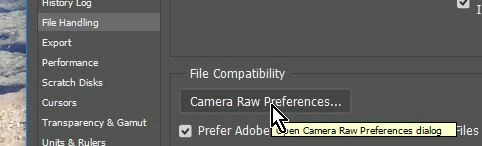
1) In General Preferences > File Handling:  Click on [Camera Raw Preferences]

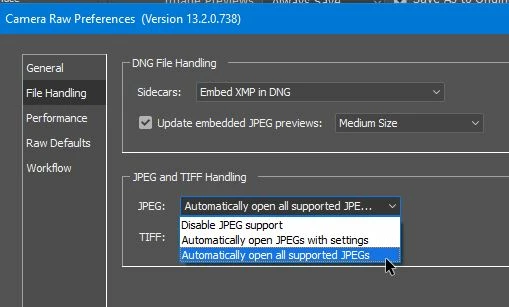
2) In the File Handling > JPEG and TIFF Handling] panel:  Set both to [Automatically open all supported JPEGs & TIFFs]

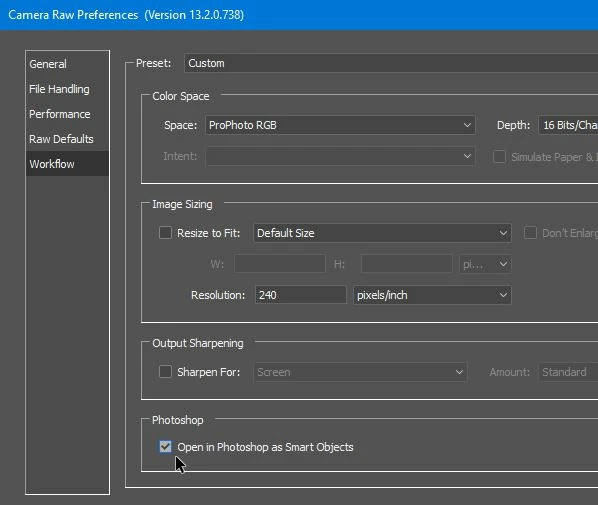
3) In the Workflow > Photoshop panel: Check [Open in Photoshop as Smart Objects]

Done!  Now all raw, JPG, TIF, files will open through Camera Raw to Ps as a Smart Object (by default)-

Holding [Shift] key will now toggle back to (Open) as a regular layer.


1 reply

Rob_Cullen
Community Expert
Rob_CullenCommunity ExpertCorrect answer
Community Expert
June 5, 2021

Set the options in Photoshop Camera Raw Preferences-

1) In General Preferences > File Handling:  Click on [Camera Raw Preferences]

2) In the File Handling > JPEG and TIFF Handling] panel:  Set both to [Automatically open all supported JPEGs & TIFFs]

3) In the Workflow > Photoshop panel: Check [Open in Photoshop as Smart Objects]

Done!  Now all raw, JPG, TIF, files will open through Camera Raw to Ps as a Smart Object (by default)-

Holding [Shift] key will now toggle back to (Open) as a regular layer.


Regards. My System: Windows-11, Lightroom-Classic 15.0, Photoshop 27.0, ACR 18.0, Lightroom 9.0, Lr-iOS 10.4.0, Bridge 16.0 .
Known Participant
June 5, 2021

Oh thank you it seems like the camera raw preferences were moved! Thank you.