Andrew_PS
Participant
April 21, 2019
Answered

How to determine the dynamic range of an image?

  • April 21, 2019
  • 2 replies
  • 2150 views

If you take a standard 8-bit/channel image and change the mode to 32-bit/channel, the dynamic range of the image data is the same. Is there a way to tell the actual dynamic range of an image in Photoshop? If I convert an HDR image to SDR, I want to check how much dynamic range, if any, would be lost.

Also, is there a way to have warnings in Photoshop when things like highlight clipping and dynamic range degradation occur? There are times that I've done a lot of edits to an image while zoomed in and found that the edits I made clipped the highlights somewhere else on the image and had to start over.

    Correct answer davescm

    Hi

    A few questions in there

    When working in 32 bit then the dynamic range can go blacker than can be displayed and whiter than displayed. This is due to using 32 bit floating point numbers to represent brightness values on a linear scale.. You will not exceed the dynamic range capability of that number system. That is why you can move the exposure control left and right to bring different parts of teh image under the range of the display system.

    However when working in 16 bit/8 bit then the numbers use 16/8 bit integers and can indeed run out of values. In this case the same brightness range is divided into 256 steps or 65536 steps (actually Photoshop uses 32678+1). So once you surpass the minimum or maximum the values are gone.

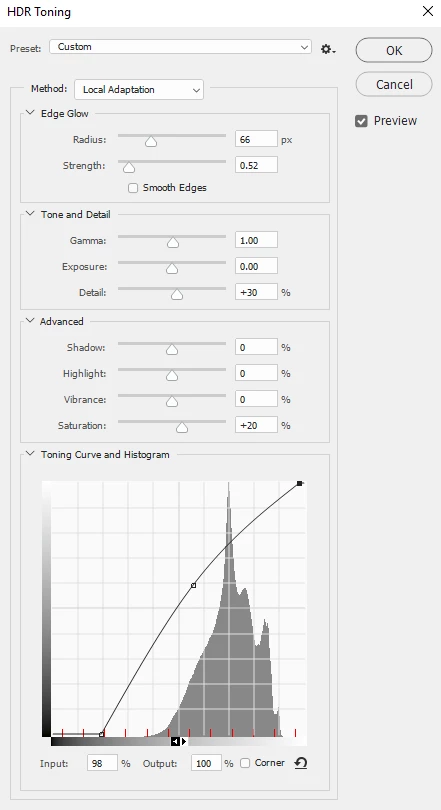
    So when converting from 32 bit to 16/8bit we need to tone map the values and a tone curve and histogram is provided for that purpose.

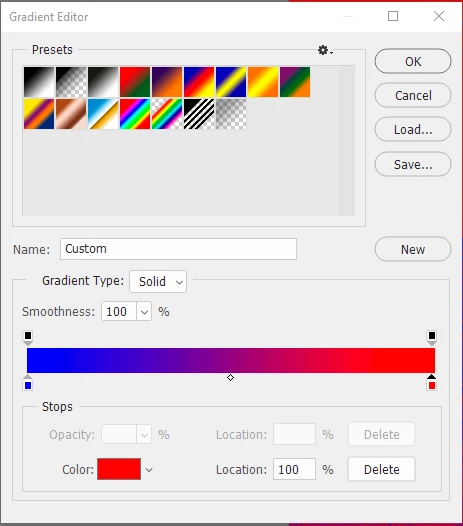
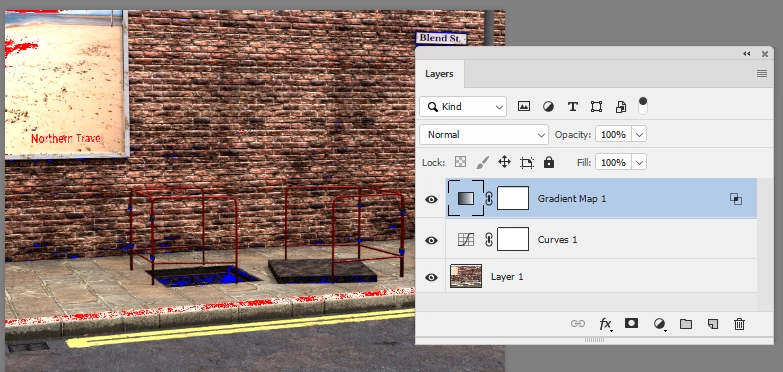
    When working in 8/16 bit then you can get an indication of values reaching the maximum by adding a gradient adjustment layer running from blue to red

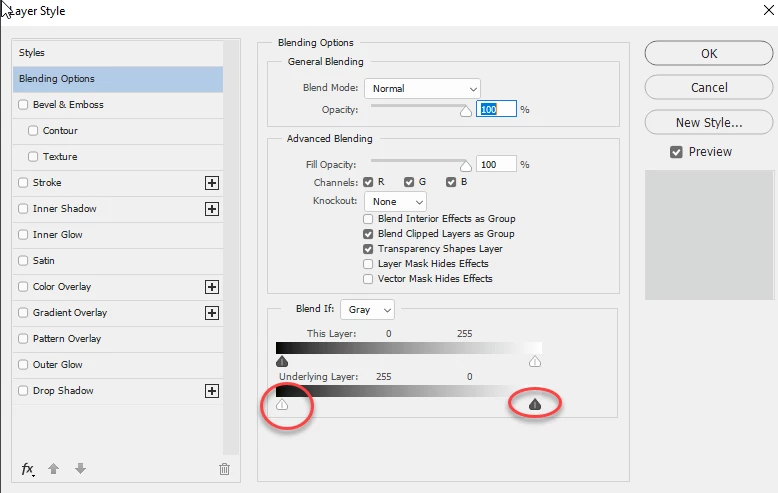
    Then in blending options reverse the "blend if underlying layer" sliders as shown below (pull the white to the left and black to the right. Any values that are fully black or white will show.

    I hope that helps

    Dave

    2 replies

    Inspiring
    April 21, 2019

    Are you talking about "Tonal Range"?  Dynamic Range usually refers to image capture density, usually how well a capture (scan) acquires shadow detail.  Tonal Range can be checked using the Histogram.

    davescm
    Community Expert
    davescmCommunity ExpertCorrect answer
    Community Expert
    April 21, 2019

    Hi

    A few questions in there

    When working in 32 bit then the dynamic range can go blacker than can be displayed and whiter than displayed. This is due to using 32 bit floating point numbers to represent brightness values on a linear scale.. You will not exceed the dynamic range capability of that number system. That is why you can move the exposure control left and right to bring different parts of teh image under the range of the display system.

    However when working in 16 bit/8 bit then the numbers use 16/8 bit integers and can indeed run out of values. In this case the same brightness range is divided into 256 steps or 65536 steps (actually Photoshop uses 32678+1). So once you surpass the minimum or maximum the values are gone.

    So when converting from 32 bit to 16/8bit we need to tone map the values and a tone curve and histogram is provided for that purpose.

    When working in 8/16 bit then you can get an indication of values reaching the maximum by adding a gradient adjustment layer running from blue to red

    Then in blending options reverse the "blend if underlying layer" sliders as shown below (pull the white to the left and black to the right. Any values that are fully black or white will show.

    I hope that helps

    Dave

    Andrew_PS
    Andrew_PSAuthor
    Participant
    April 21, 2019

    Thanks, that's very helpful. The clipping test using the adjustment layer is a neat method and easy to setup. That's exactly the kind of visual feedback I was looking for.

    For the 32-bit to 8-bit conversion, it would be nice to see something like that in real-time. The histogram window updates in the background and gives some feedback but it's hard to see where detail is being lost from that. Some areas might not be clipping but losing details.

    One thing I can do after the conversion is copy the result, revert back to the original, paste it in and set it to a difference layer, which shows where the detail was lost but it would be useful to see that in real-time (that would also be useful when saving files to different formats).

    One measure I was also interested in was something like the contrast ratio they give for displays to be able to tell at a glance how good a camera was at capturing dynamic range. Does Photoshop list an image's contrast ratio somewhere or is there a way to calculate it?

    davescm
    Community Expert
    Community Expert
    April 21, 2019

    Hi

    You can do your tone mapping from 32 bit to 16 bit in Camera raw - where you can turn on the clipping indicators in the histogram and get that live preview as you convert. To use this go to Preferences > File Handling and check "Use Camera Raw to Convert Documents from 32 bit to 16/8bit"

    Dave