
Participant
April 23, 2017
Answered

How to double the effect of the "Soft Light" blending mode

  • April 23, 2017
  • 2 replies
  • 1222 views

Hi,

i edit a lot of textures by blendig them with a layer via the soft light blending mode. I allways have to duplicate the blending layer at the end of the procedure, because the soft light blending mode is to weak, when i use it once and all other modes have not the disired effects. If i could double the effect of the soft light blending mode of my blending layer, i would see the final results while i edit the blending layer and this would improve my work.

How do i recreate effect that has a stack of two identical blending layers, each one with the soft light blending mode by using only one editable blending layer ?

(I tried Smart Objects, but they do not work for me, because i do not see the result while editing them.)

Thank You and regards

P
This topic has been closed for replies.
Correct answer Stephen Marsh

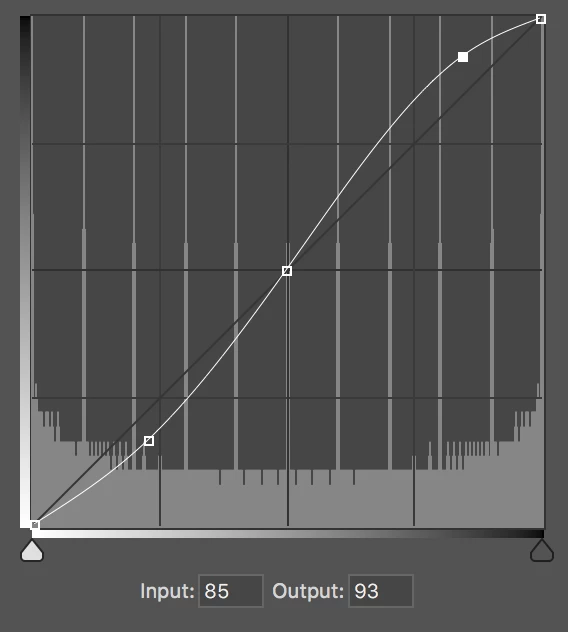
It is possible to make an equivalent curve to simulate the effect of a contrast mode blend mode, so it should be simple enough to double the effect.

Sadly I did not keep an archive of the original article or a copy of the supplied curve preset files and the full story appears to have been removed:

Photoshop Tutorial From Martin Evening - How To Express Blend Modes As Curves | The Photoshop Blog | PhotoshopSupport.co…

https://www.lightroomforums.net/threads/tone-curve-presets.532/print

I don’t have time to reverse engineer perfectly, however this is ballpark/close:

EDIT: Looking at the Lightroom thread, try:

In: 200 – Out: 220

In: 45 – Out: 25

So if the basic soft light emulation curve is 20 levels, then try 40 to double it (it may not be that simple though).

2 replies

Stephen Marsh
Community Expert
Stephen MarshCommunity ExpertCorrect answer
Community Expert
April 24, 2017

It is possible to make an equivalent curve to simulate the effect of a contrast mode blend mode, so it should be simple enough to double the effect.

Sadly I did not keep an archive of the original article or a copy of the supplied curve preset files and the full story appears to have been removed:

Photoshop Tutorial From Martin Evening - How To Express Blend Modes As Curves | The Photoshop Blog | PhotoshopSupport.co…

https://www.lightroomforums.net/threads/tone-curve-presets.532/print

I don’t have time to reverse engineer perfectly, however this is ballpark/close:

EDIT: Looking at the Lightroom thread, try:

In: 200 – Out: 220

In: 45 – Out: 25

So if the basic soft light emulation curve is 20 levels, then try 40 to double it (it may not be that simple though).

Participant
April 24, 2017

Thank You Stephen, it is pretty close and helps a lot to predict the final result. At the end i have to remove the curve and duplicate the original blending layer as i did before, but now i have to do it only once, for the print.

Regards

P

Stephen Marsh
Community Expert
Community Expert
April 26, 2017
Mylenium
Legend
April 23, 2017

There isn't really such a thing and without actualyl seeing your stack and what kind of images you process it's impossible to advise another workflow. It's in the nature of the thing - blending modes are sensitive to the inputs and you have to change those rather than looking to sway the algorithms and expect them to do something magical. In effect even your logic is off in that the second application of the same blending mode using the same input still operates on the result of the first blending operation and the color behavior you see thus is coincidental and intrinsic to the blending mode and order of operations. It may not be possible to re-create even with the most finessed adjustments.

Mylenium