
janed26062037
Participant
April 10, 2018
Answered

How to drag an image onto another without the image changing size?!

  • April 10, 2018
  • 5 replies
  • 5486 views

HELLO. I would like to know HOW to drag an image onto another image in another window in Photoshop WITHOUT the image resizing?! I have googled this issue and tried the solutions I could find to no avail. This has not been a problem before but now Photoshop is doing this all of a sudden and I have restarted it as well to no avail. Please help. I do not want to resize my image.
    This topic has been closed for replies.
    Correct answer Norman Sanders

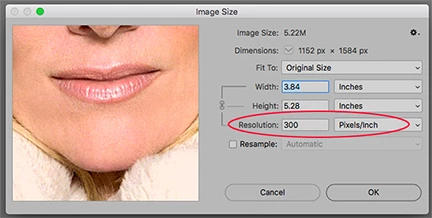
    Open an image. Choose Image > Image Size. In the illustration above, its resolution reads 300 pixels/inch

    Open another image, the one you want to drag into the first image,  Choose Image > Image Size

    For the dragged image not to change size when dragged, its resolution must be the same as the first image.

    If they don't match, the dragged image resolution must be changed to match. 

    (Also: Go to Google and read about Photoshop image resampling.)

    5 replies

    josephlavine
    Community Expert
    Community Expert
    April 15, 2018

    As many have mentioned, the two files would need to have the same resolution and bit depth.  When you drag one file into another, the one being dragged will take on the properties of the other.  For example, if Image A is at 300dpi and you drag Image A onto Image B that is at 600dpi then Image A becomes 600dpi, which will push the pixels closer together and make the physical dimensions smaller.

    In short, double check and match up the resolutions first.

    c.pfaffenbichler
    Community Expert
    Community Expert
    April 13, 2018

    would like to know HOW to drag an image onto another image in another window in Photoshop WITHOUT the image resizing?!

    Please explain what you are actually doing, maybe post screenshots.

    If you want to avoid the resolution issue you may want to copy/paste or drag/drop the Layers within Photoshop, though that would not result in Smart Objects by default.

    Chuck Uebele
    Community Expert
    Community Expert
    April 11, 2018

    I personally like to only use pixels when sizing images.

    Chuck Uebele
    Community Expert
    Community Expert
    April 10, 2018

    The images must be the same pixel size. As Norm mentioned, the DPI or PPI might be different, so if you're looking as image size in say inches, they will be different if the PPI is different. Always look at the pixel size.

    janed26062037
    Participant
    April 11, 2018

    Sorry I have no idea what any of that means. I'm just confused because it works and other times it don't yet I use images the same size everytime !! So that cannot be the problem!

    Norman Sanders
    Norman SandersCorrect answer
    Legend
    April 11, 2018

    Open an image. Choose Image > Image Size. In the illustration above, its resolution reads 300 pixels/inch

    Open another image, the one you want to drag into the first image,  Choose Image > Image Size

    For the dragged image not to change size when dragged, its resolution must be the same as the first image.

    If they don't match, the dragged image resolution must be changed to match. 

    (Also: Go to Google and read about Photoshop image resampling.)

    Norman Sanders
    Legend
    April 10, 2018

    The reason for the resizing is that the resolution of the the two images is different, perhaps one is 300ppi and the other is 72ppi. One thing more: to avoid confusion view the two images at the same magnification.