Don't drag the image into your 820 X 312 pixel document window.
Open the image normally in Photoshop so it is full resolution.
Note: You should probably forget about the DPI as it is essentially meaning less. It is only the pixel dimension that counts. Let us know if you are having trouble understanding that, and one of us will demonstrate how it works.
Photoshop has a number of methods for increasing or downsizing an image. This is call Interpolation. Bicubic Sharper is suggested for downsizing an image. You can see that the image below is 8688 X 5792 pixels and interpolation is set to Automatic. I think that Preserve Details 2 would work better for you, and you can set that in Preferences > General.
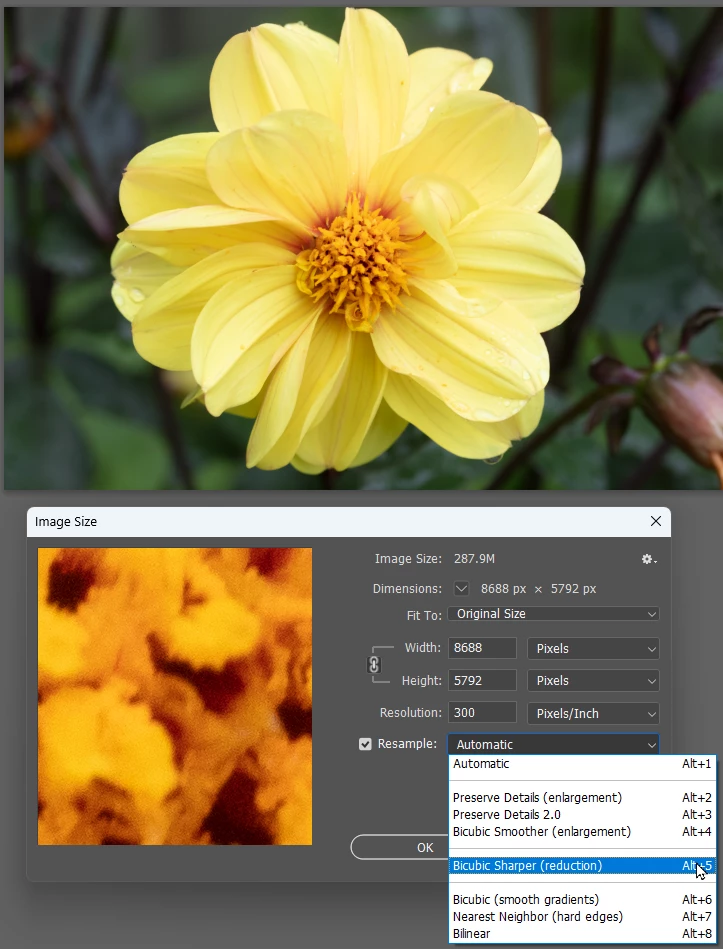
OK so open your feull res image, and set Interpolation to Preserve Details 2.0
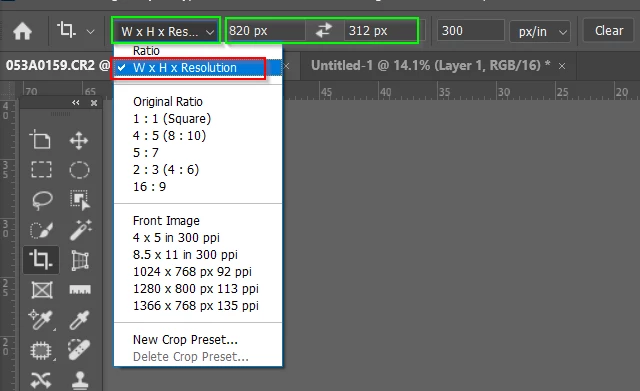
Select the Crop tool and use the drop down to set it to W x H x Resolution and set the size 820px x 312px as shown below.
Drag the crop tool window to frame the image as you want it to look, and click on the Tick Icon. This is what I got and it looks OK to me...
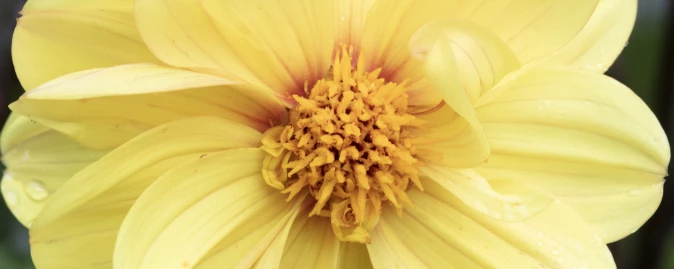
...but you could use Unsharp Mask or Smart Sharpen to crisp it up a bit. I'd say that was perfectly OK for a Facebook banner. Does it work for you?

 AdChoices