
Inspiring
December 5, 2019
Answered

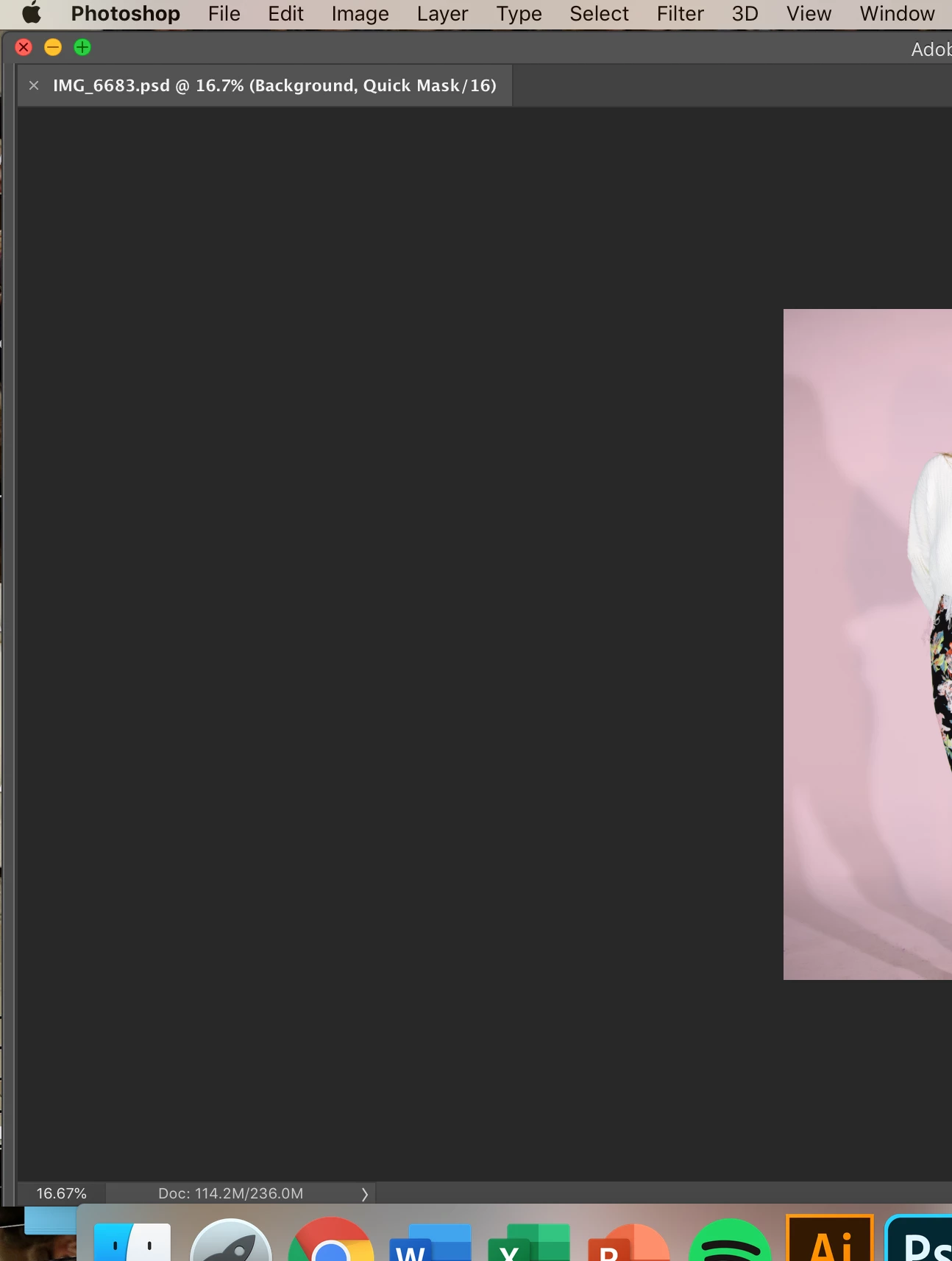
How to Exit Q model. (No toolbar or anything but the picture) in Photoshop on macOS
  • December 5, 2019
  • 2 replies
  • 380 views


Hi:


    I'm not sure which mode I'm in. Whiling I'm editing this Picture, (I may press Q or COM+Q) I get into this mode. No tool bar but look at the pictures. When I quit and open the image again, it's still in this Mode. Any help? 😞 


{Thread renamed by moderator}

This topic has been closed for replies.
Correct answer Chuck Uebele

Press the tab key to get the tool bar back. press the q key to take it back out of quickmask mode.

2 replies

Chuck Uebele
Community Expert
Chuck UebeleCommunity ExpertCorrect answer
Community Expert
December 5, 2019

Press the tab key to get the tool bar back. press the q key to take it back out of quickmask mode.

Inspiring
December 5, 2019

Hi, 

       I did not try Tab Key but the Q key.  It will just switch from quick mask mode to normal mode.  Just try Tab Key. it works!! 


Sahil.Chawla
Adobe Employee
Adobe Employee
December 5, 2019

Hi there,

Could you please try switching or resetting the workspace and see if it helps? https://helpx.adobe.com/in/photoshop/using/workspace-basics.html#save_and_switch_workspaces


If that does not help, then try resetting the preferences of Photoshop. 

https://helpx.adobe.com/photoshop/using/preferences.html


Note: Make sure that you back up all your custom presets, brushes & actions before restoring Photoshop's preferences. Migrate presets, actions, and settings


Regards,
Sahil

Inspiring
December 5, 2019

Hi:


    Thanks for your help!! I did not try the Workshop but resetting. It works well. Just do not want to reset every single time. 


    Best!!

    Have a nice day!!