
Participant
May 25, 2024
Answered

How to export graphics with opacity form?

  • May 25, 2024
  • 1 reply
  • 308 views

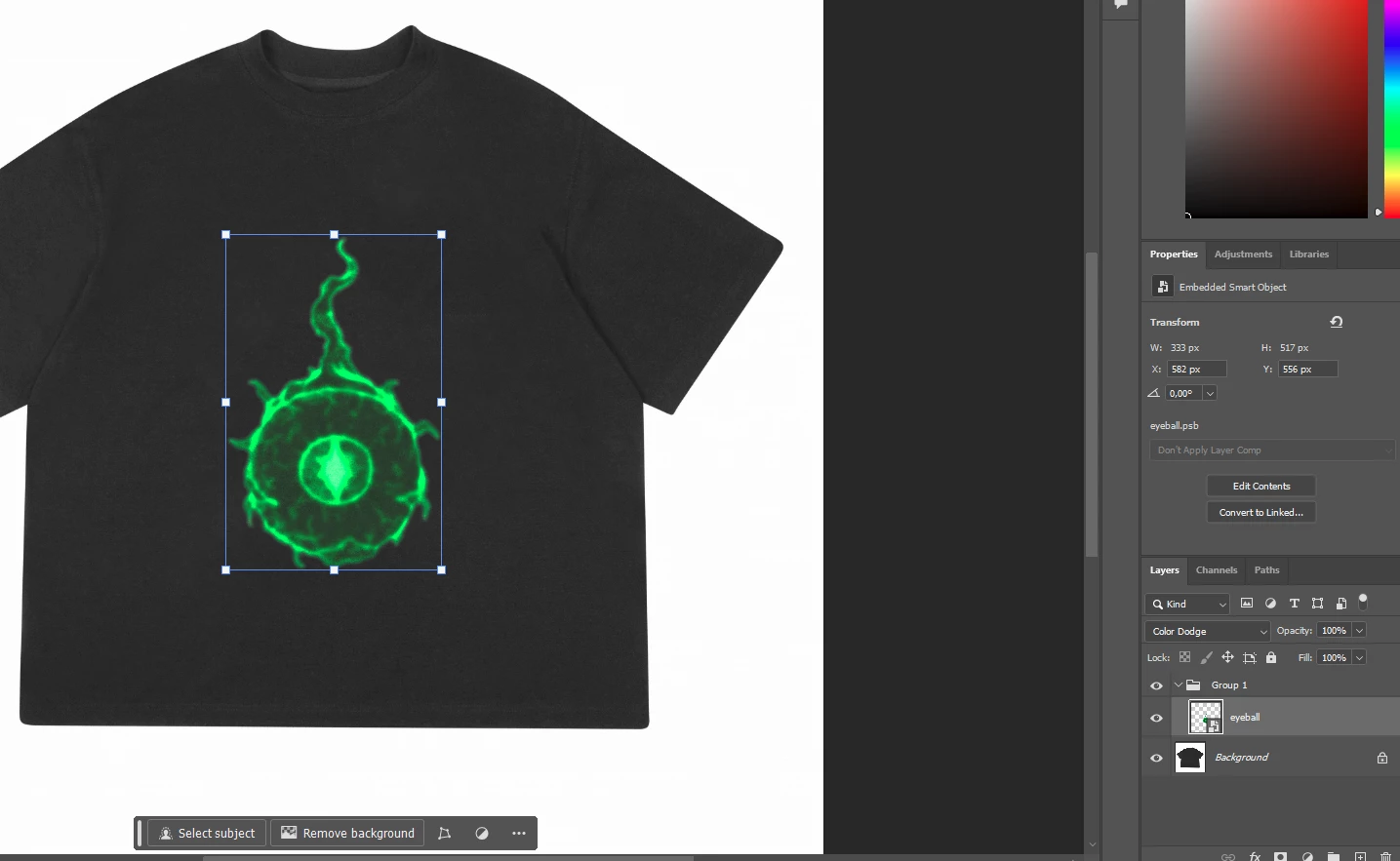
I designed the design of the T-shirt.

By putting it on a T-shirt with the "Color Dodge" opacity option, you get a very nice insight into this graphic. Is it possible to export this particular graphic exactly as it looks on the T-shirt?


I don't want to export the entire graphic, only the "eye" so that it is saved just like here with the "color dodge" opacity option


This topic has been closed for replies.
Correct answer Fancy_Lightning5C0D

I already did it my way. I duplicated the T-shirt layer, selected the layer with the eye, inverted the selection and erased the T-shirt. The effect was exactly what I wanted. Then I inserted a separate layer with a black background and exported the entire image normally.

1 reply

jane-e
Community Expert
Community Expert
May 25, 2024
quote

I don't want to export the entire graphic, only the "eye" so that it is saved just like here with the "color dodge" opacity option

By @Fancy_Lightning5C0D


The way blending modes work is they blend the pixels of the upper layer with those on the lower layer. If you save only the "eye", it will have nothing to blend with and the Color Dodge won't work. To see this, hide the Background layer.

https://helpx.adobe.com/photoshop/using/blending-modes.html


Jane


Fancy_Lightning5C0DAuthorCorrect answer
Participant
May 25, 2024

I already did it my way. I duplicated the T-shirt layer, selected the layer with the eye, inverted the selection and erased the T-shirt. The effect was exactly what I wanted. Then I inserted a separate layer with a black background and exported the entire image normally.