Waseem Dabbas
Known Participant
September 13, 2023
Question

How to export many selections into diffirent files?

  • September 13, 2023
  • 6 replies
  • 1020 views

Hi,

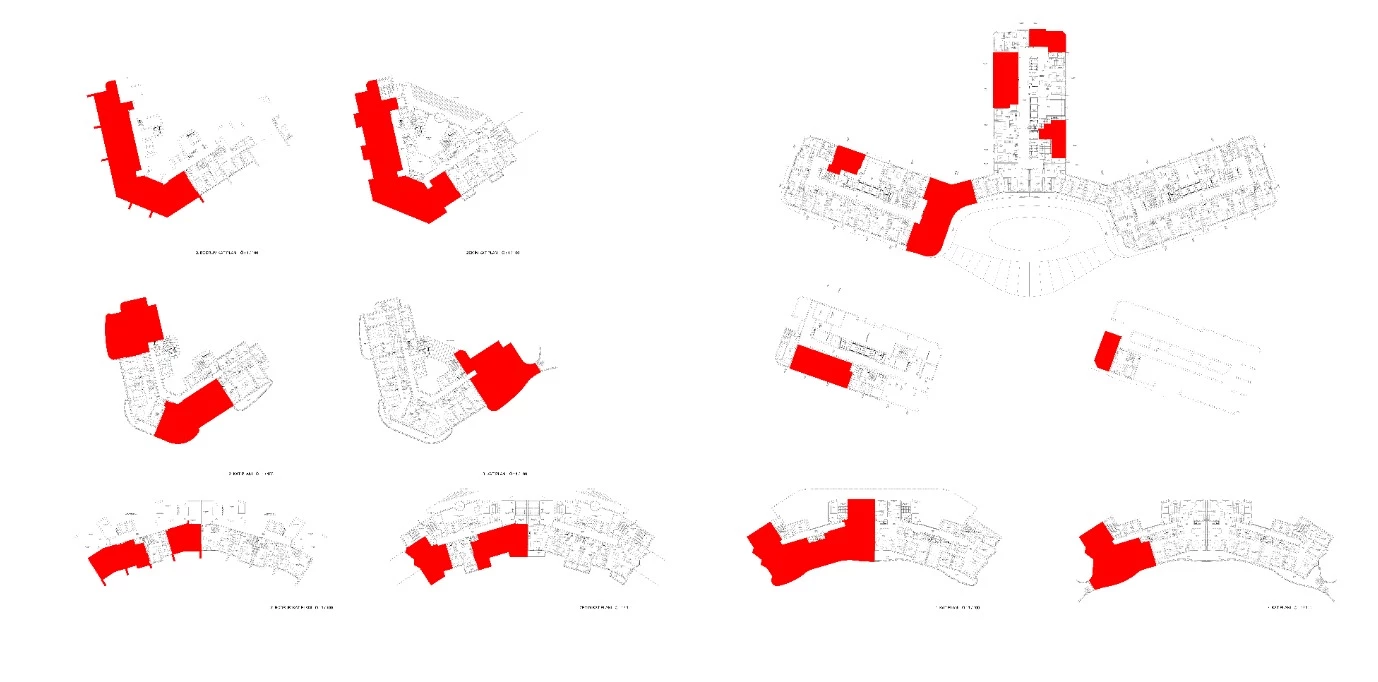
I have this plan showing below

What I'm trying to do is to export all these red areas to diffirent separate files, is there any way I can do this?


This topic has been closed for replies.

6 replies

c.pfaffenbichler
Community Expert
Community Expert
September 22, 2023

Have you resolved the issue yet? 

Waseem Dabbas
Known Participant
October 16, 2023

Hi,

Sorry for late reply, I was working for a project that it's dead line is difficult to catch with working in such a heavy file that exceed more than 16 giga byte in size that's why it was difficult to share the project with you or even find a time for reply.

I faced a lot of problems while working in 1 file, like slow to save (took more than 5 minutes) slow to merge layers, about 4 minutes, even drawing something take a lot of time (although I'm working in ryzen9 7950x cpu and 3090 vga and 64 gb of ram and saving the file on m.2 ssd) which make my work not practicle this way, in the end, I was obliged to seperate that file into many parts and continue working this way.


The most useful answer was exporting by group which save me some times before dividing the file into parts.


Thank you for trying to help me and finding a solution for my problem,

What I was trying to do is to save many files from many selection that include many layers within, in another word, copy merged and export many selected areas intoseperate files, I didnt find such an option in photoshop, please correct me if I am wrong.
Thank you.

c.pfaffenbichler
Community Expert
Community Expert
October 17, 2023

What do you mean by »many selection«? 

Several saved Alpha Channels? 

Or one Selection that consists of several distinct areas? 

Participant
September 13, 2023

Yes make each of the red areas that you want as a separate file into a separate layer.  Then go to File > Export > Layers to Files.

Waseem Dabbas
Known Participant
September 13, 2023

What if a revision has been made then? I have hundreds of layers, and these layers may have revisions in the future, I'm trying to find a practical way that help me save all these red areas automatically including the latest update of the layers contained within it rather than doing it manually. 


c.pfaffenbichler
Community Expert
Community Expert
September 14, 2023

It seems to me you did not explain what you actually meant in the original post. 


Anyway – how exactly are the Layers (that define the areas of intended secondary files) defined and can thus be identified and distinguished from the other Layers – meaningful names, certain positions in the Layers stack, unique properties, …? 

What is the exact and complete intended file structure and naming convention for the newly created files relative to the layered original file? 


And have you considered using Linked Smart Objects in the »split« files so they keep a connection to the complete layered image and thus can be updated? 


Edit: 

If the Layers can be identified unequivocally one can create copies of the image, use the Layers’ bounds to crop and save them via Script. 

Those files might be pretty big, what with containing all the Layers, so one could flatten them; determining all the Layers that have no content in the specific areas seems more trouble than it’s worth. 

Waseem Dabbas
Known Participant
September 13, 2023

Thank you for trying to help, I'm trying to simplify my question much more


I have three Squares, each Square contains many layers, All I want is to save 3 JPG files separately, each one containing Square x so that the layers are fully contained.

Hope I have explained my question correctly

Conrad_C
Community Expert
Community Expert
September 13, 2023

This example is different than the original one. Do you want just the red areas on the original diagram, or each red area combined with the line art behind it?


For example:

  • If you just want each red area, and each red area is on its own layer, then Rob Moroto’s idea will work. 
  • If you want each red area exported with something on another layer that goes with it, like a type layer that labels that red area, then you should put each set of layers into a layer group, select them, and choose Layer > Export As. If this is what you want, I can post an example. 
Waseem Dabbas
Known Participant
September 13, 2023

Rob's Idea could not work I responded and explained why.
I like the second solution, but unfortunately, I cannot make groups, some of these layers are in common with 1 or more red areas.

I like the second solution, but unfortunately, I cannot make groups, some of these layers are in common with 1 or more red areas.
I was thinking of "merging all" layers, converting them to smart objects, then copying these smart objects into a number of red areas, then masking each layer with its own area, and after that exporting all layers... if any revision happens in future, I just need to copy new merged layers and replace it with old 'smart object' layer.
I will tell you the result after finishing.

Stephen Marsh
Community Expert
Community Expert
September 13, 2023

What file format is the "plan" and is it vector or raster?

c.pfaffenbichler
Community Expert
Community Expert
September 13, 2023

Good point; if vector data is available Photoshop would be a suboptimal tool for editing that. 

c.pfaffenbichler
Community Expert
Community Expert
September 13, 2023

What my previous post drives at:

Is the problem the creation/saving of new files or more basic, namely isolating the red regions themselves. 

c.pfaffenbichler
Community Expert
Community Expert
September 13, 2023

Could you please post screenshots with the pertinent Panels (Toolbar, Layers, Options Bar, …) visible? 

Are the red elements a Layer or Layers of their own?