If anyone was having trouble with the link in the above post, there was an additional full stop tagged to the end. This is the image it was trying to link to:
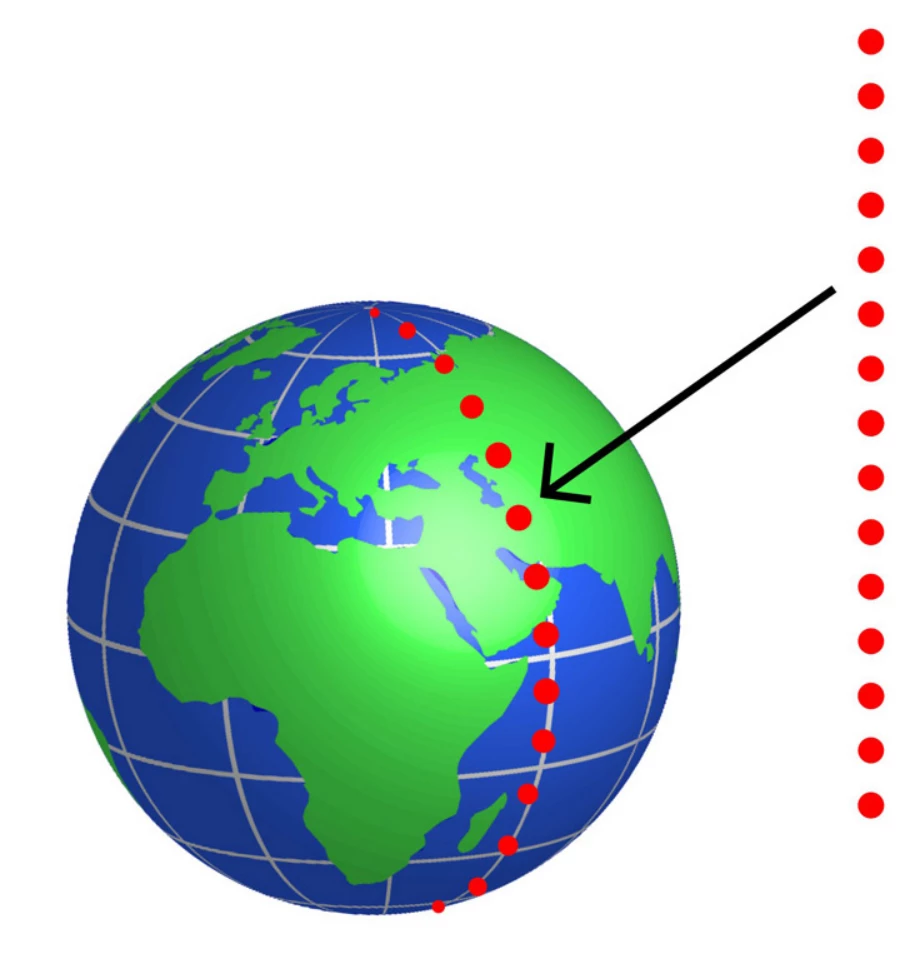
Here's how to do it: You'll be using Free Transform multiple times on the same objects, so use Shape layers to avoid nasty pixelation artefacts. You might need to set the workspace to none to ensure Step & Repeat work OK.
Use the Ellipse Shape tool to make the first circle near the middle of your canvas. Hold down the Shift key to force the round circle. Set fill to your color and stroke to none.
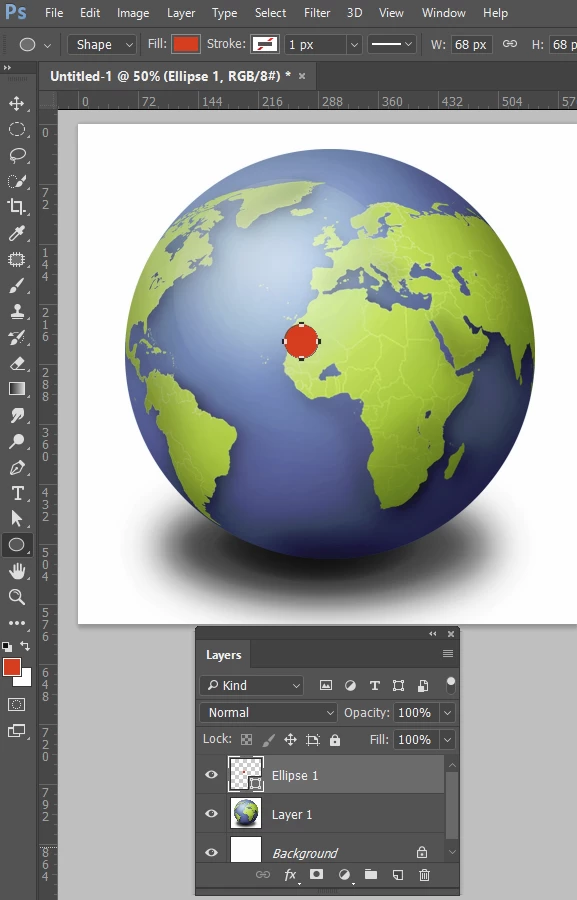
Copy the ellipse shape layer.
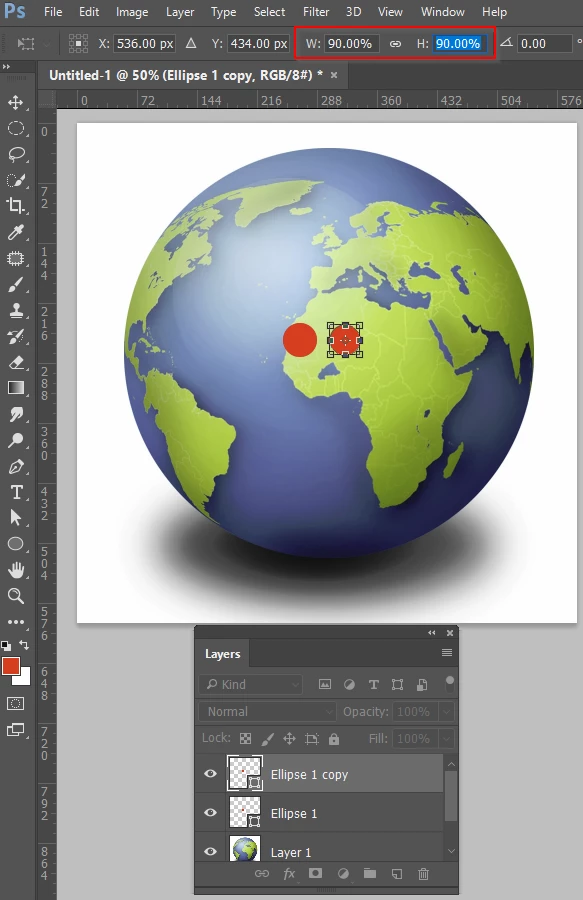
Use Free Transform and Shift > Right Arrow to move it, and set width (W:) and height (H:) both to 90%
Now Shift Ctrl Alt t (Shift Cmd Opt t) as many times as you need to copy the ever smaller circles. (not that with Shape layers, Step & Repeat adds to the same layer)
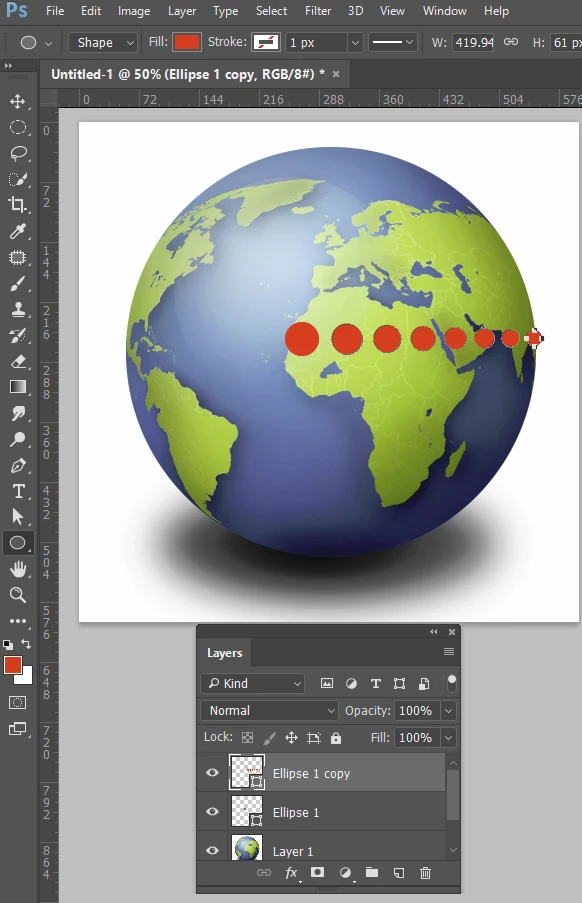
Merge the two shape layers, and copy the resulting merged layer.
Use Free Transform and choose Flip Horizontally, but Alt (Opt) click to the left of the merged shapes to place the center handle to the left of the shapes so that they flip about this point.
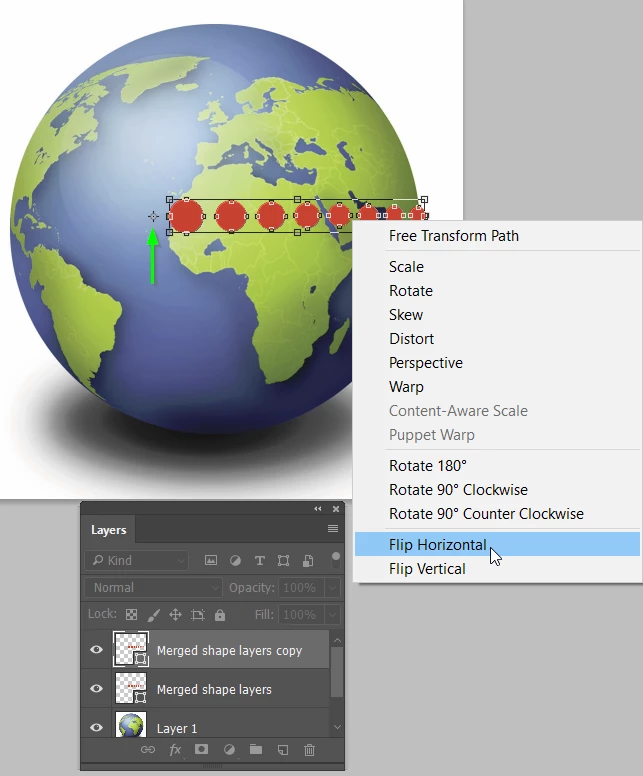
Fine tune the space between the shape layers and merge them Ctrl e (Cmd e), and move them to the middle of the canvas. Note mine were a bit too large and I have downsized them a touch to fit.
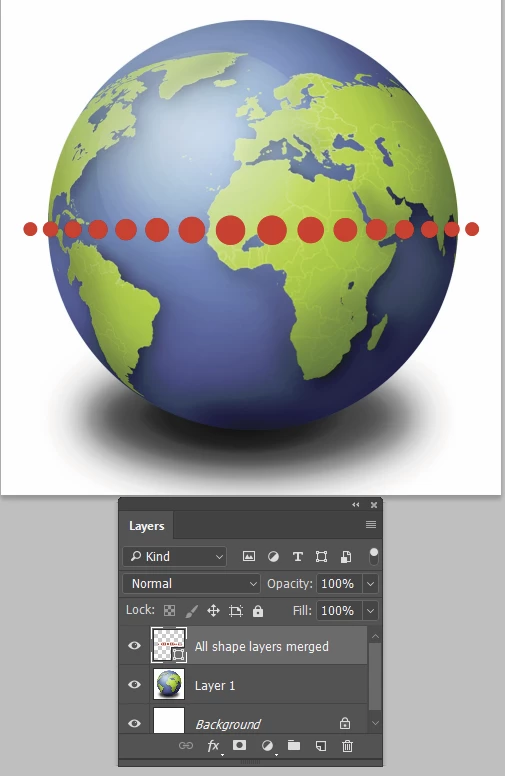
Now Free Transform, and chose Warp from the Options bar (red highlight) and Arc from the Warp Drop down on the left of the Options bar (red highlight)
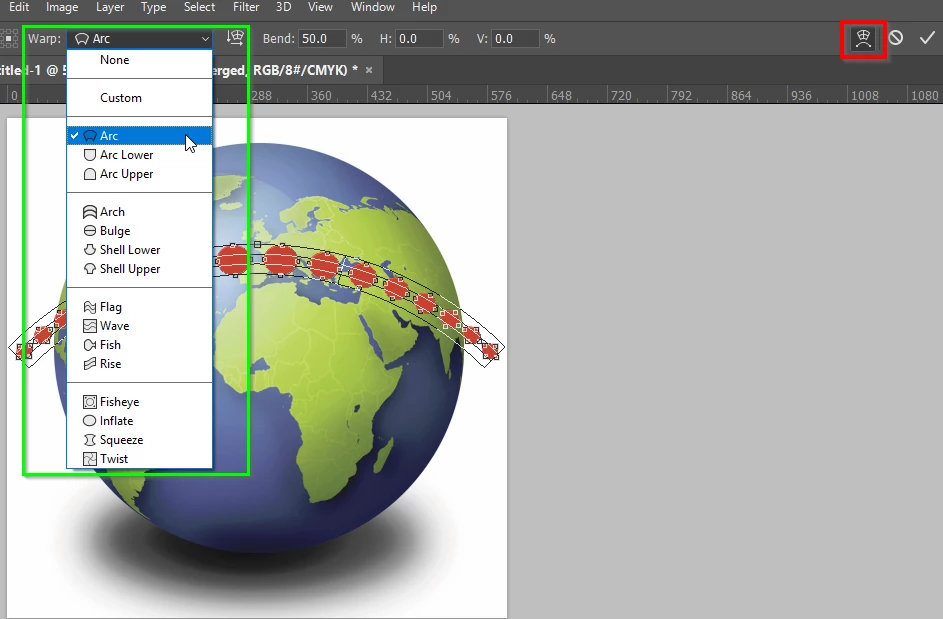
Note you could have started with a vertical array and used the toggle vertical/horizontal icon to the right of the Warp drop down.
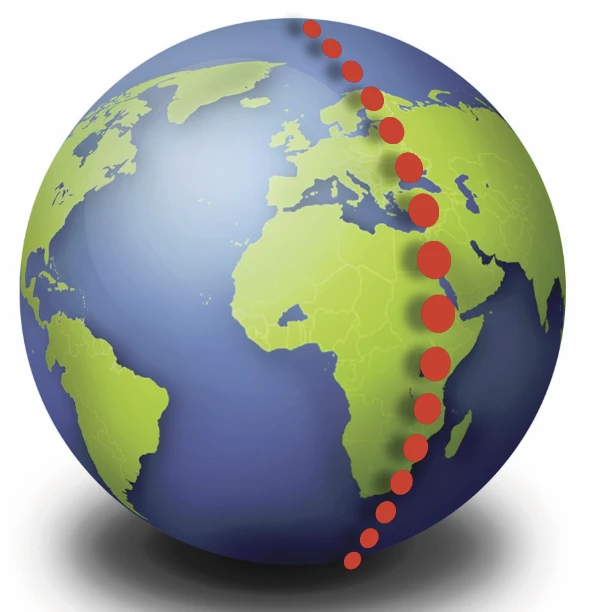
Free Transform into position, and perhaps add a drop shadow to lift them off the surface of the globe.
Job done.

 AdChoices