Inspiring
July 17, 2017
Answered

How to handle the transparency of the PNG file with Levels?

  • July 17, 2017
  • 2 replies
  • 1304 views

I need to apply the effect Levels or Curves to the alpha channel of the PNG file.

How can I do it?

oRZ9Wqh.jpg

As in After Effects

8QszQMn.jpg

There is no such thing in Photoshop.

    This topic has been closed for replies.
    Correct answer davescm

    When you open a PNG - Photoshop uses the alpha information to create transparency on a single layer rather than the layer with a mask (i.e. separate alpha)

    No problem just do the following:

    1. Open the PNG

    2. Click on the layer
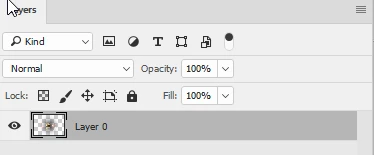
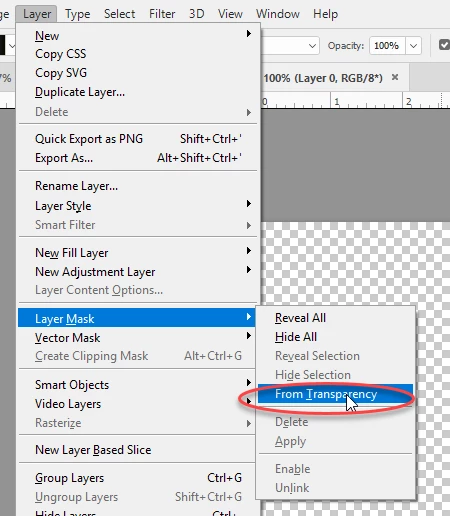
    3. Go to menu Layer - Layer Mask - from Transparency
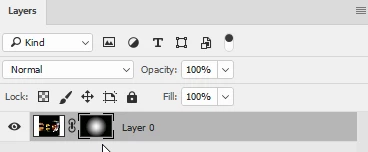
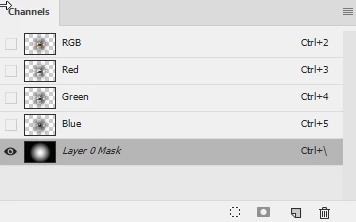
    4. You now have the alpha channel as a separate channel that you turn on in the channels panel and use levels /curves to adjust
    Dave

    2 replies

    davescm
    Community Expert
    davescmCommunity ExpertCorrect answer
    Community Expert
    July 17, 2017

    When you open a PNG - Photoshop uses the alpha information to create transparency on a single layer rather than the layer with a mask (i.e. separate alpha)

    No problem just do the following:

    1. Open the PNG

    2. Click on the layer

    3. Go to menu Layer - Layer Mask - from Transparency

    4. You now have the alpha channel as a separate channel that you turn on in the channels panel and use levels /curves to adjust

    Dave

    r2-no-d2Author
    Inspiring
    July 17, 2017

    Thanks, it works.

    davescm
    Community Expert
    Community Expert
    July 17, 2017

    Just resave with the adjusted mask.

    There is a caveat however. The success depends on how the transparency with which previous file was saved.

    When Photoshop exports a PNG, for some large areas* where the transparency layer is zero i.e. fully transparent - then the image information on the RGB layers is not saved. Those pixels are filled with white.  I presume this is done to reduce the file size on saving PNG (pointless saving RGB channel info which will never be displayed).

    You can prove this. I exported two identical images each with a mask which is white in a small rectangle. In the first the remainder of the mask was black (i.e. transparent), in the second the remainder of the mask was L value 1 =RGB6 .

    The first file size is 5.71MB  the second. with only a small change from fully transparent to partially transparent,  leaps 22.1MB. That second size remains for any other value of the mask up to 100%. The increase represents those image pixels which need to be shown (therefore saved)  once the transparency is above 0

    *How large an area and what "rules" lead to this I am not sure but you can see it where whole edges are transparent.

    Dave

    JJMack
    Community Expert
    Community Expert
    July 17, 2017

    In Photoshop its Ctrl+L levels Ctrl+M curves it that simple. Just targer the alpha channel and Crll+M

    JJMack
    r2-no-d2Author
    Inspiring
    July 17, 2017

    unfortunately PNG does not have an alpha channel.

    jHHBJi2.jpg

    Do not confuse with transparency

    These are different things in Photoshop
